

Overview
Importacular NXT is designed to be a simple-to-use facsimile of the existing Database version of Importacular, with improvements wherever possible. This guide should help you to get started, quickly, for further instructions see our full user guide here.
App Installation
To add Importacular to NXT simply connect it in the Blackbaud Marketplace.
Please note you will need a user with Marketplace permissions to connect an application to add this.
Not sure which version to select?
If you are interested in giving it a try, please consider the Free Version.
If you have an Importacular NXT licence, please use the Paid Version.
If you are an Importacular Classic user interested in upgrading, please email development@zeidman.info
Once installed you can find a link to the application in the right-hand menu bar on your NXT homepage in the ‘Add-ins’ section. There is also a new Importacular NXT Tile that should appear on your RE NXT homepage with a button to launch Importacular NXT
Activation
You need to first click on Activate Application. This will prompt you to enter your ZeidZone username and password. Please make sure your browser can allow pop-ups from Blackbaud. If you don’t already have an account with us you can create one here.
Importacular NXT Flow
Step 1: Apply Region Settings
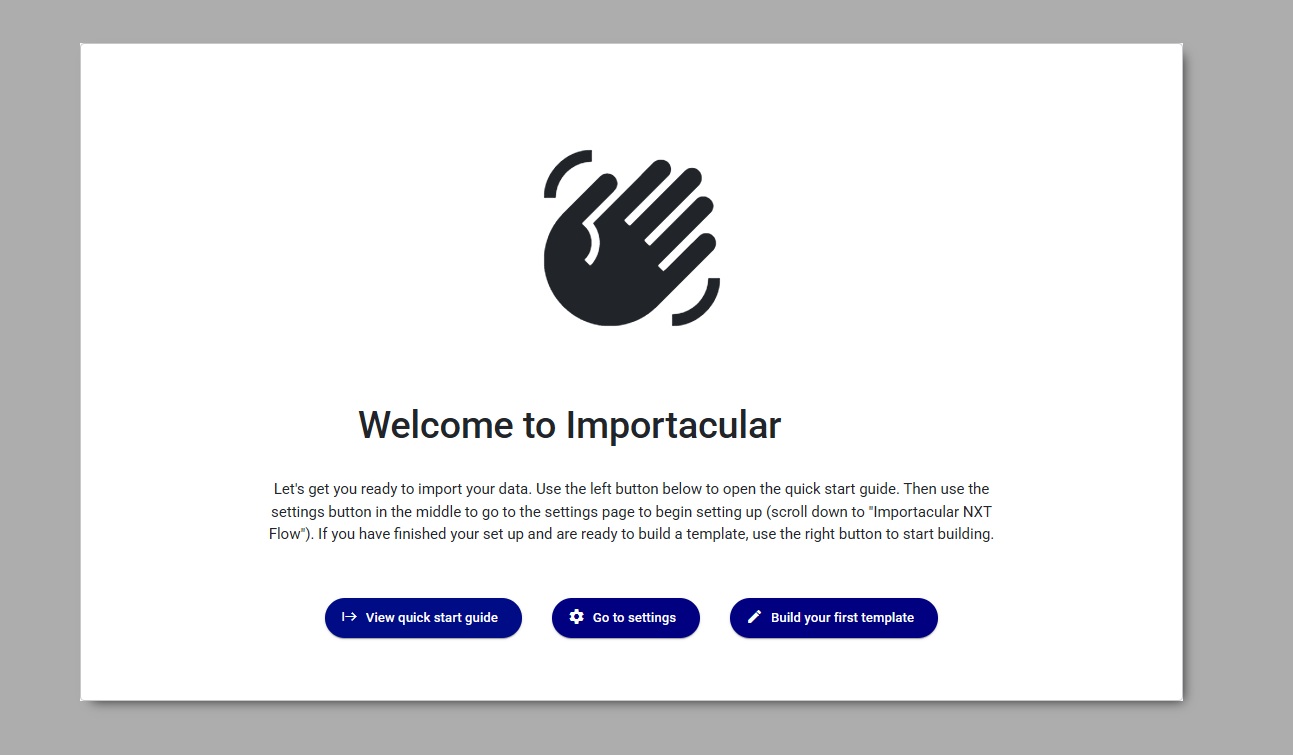
When you first open up Importacular NXT, you will be greeted with our Onboarding message. Click on ‘Go to Settings’ and select the region where you want Importacular NXT to process your data.
Step 1: Data Source
If you are wanting to use a data source that isn’t file-based, head to the Data Source Manage and connect to the appropriate source.
Step 2: Create a New Template
Now build your first template. Once you have created your first template, there is an option on the Home Screen on the left menu bar to create more.
Alternatively, please use the Classic Template Converter to import an Importacular Classic template into NXT. If your Classic template contains local data transformation, you will need to run your template through the Template Data Transformation tool within Importacular Classic
Once created or converted, attach a data source and then start mapping. The mapping is a drag-and-drop editor. Select the RE area you wish to map to from the left hand menu, and drag it onto the pre-loaded constituent record to add it. You can then click ‘Fields’ to map the fields.
Field mapping is also via a drag-and-drop editor, all the field headers are on the left, simply drag them into the field you wish to map. Default fields are also available by clicking in the mapping box, and all the usual field settings you are used to seeing in database view are in the left hard icons, titled ‘Field Manipulation’ and ‘Field Update Conditions’.
A red triangle in a card indicates that you have not mapped all the fields required to create the record.
Once your mapping is complete, you will be asked to assign a Record Lookup. We have provided a default option for you to use, edit, clone or create a new record lookup with Matching Rules suitable for finding the correct records in your RE, based on what you have mapped in your template.
Step 4: Start a New Import
Now you have created a Template and reviewed the Record Lookup you can run an import. We recommend that you start much small with 1-5 records for testing, so that you can easily revert records back in case you need to.
Step 5: Review Report
Imports Requiring Attention
When you open this card you will have the following options:
- Continue with import/Manage your Decides to continue
Click here once all matches have been confirmed to start the import process, if you don’t see this option it is because you need to make some decisions on matches.
- Manage Matches
Click here to review, change and confirm matched records
- Review Data
Click here to see the fields to be imported with all transformations and settings applied
- Revise & Re-run
Click here to cancel the current import and return to a pre-populated Import Creator for revisions
- Cancel
Cancels the process entirely
Step 6: Recently Completed Imports
Here you can see your report on what you have imported. Please now check what has been added/updated in Raiser’s Edge! If there are any ignored or exceptions, you can select the records you want and then try to re-import them.
Needing Extra Help?/Reporting an Error or Issue
Please email support@zeidman.info with a short description of what you’re doing, screenshots and as much information as possible, including a card number if one is created and we’ll get back to you quickly. If you think you have spotted unto wards? Don’t keep it to yourself, help us make Importacular NXT better by reporting any issues or errors you find.