

Skip to content
Zeidman Development
Zeidman Development
Zeidman DevelopmentZeidman Development
  • Home
  • About us
    • Newsletter
    • Contact
    • Blog
    • Careers
  • Products
    • Audit Trail
    • Chimpegration
    • Importacular
  • Services
    • Consulting
    • Customizations and Integrations
  • ZeidZone
    • Register
    • Lost Password
    • Log In
Search:
  • Home
  • About us
    • Newsletter
    • Contact
    • Blog
    • Careers
  • Products
    • Audit Trail
    • Chimpegration
    • Importacular
  • Services
    • Consulting
    • Customizations and Integrations
  • ZeidZone
    • Register
    • Lost Password
    • Log In

Authentication

Chimpegration for Salesforce User Guide

⌘K
  • Overview
  • Getting Started
    • Fields to Review or Create
    • Trial Recommendations
  • Understanding Campaigns
  • Mailchimp Data Update
    • Creating an Ad Hoc (one off) Mailchimp Data Update
    • Creating a Scheduled Update to Mailchimp*
  • Salesforce Update Process
    • Creating an Ad Hoc (one off) Salesforce Data Update
    • Creating a Scheduled Salesforce Update
    • Creating a Realtime Salesforce Update
  • Activity Manager Process
    • Adding an ad hoc (one off) process
    • Adding a scheduled process
    • Adding a realtime process
  • View Results – Process Cards
  • Application Management and Settings
    • Template Manager
    • Authentication
    • User Management
    • Billing*
  • Sign -up form for Testing*
  1. Home
  2. Docs
  3. Chimpegration for Salesfo...
  4. Application Management an...
  5. Authentication

Authentication

Authentication

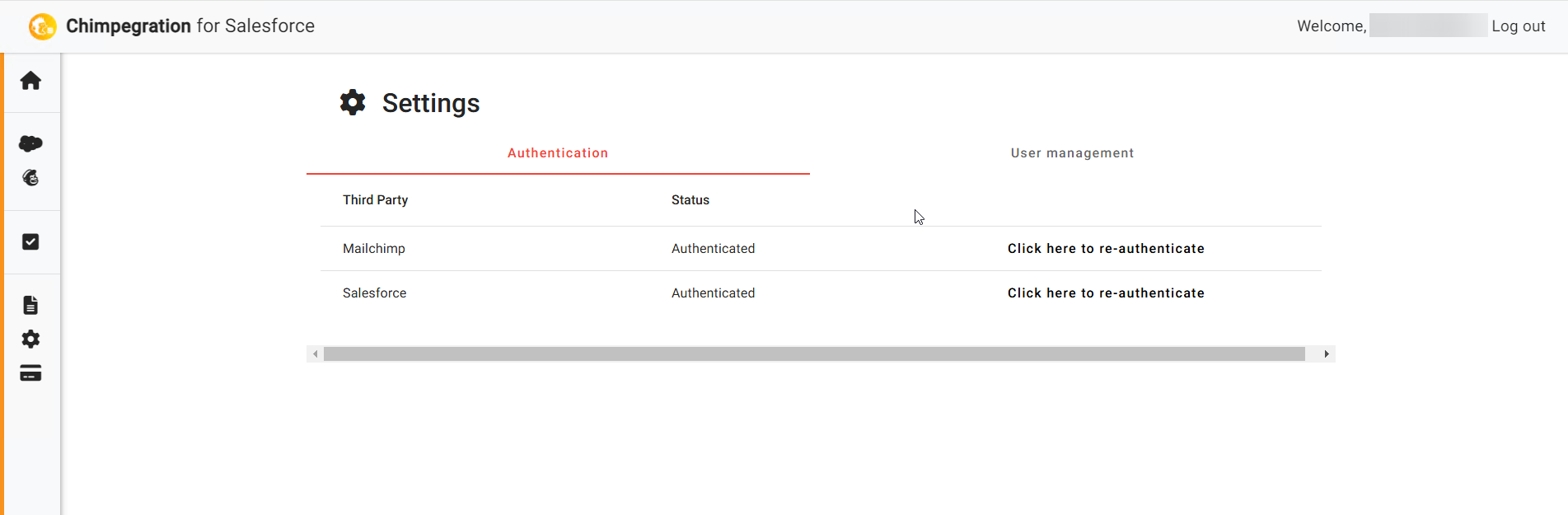
To connect Chimpegration to Mailchimp and Salesforce, simply head to the Settings option (the cog icon)and click on the relevant ‘Authentication’ options. Follow the onscreen log in to Mailchimp and/or Salesforce and when prompted, allow Chimpegration access.
Doc navigation

← Template ManagerUser Management →
©2025 Zeidman Development
  • Contact
  • Privacy Policy
  • FAQ
Privacy and Contact
Go to Top