

Once your processes have been run you will see them as Cards on your dashboard. The type of process it is is represented by the icon on the top right-hand side of the card. When it was completed, how long it ran for and who created the process are also all present on the card.
The green tick indicates the number of successfully processed records, the red warning symbol represents errors.
Clicking on the card number at the top-right-hand side of the card opens the process’s template for you to review, edit and even re-run.
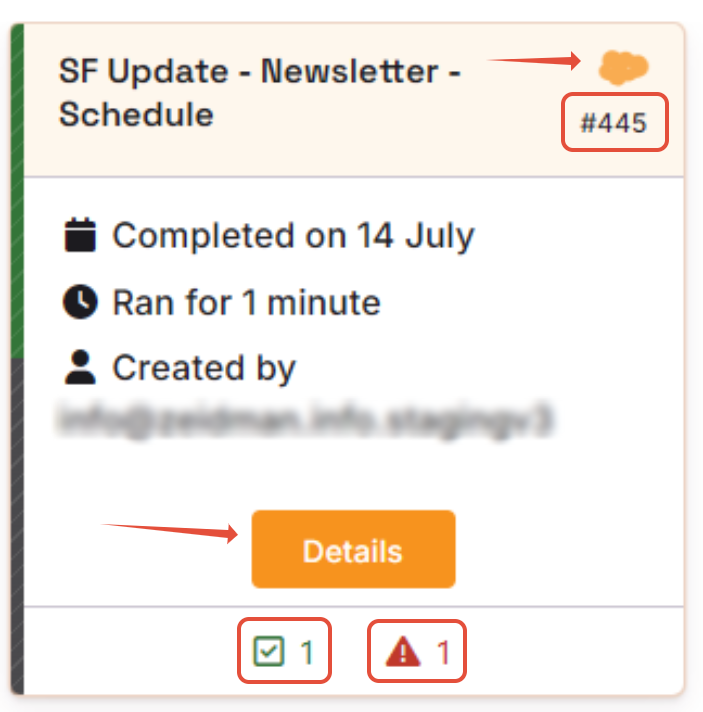
Details
Click on ‘Details’ to view the results of your process.
The Notes column will give details of what was added or updated as well as provide details of the nature of any errors
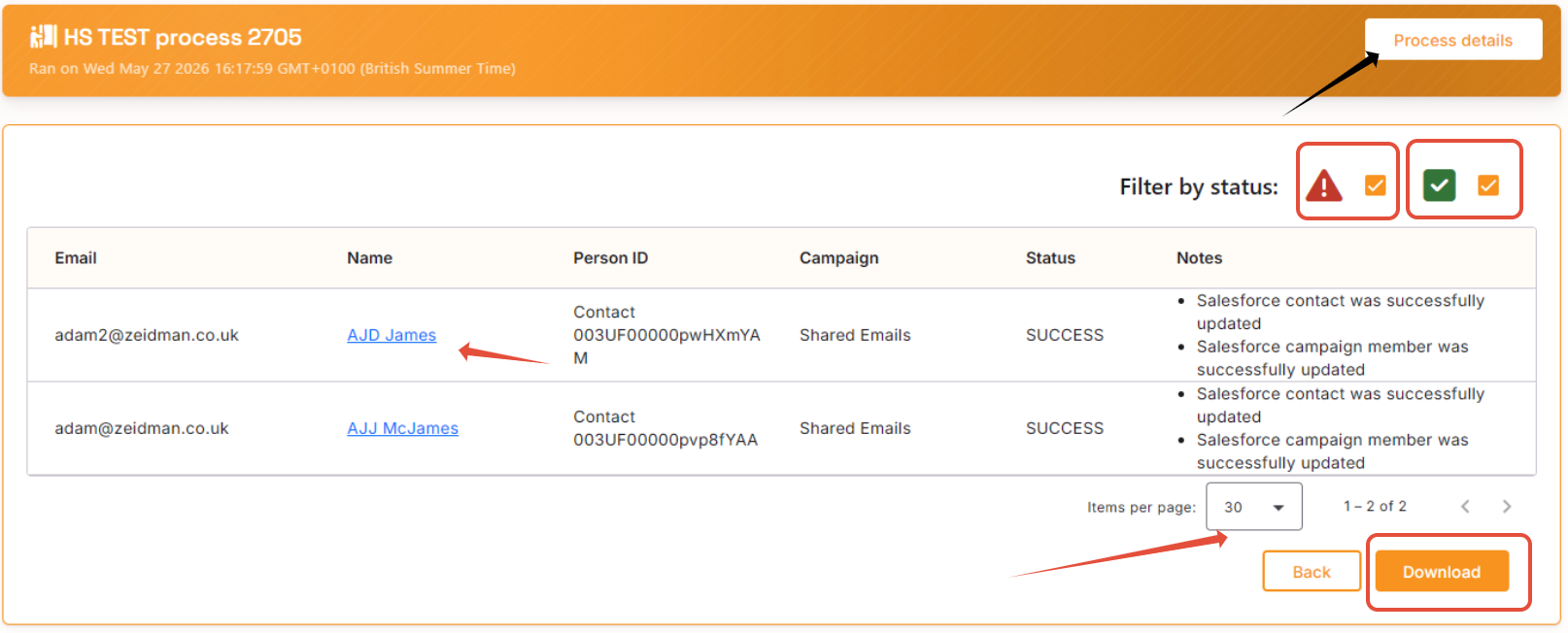
The Data Subject’s name in blue is a link, click on it to open their contact/lead record in the Salesforce (you will have to login to access this).
You can filter to have more items per page or toggle what is presented to only show errors or successful records.
On the top righthand side of the screen you can review the Process Details. On the bottom righthand side, you can download the report to an Excel/Spreadsheet