
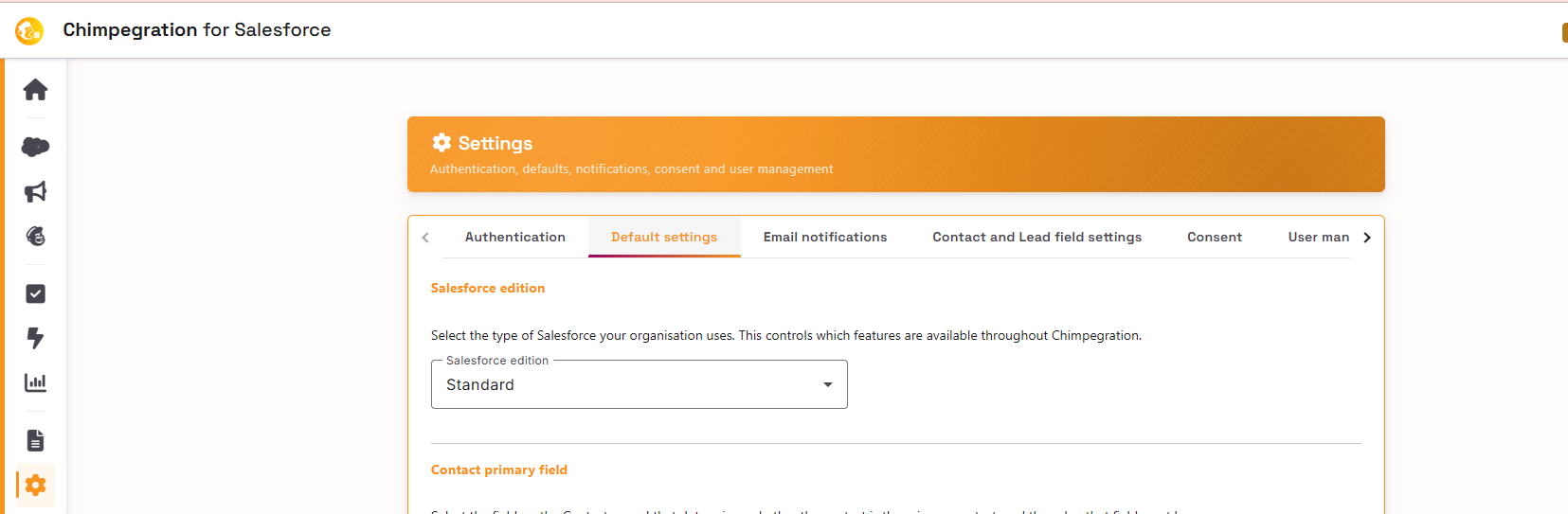
Within the Defaults settings, you can change the edition of Salesforce you are using, set up how Chimpegration will handle ’email addresses’ that are shared across multiple records in Salesforce, as will as what Campaigns are pulled over from Mailchimp and how to manage Consents.
Shared Email Settings
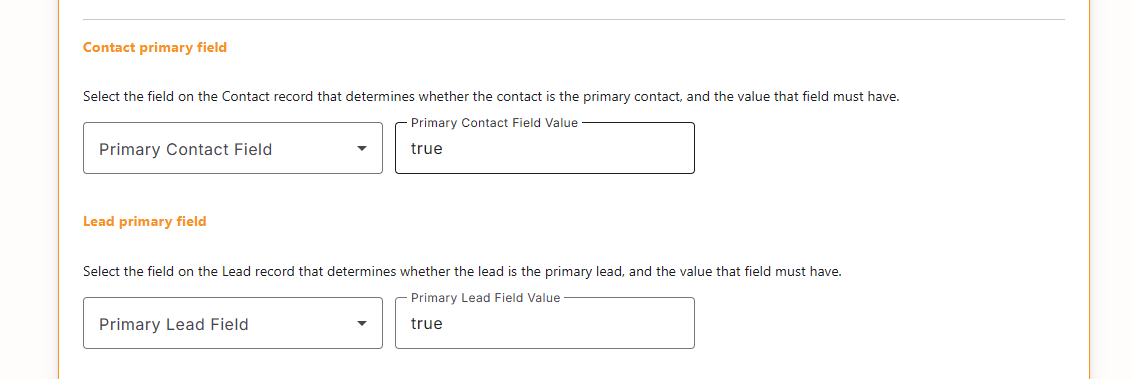
If your Salesforce allows for the same email address to be used across multiple records (Contacts or Leads), you can tell Chimpegration which record it should use when it comes across multiple records with the same email address. In the example below, we have set-up a Custom Checkbox field in Salesforce and made sure the relevant records have the field checked. A picklist field would also work just as well. Simply, tell Chimpegration what field to look for and the value of the field.
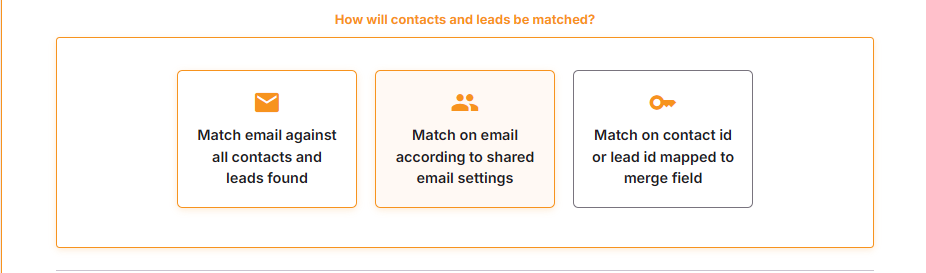
Once you have the Field in place in Salesforce, you have made sure all relevant records in your Salesforce have the field applied correctly and you have updated the Default Settings for Shared Emails in Chimpegration, you will then be able to use the option ‘Match on email according to shared email settings’ within the Matching step across all your processes.
Campaign Settings
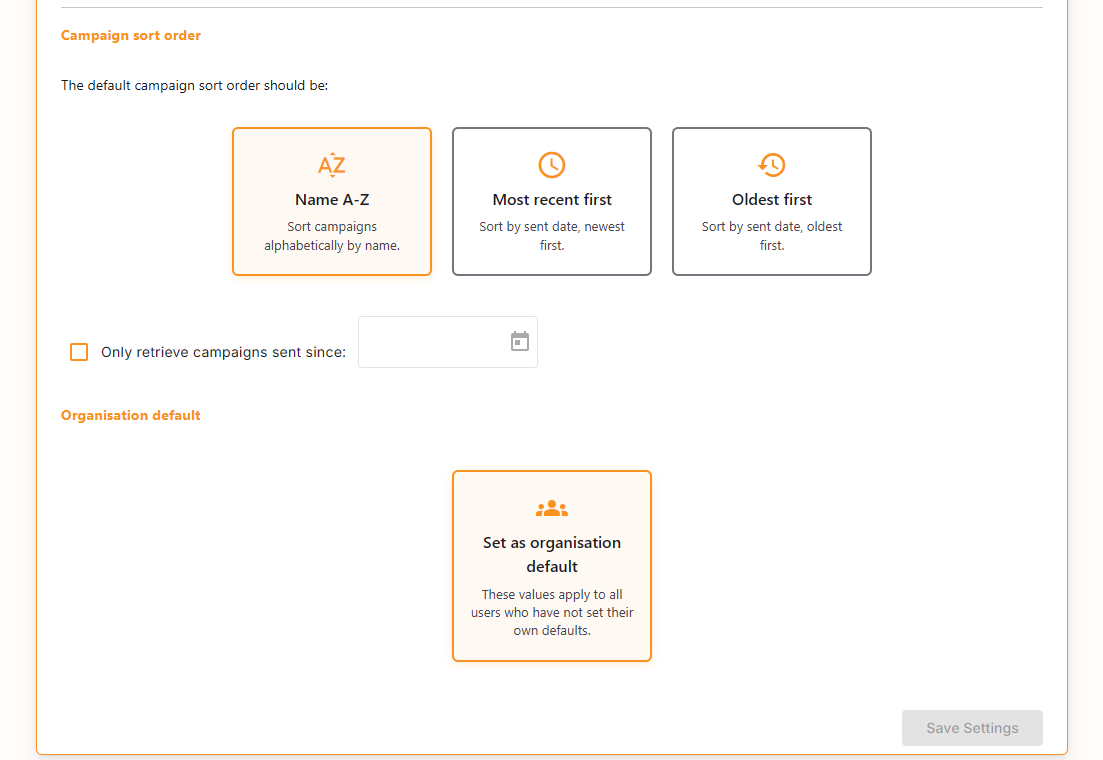
To make life easier for you when building your processes, we have provide you with the option of how campaigns from Mailchimp are presented int he dropdown menus. You can also limit the campaigns to more recent ones if you find that you have too many to choose from.