
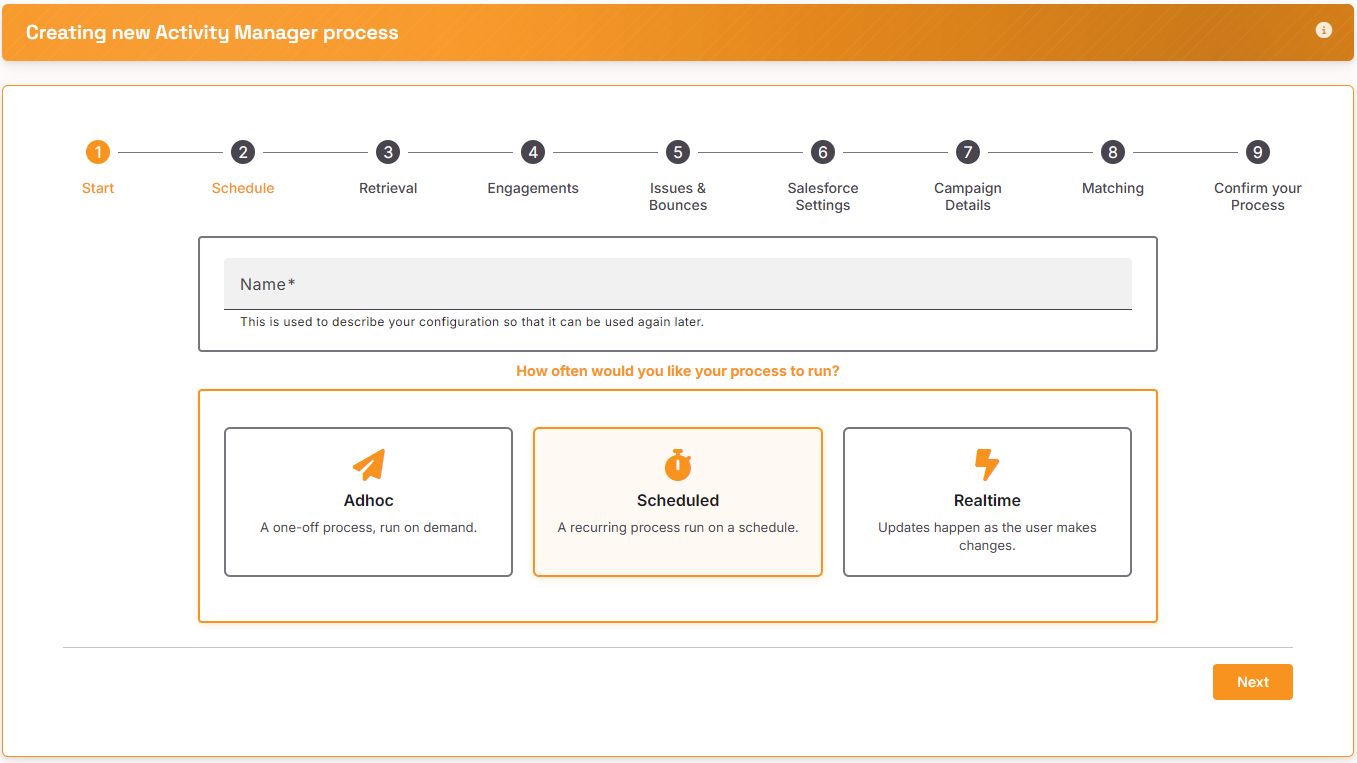
Start
Give your process a name and choose ‘Scheduled – a recurring process’
Schedule
Select how often you want the process to run. Click on the Calendar icon to select a date and the Clock icon to select a time
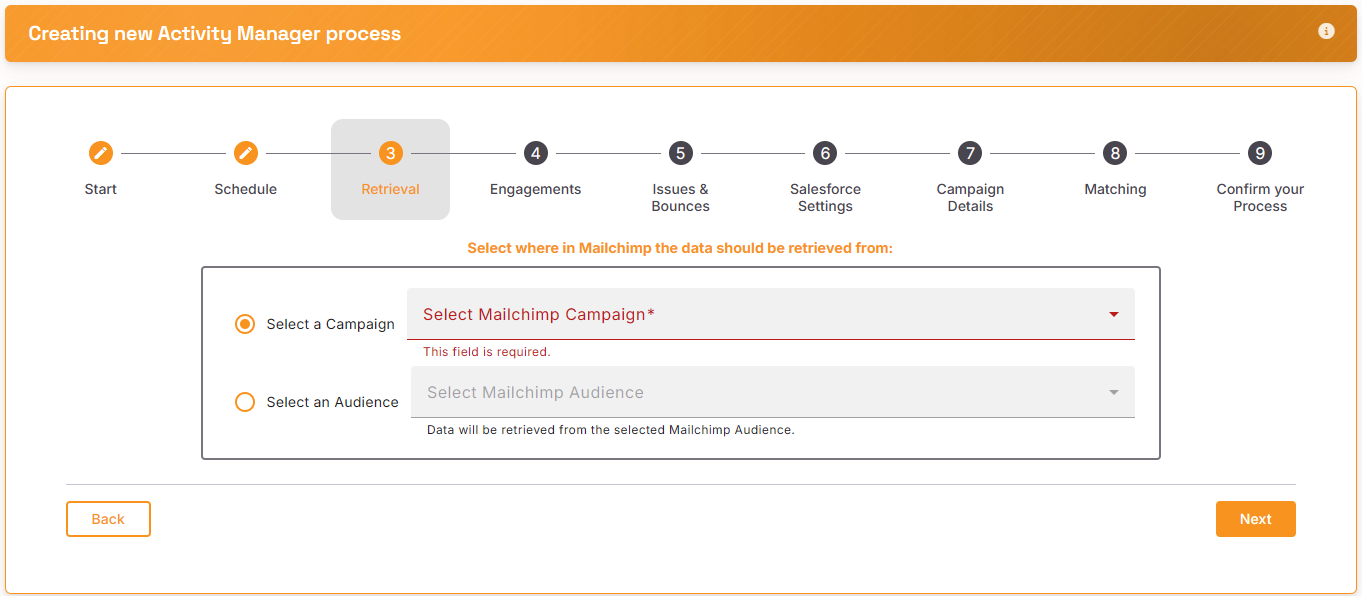
Retrieval
Select the Mailchimp Campaign or Mailchimp Audience from the dropdown
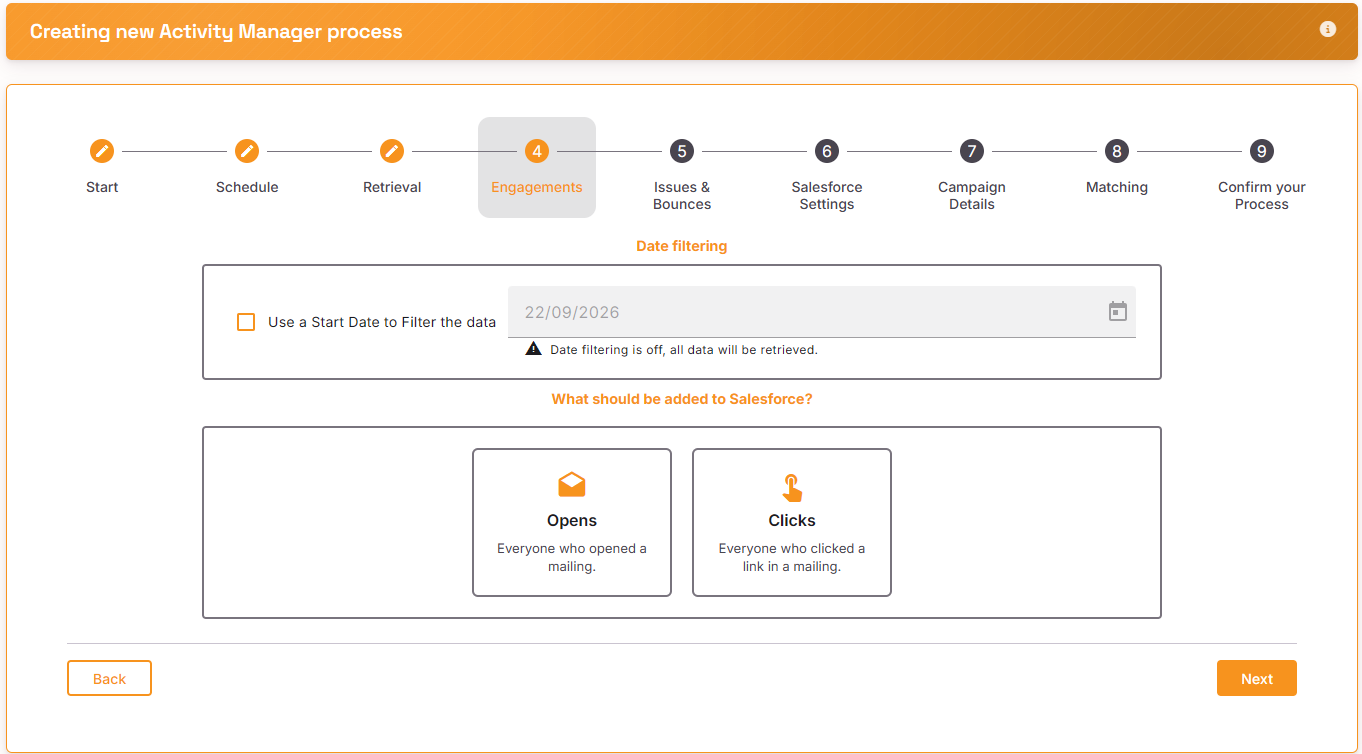
Engagements
Select what data you want to retrieve from Mailchimp. You can apply a date to start from and choose to retrieve positive activities of Opens and Clicks
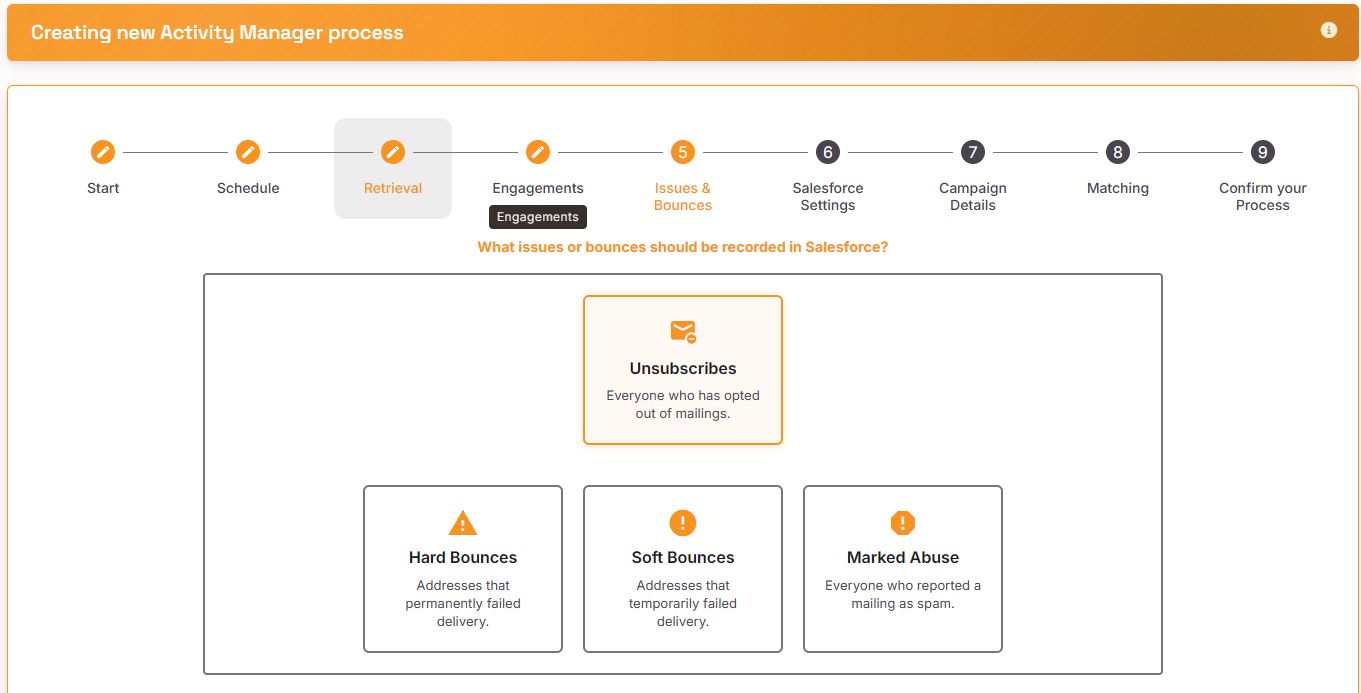
Issues and Bounces
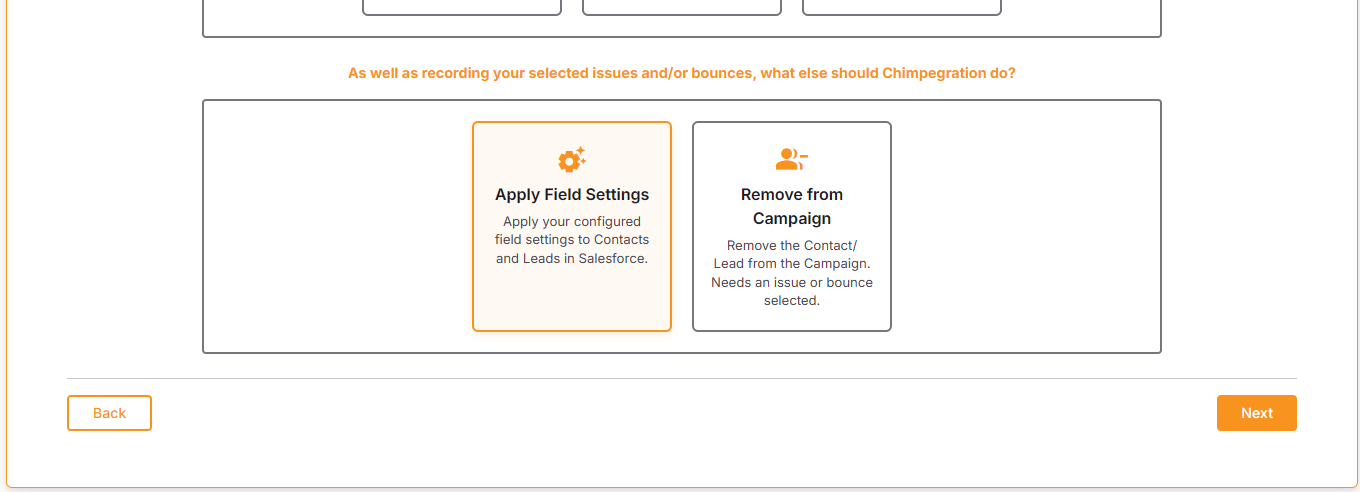
Select which issues or bounces should be retrieved and apply as an activity to a Salesforce Campaign. If you have populated the Contact and Lead Fields Setting, the Activity Manager process will apply the appropriate Picklist value to the Contact/Lead record by default. If you do not want to apply the Issue or Bounce to a Contact/Lead record, please uncheck ‘Apply Field Settings to Contact and leads in Salesforce’.
You can also opt to be remove the Contact Lead from the Salesforce campaign.
Salesforce Settings
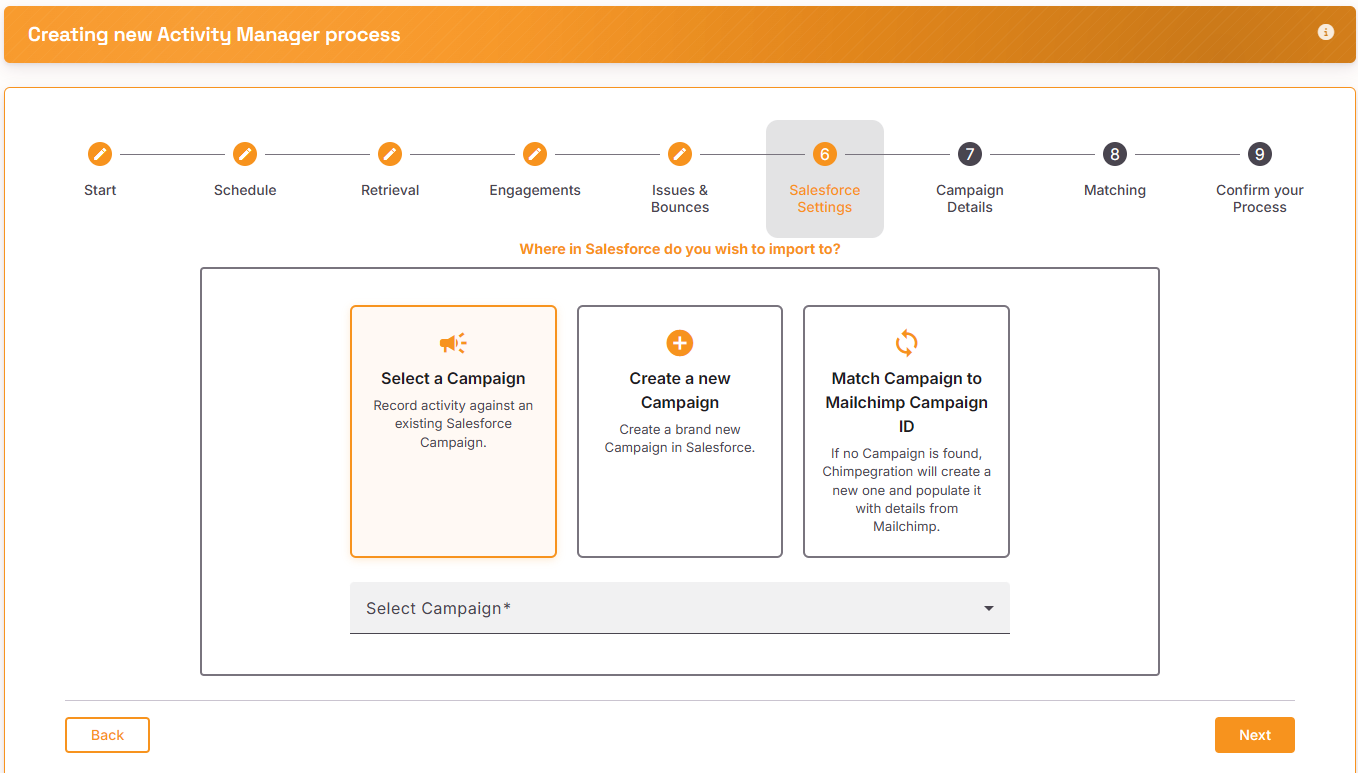
Select the Salesforce Campaign that you wish to update, create a new Campaign within Salesforce or Match Campaign to a Mailchimp Campaign ID.
For Scheduled processes, we have limited Select a Campaign to just ‘List Campaigns’. We have done this because scheduled processes can run for years, yet a Mailchimp Campaign and subsequent ‘Activity’ campaign is likely only active for a couple of weeks at best. With this in mind, you might not wish to create a scheduled template that processes Opens and Clicks, but updates and existing List Campaign.
We have allowed users to Create a new Campaign which will create a Campaign in Salesforce during the processes’ first run, then use that same campaign in subsequent runs. However, we encourage the user to exercise caution when selecting this option.
For the option of Match Campaign to a Mailchimp Campaign ID, note that Chimpegration will not create any new Salesforce Campaigns here. It only seeks to update existing Activity Campaigns. Therefore, the Mailchimp Campaigns need to existing in Salesforce as Activity Campaigns with the Mailchimp Campaign ID populated.
Note: the option ‘Match Campaign to Mailchimp Campaign ID’ will look in Salesforce for an Activity Campaign with the same Campaign ID. If it does not find one, it will also look for an exact match on the Campaign Name. If it still can not find a match, the process will be unsuccessful.
Campaign Details
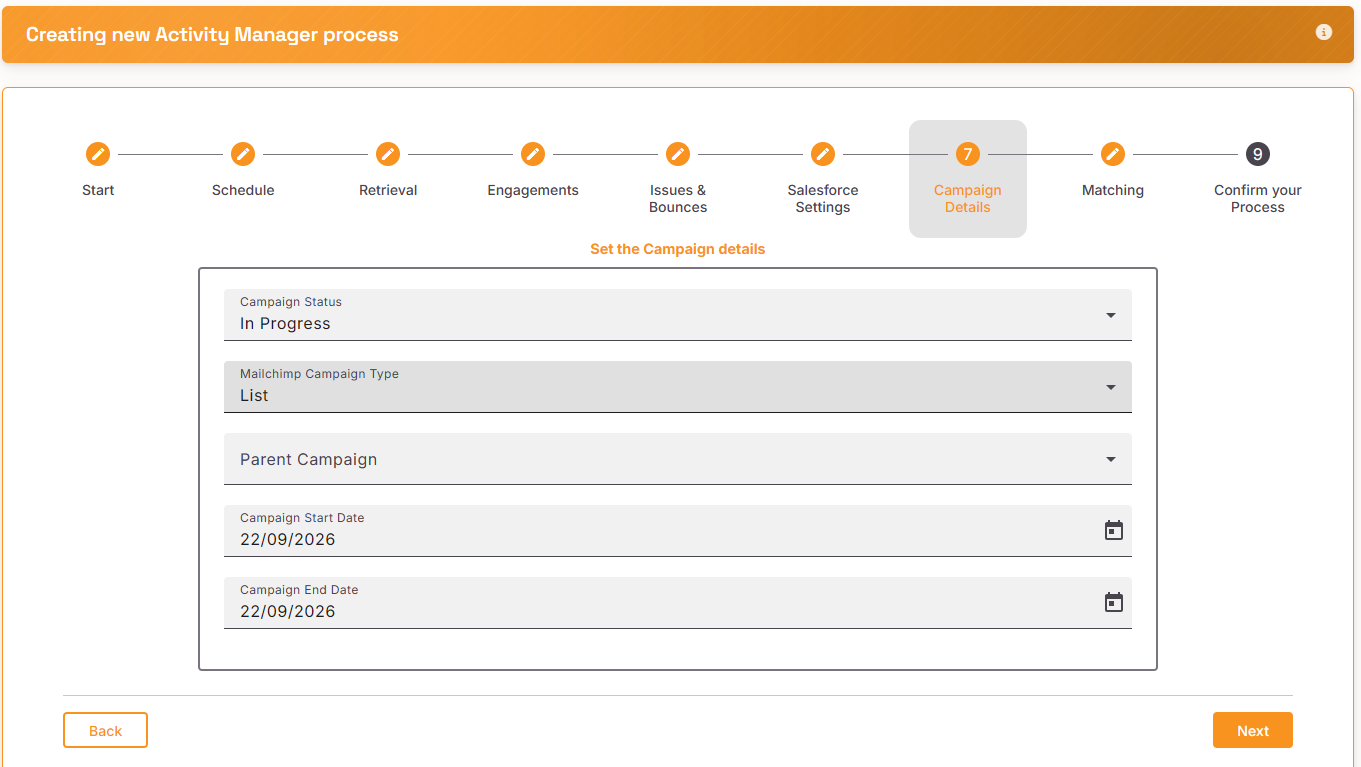
Set the details for the Salesforce Campaign if you have chosen to use an existing Salesforce Campaign or created a New Salesforce Campaign. Since you are setting up a Scheduled process, please exercise caution. These campaign details will be set to these values the first time the process runs. If you change them manually in Salesforce, the next time the schedule process runs, these details will be reset to the values you have set here.
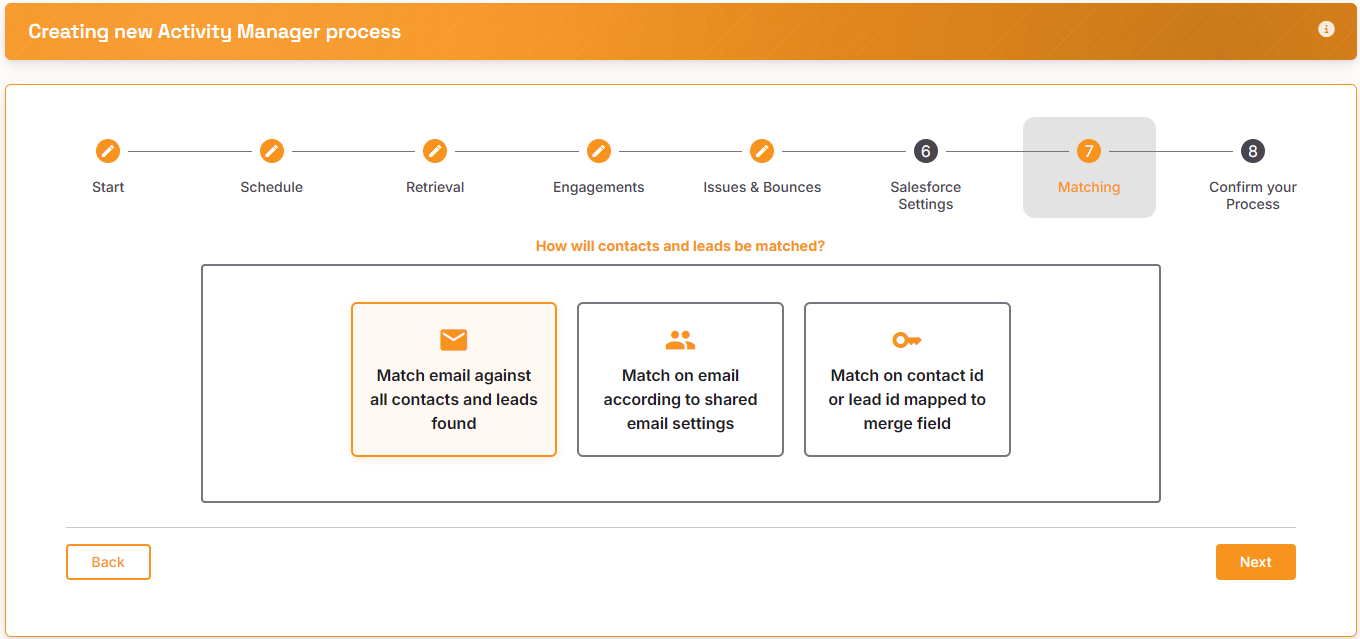
Matching
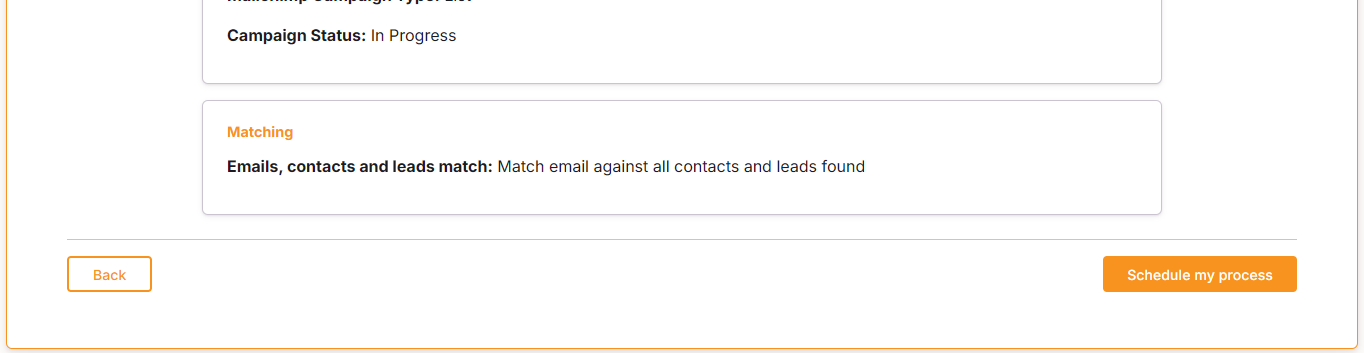
Select how you want Contacts and leads to be match on. See here for more information about ‘shared email settings’.
Review and Confirm
Review your process and then click on ‘schedule my process’ to run the process