

Chimpegration for Salesforce is a smart, fast, web-based solution, seamlessly integrating Mailchimp with Salesforce enabling you to:
- Manage your data effortlessly
- Process your actions instantaneously
- Schedule processes regularly
Install the Package to Salesforce
Start by heading to the AppExchange in Salesforce, search for ‘Chimpegration’ and click on ‘Get it now‘ to install the app. Follow all the onscreen instructions.
Chimpegration works with the standard version of Salesforce Lightening, Non-Profit Cloud (NPC) and Non-Profit Service Pack (NPSP). The install Package will detect which version of Salesforce you are using and add the required components.
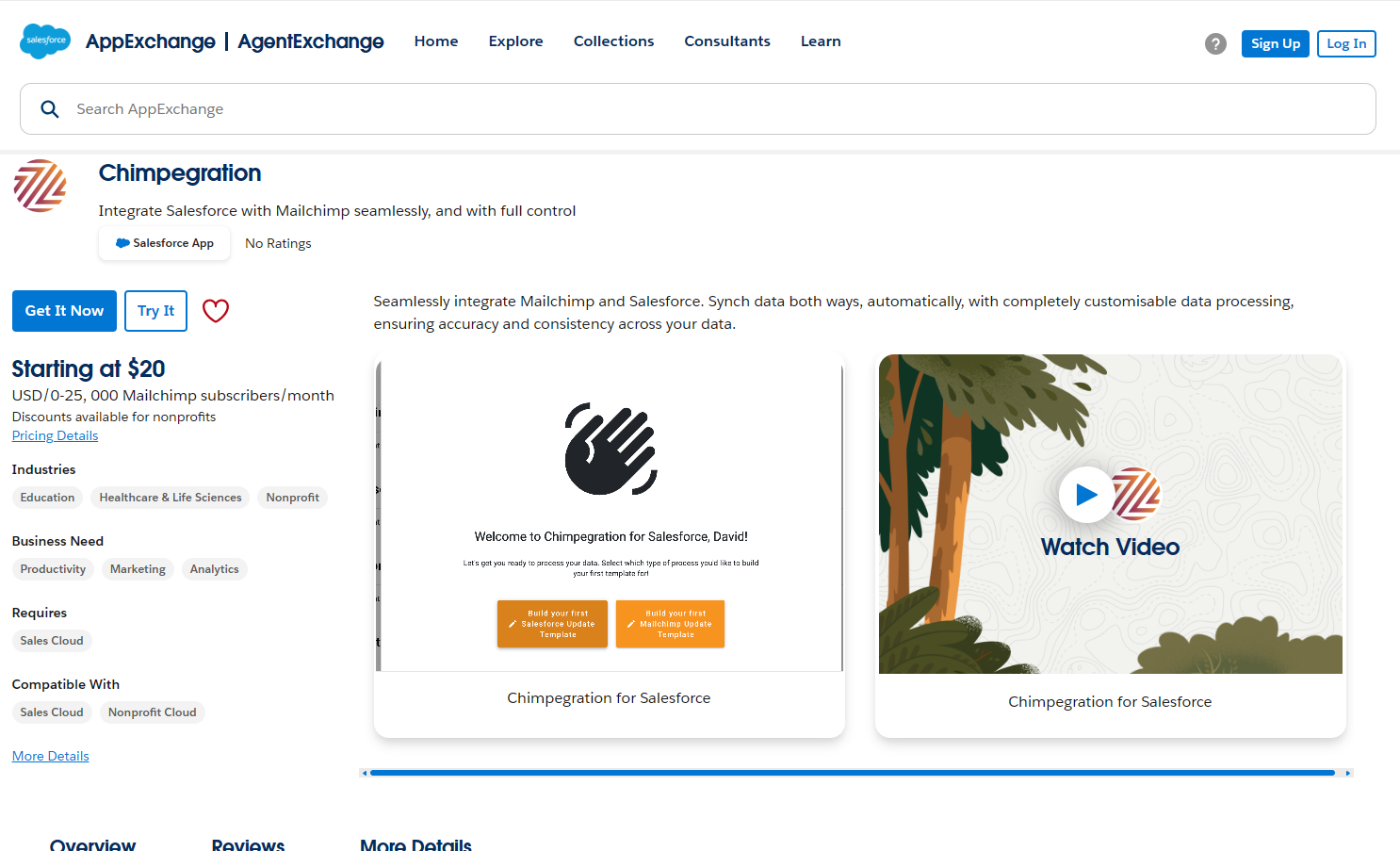
Post-Install steps
Once installed, you will be navigated to Salesforce’s Setup page. There are a few final steps that will need to be taken from within Setup to ensure you have granted the Users the correct permissions. To save space in this User Guide, we have created a separate Knowledgebase Article that walks you through all the necessary step here.
Visit the Chimpegration Site
Once the Package has been installed and your Salesforce Post-install Setup has been completed, go to the App Launcher, type in Chimpegration and then select it. This will take you to the Chimpegration Salesforce App. Now click on ‘Visit Chimpegration Site’
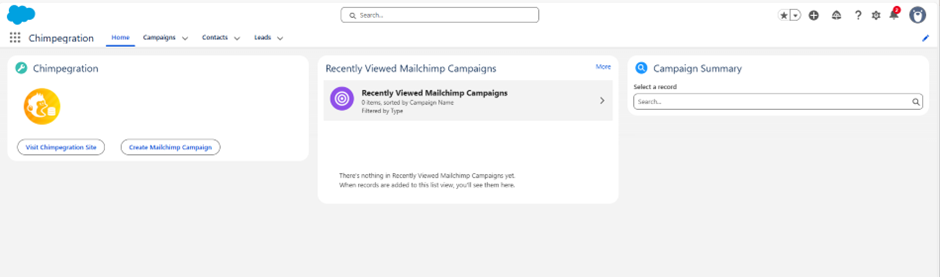
You will be taken to sf.chimpegration.com.
Free Trial or Log In
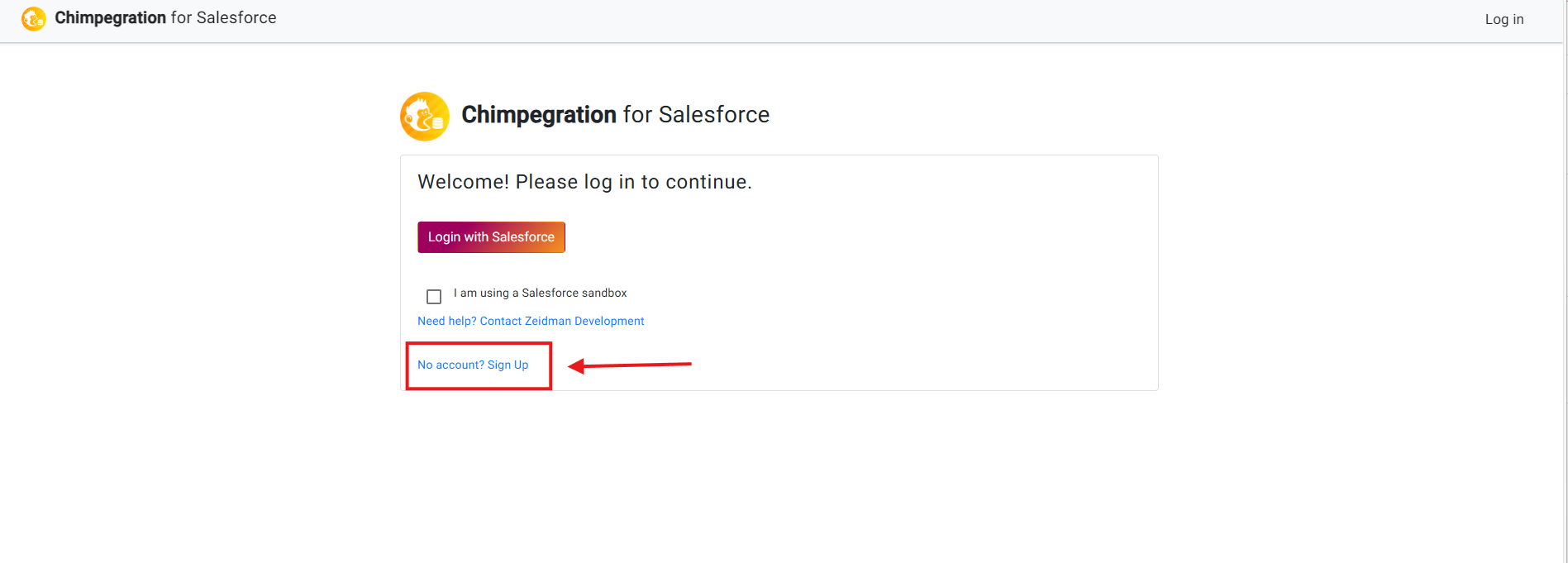
To set-up a free trial, go to ‘no account? Sign up’ and fill in the sign up form. If you have done this step already or have purchased a licence, Login with Salesforce. If you are using a Salesforce Sandbox, please be sure to check that option.
Filling in the Sign up Form
The Sign up form needs several pieces of key information in order to proceed. Most are self-explanatory, but some might need a little more explaining. Fields marked with an * are required field.
You will need your Mailchimp API Key. Click here to find out how to get this from Mailchimp
You will also need your my.salesforce.com domain. Click here to find out how to get this from Salesforce. You do not need to include the my.salesforce.com part of your domain
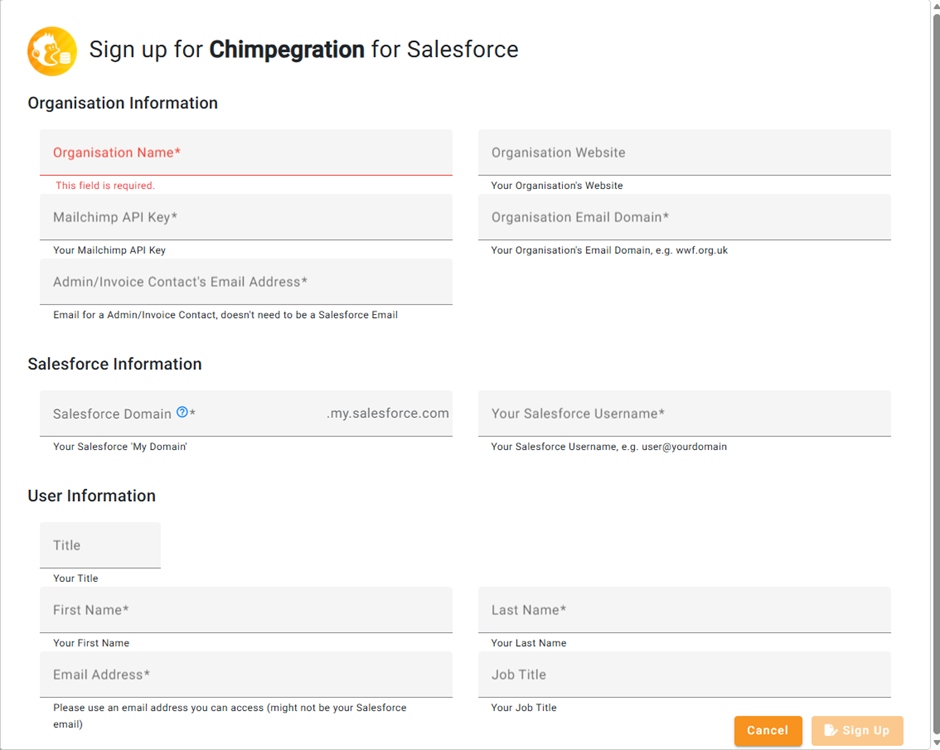
Once you have signed up, you will be sent a welcome email. It will include a link to this User Guide as well as a link to the Support Team if you need it and a link to log in. Please log in and get started.
The Free Trial is for 7 days and limited to adding/updating 100 records. See here on how best to maximise your Trial period to better get to know the tool.
Additionally, this Chimpegration for Salesforce User Guide will show you how to: