
Azure permissions required to install Audit Trail
To install Audit Trail into your Azure subscription, the person running the installer needs permission both to create resources and to grant those resources access to one another. The simplest way to achieve this is to assign them the Owner role on the Azure subscription that Audit Trail will be installed into. If your organisation prefers to keep permissions more tightly scoped, the equivalent is the Contributor role together with the Role Based Access Control Administrator role on the same subscription. Either combination gives the installer everything it needs. The Contributor role on its own is not enough, because it does not allow Audit Trail to wire up the secure connections between its components during setup. These roles are assigned in the Azure Portal under Subscriptions → Access control (IAM) → Add role assignment, and typically need to be granted by whoever owns or administers your Azure tenant.
Audit Trail Config
When ready, head to https://config.zdaudit.com/login for our Configuration tool.
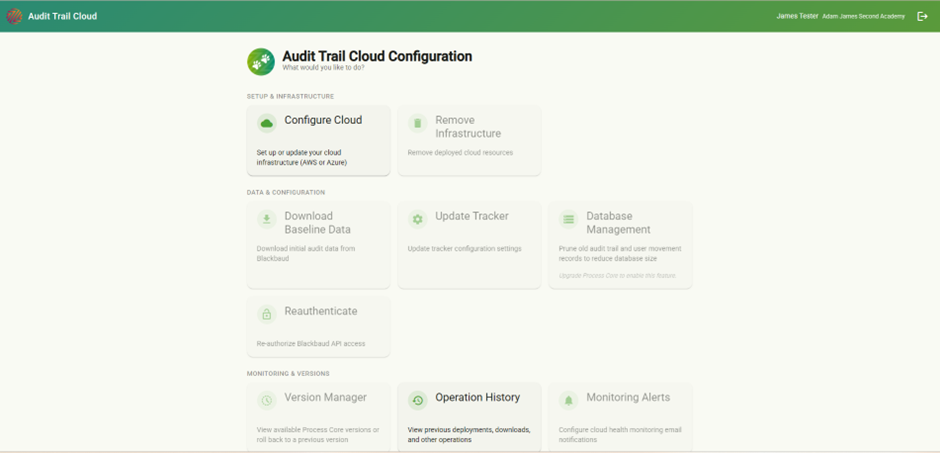
Once Logged in, click on ‘Configure Cloud’
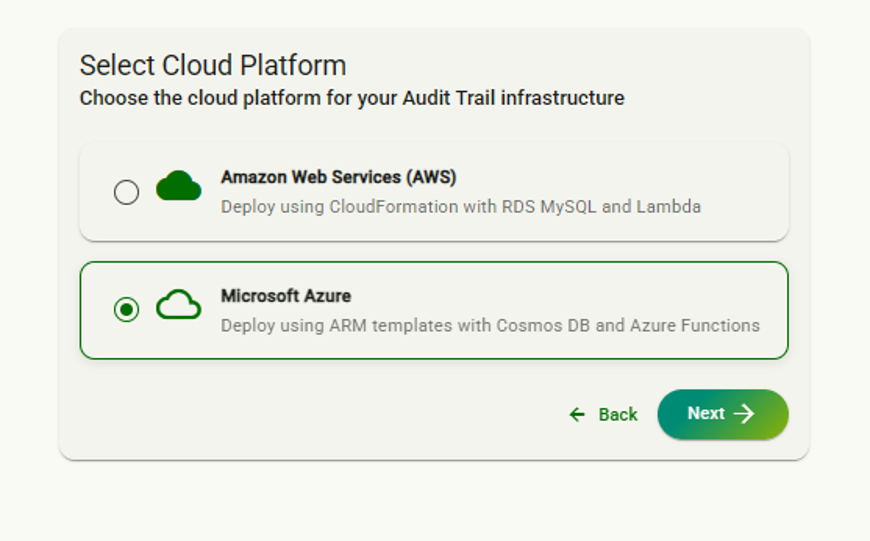
Next, select Microsoft Azure
Choose your Azure Configuration
You can choose to run the process using standard Best Practice Options or select Advanced Options
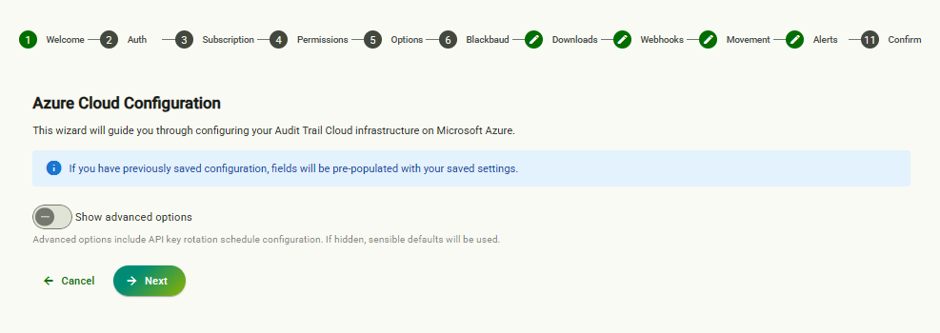
Advanced Options
Go to the Advanced Options section of this guide for more details
Credentials
In either scenario you will first need to Authenticate your AWS account:
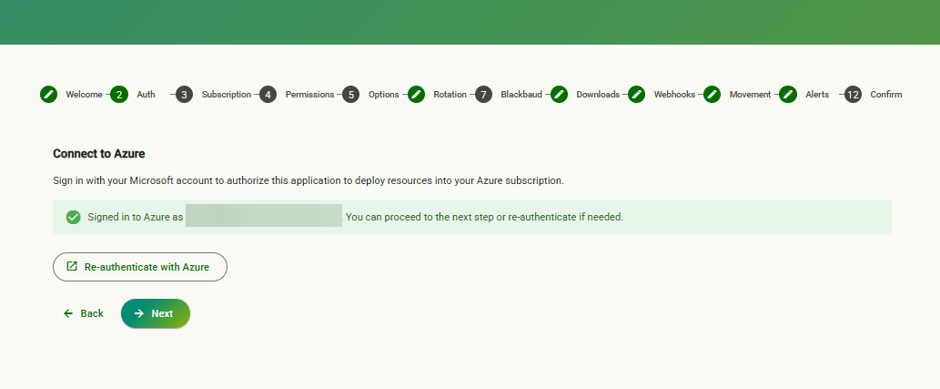
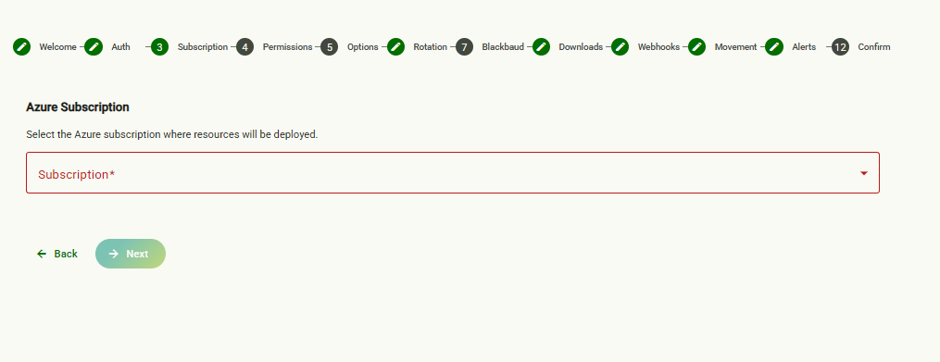
Azure Subscriptions
Select the Azure Subscription where the resources will be deployed
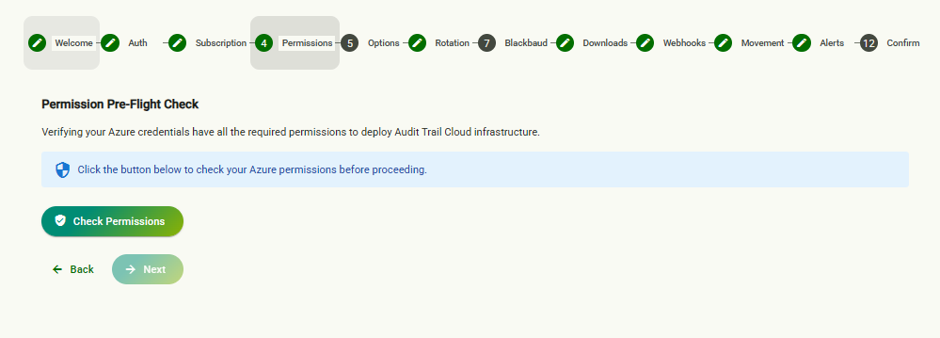
Pre-flight Check
Click on ‘Check Permissions’ for the Audit Trail Config to check your AWS permissions
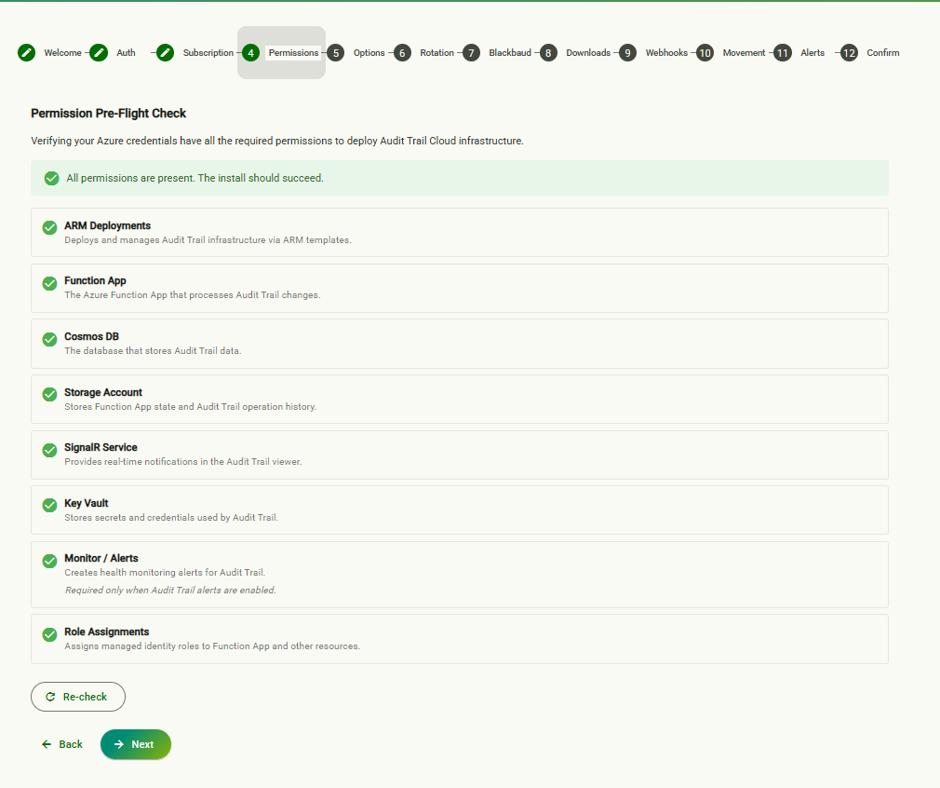
Upon completion, the screen should look like this:
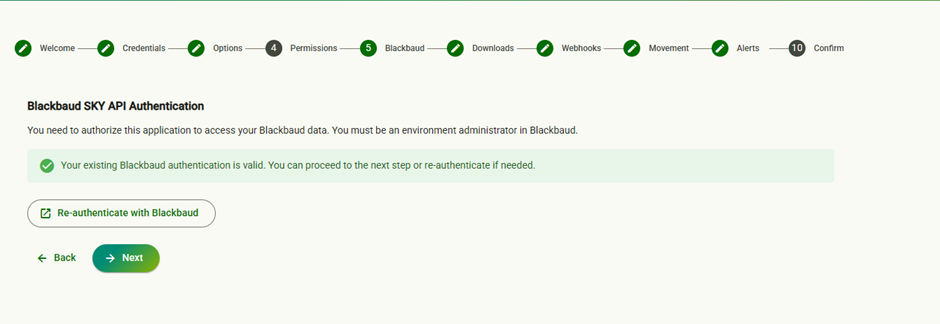
Blackbaud Credentials
Authenticate with your Blackbaud Credentials
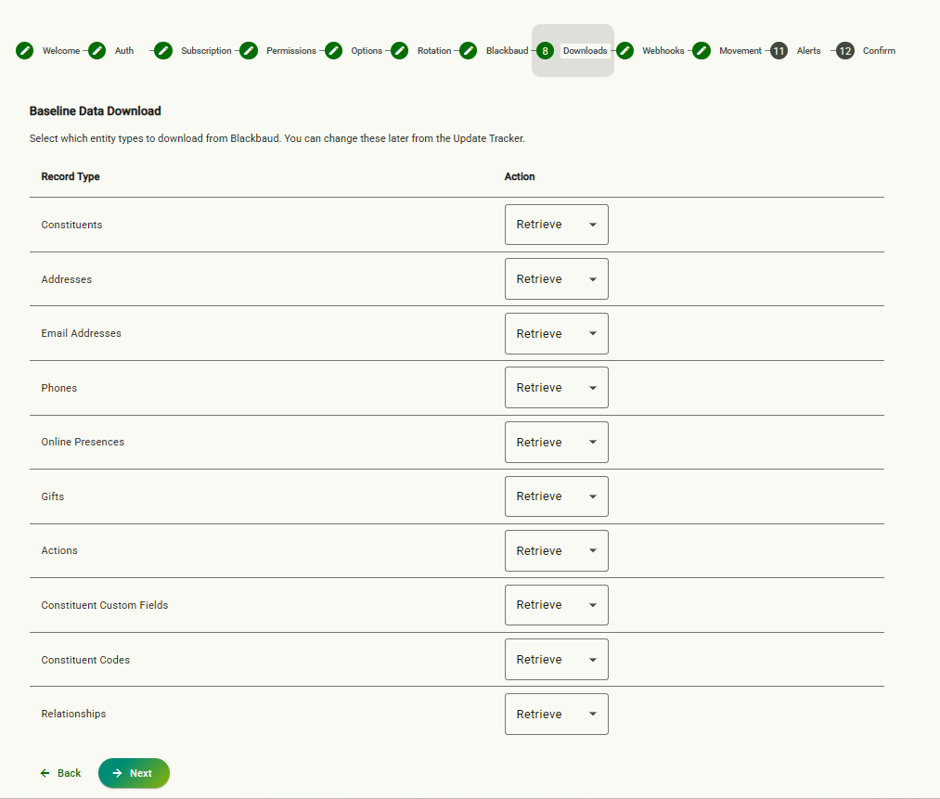
Baseline Data Download
Tell Audit Trail what areas to download from your Raiser’s Edge to act as the baseline.
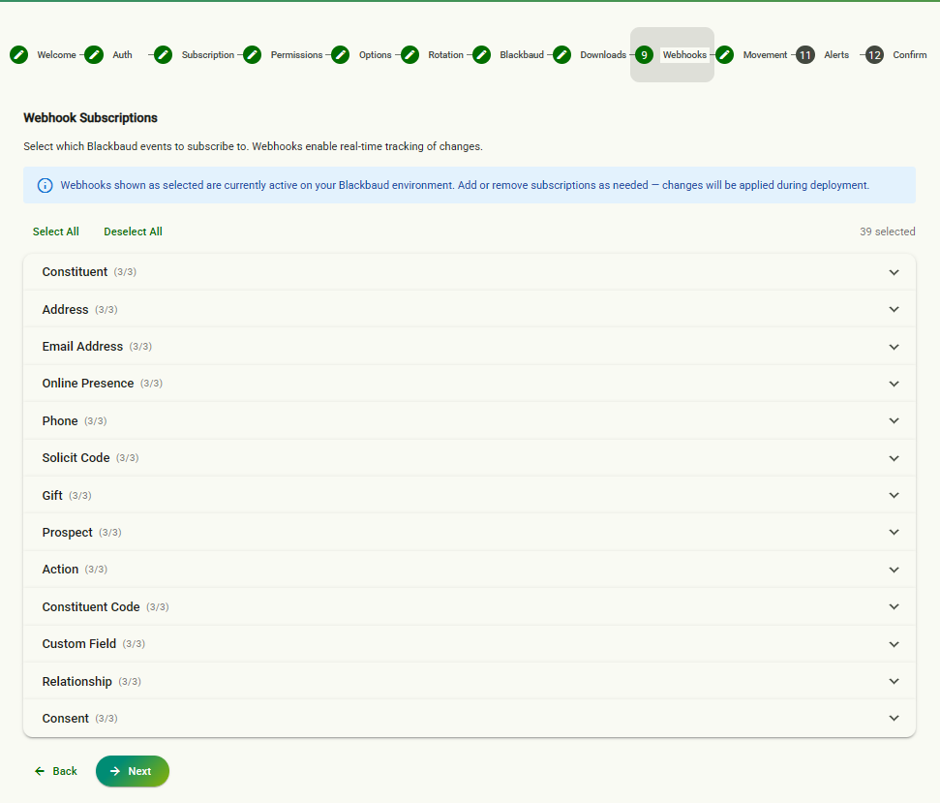
Webhook Subscription
Based on the Area’s you have selected, you then tell Audit Trail ‘events’ you want to capture in each of the Area. You can choose when an area is Added, Changed and/or Deleted. These Webhooks allow realtime changes to your Raiser’s Edge data.
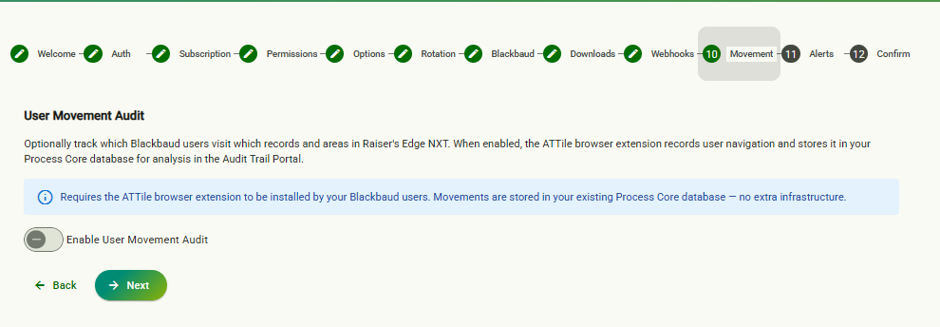
User Movement (Optional)
You can also opt in to track your Raiser’s Edge Users movements across records and areas
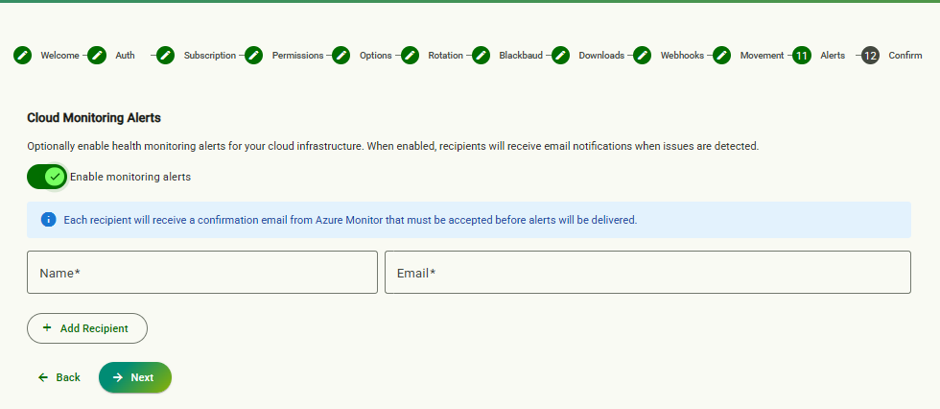
Cloud Monitoring Alerts (Optional)
You also have the option to set up monitoring or your Cloud infrastructure and be notified by email if an error is detected.
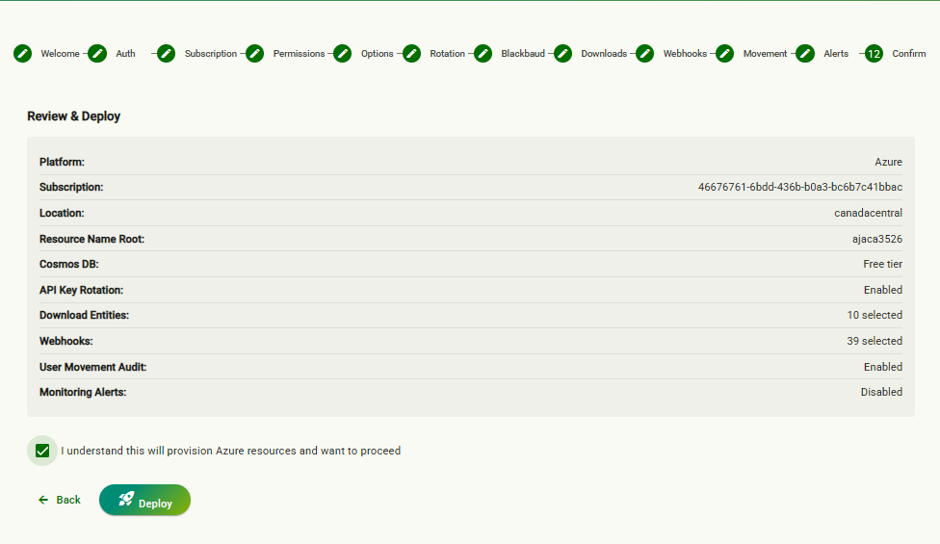
Review and Deploy
Review your steps and then deploy
Select deploy in the pop-up to double-confirm
Completed Deployment
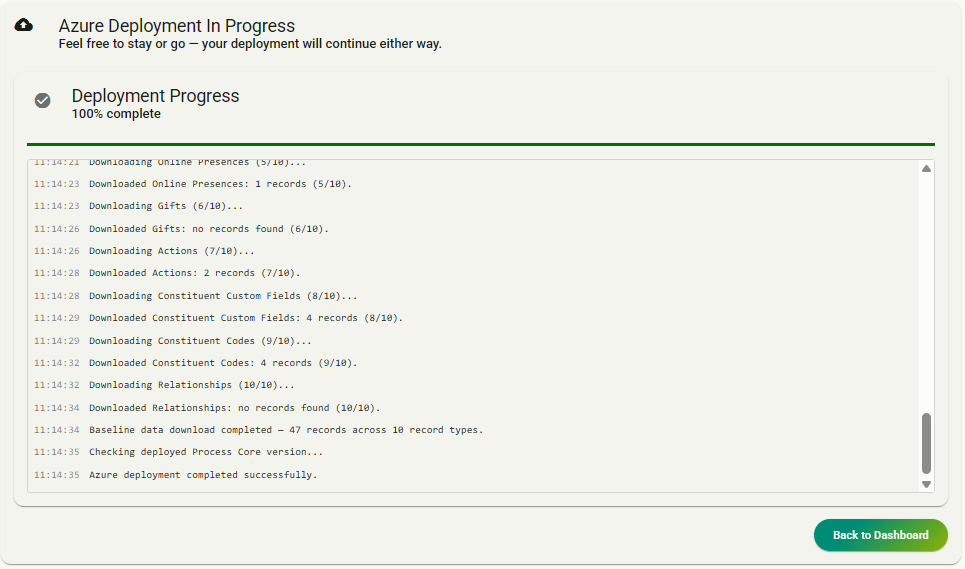
Completed Deployment should look like this. Once completed, go back to the Dashboard.