

When you select the ‘Review’ button on the Import Card you, you will be taken to a summary page.
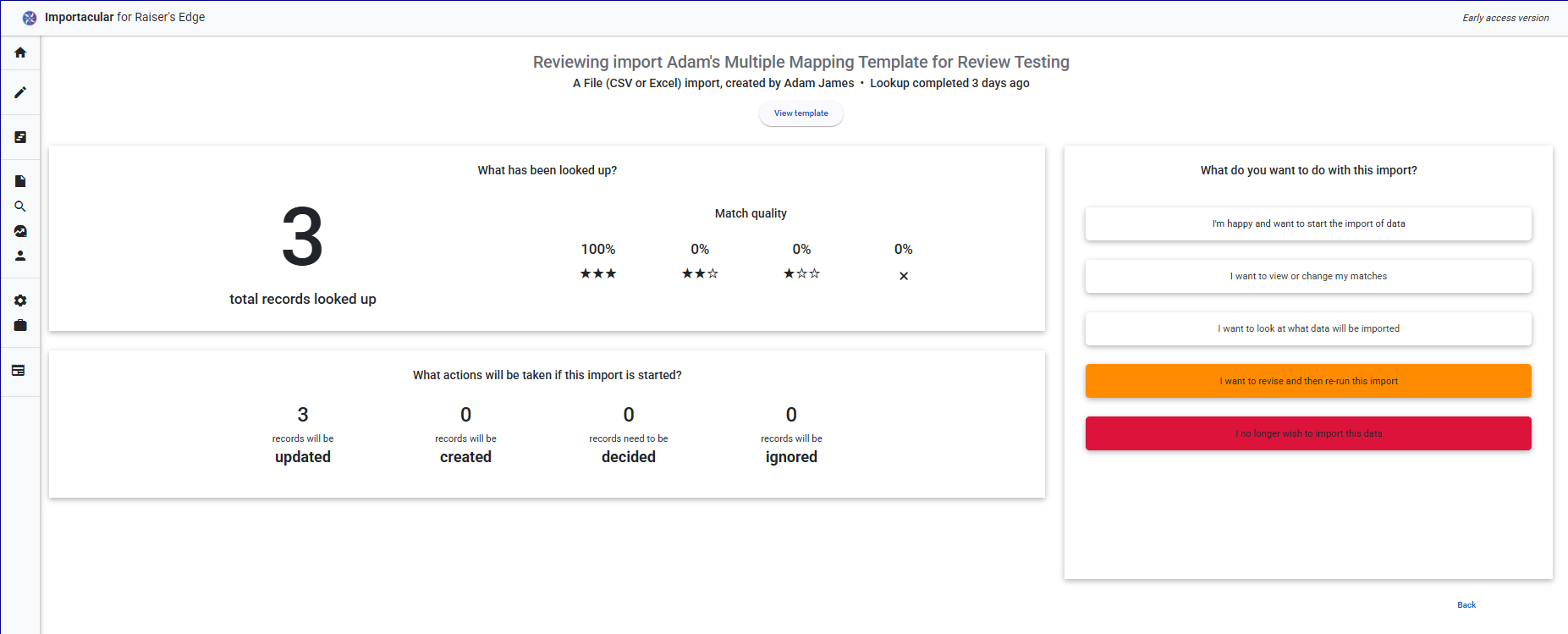
From here you have the following options:
I’m happy and want to start the import of data
Click here once all matches have been confirmed to start the import process. This option will not be selectable if there are any ‘Decides’ to manage.
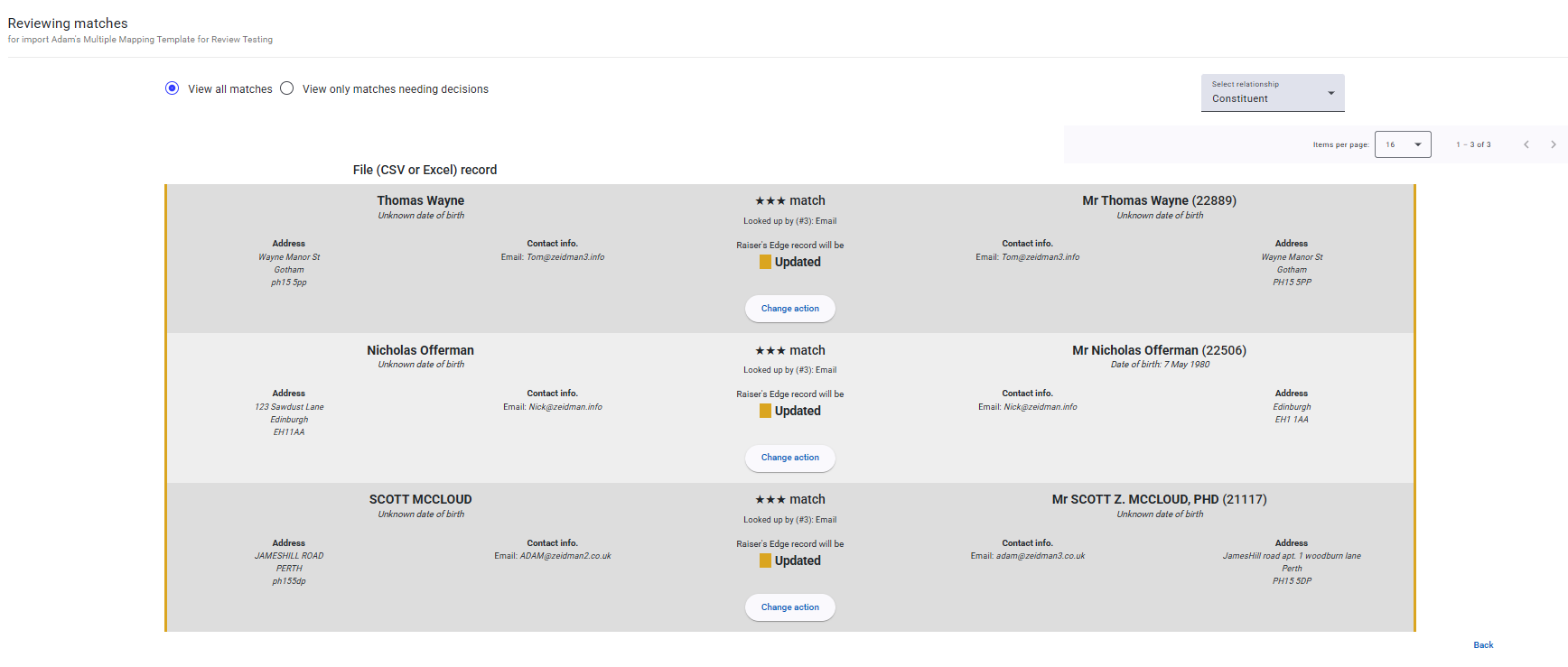
I want to view or change my matches
Click here to review, change and confirm matched records. If you wish to make an adjustment to the matches, click on the ‘Change Action’ button and review your options.
I want to look at what data will be imported
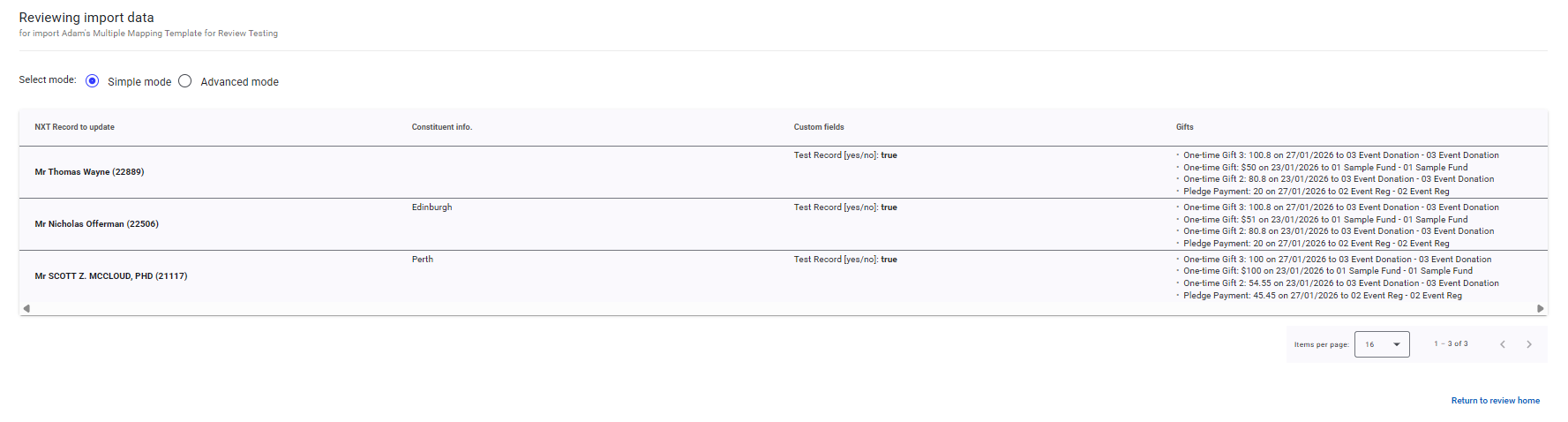
Click here to see the fields to be imported with all transformations and settings applied. There are two screens to consider:
Simple Mode
Gives you an overview of the Constituent, Constituent Custom Fields and Gifts
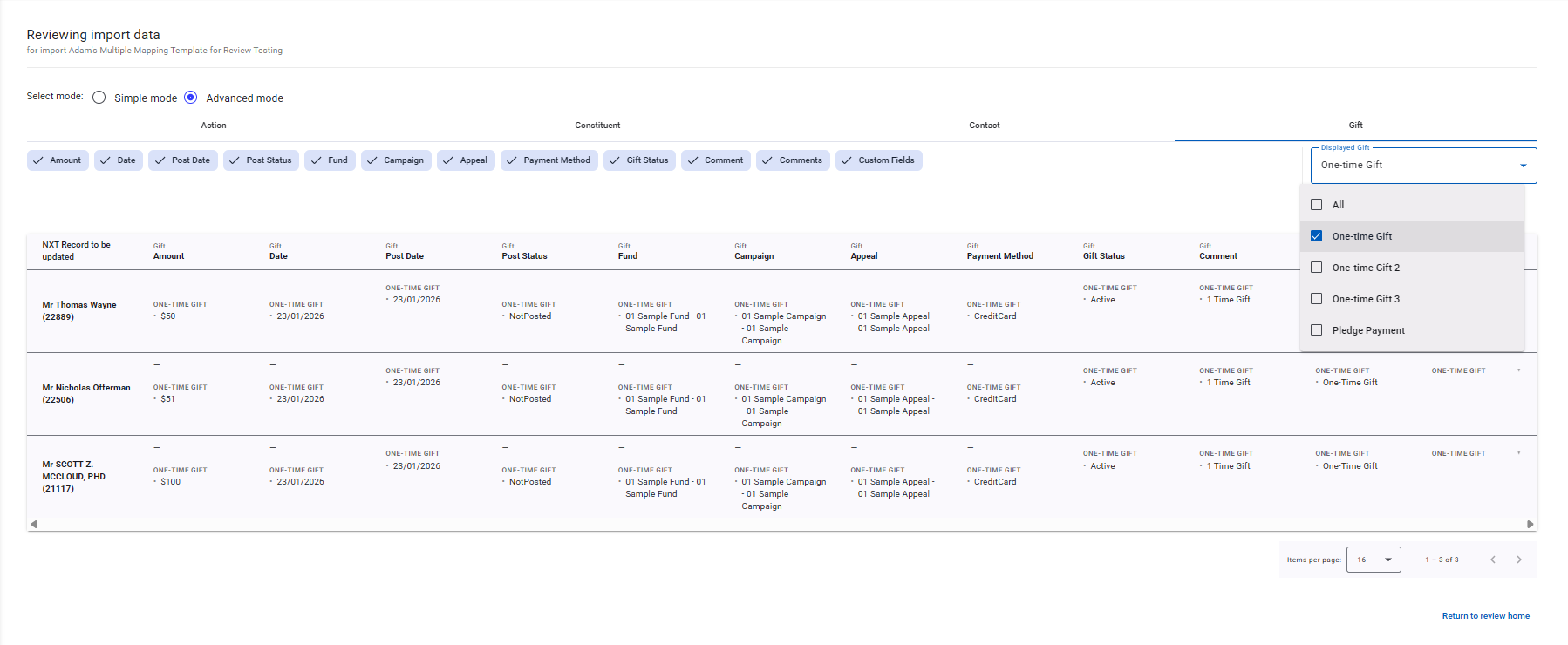
Advanced Mode
Here you can select which fields you want and don’t want to see when reviewing how the data will look in RE. All values on the screen appear as they will appear in RE. This means whatever the incoming data is after any Data Manipulations have taken effect.
If you have any field or Area Settings in place that tells Importacular not to add that value to a field, this will be represented here as a blank value.
Where there a multiple Area Specific mappings, such as multiple Gifts or Actions, users can toggle which of the multiple Areas they want to see
Where there are multiple Custom Fields attached to such things as Actions and Gifts, users can select the custom field within the row and they will dropdown to appear.
I want to revise and re-run this import
Clicking here will cancel the current import and return you to a pre-populated Import Creator for you to make revisions to incoming data ( such as different data source or more records) or revisions to the template including selecting a different template. If you wish to revise the Record Lookup, do so via the Template.
I no longer wish to import this data
Cancels the process entirely and returns you to the Dashboard