

Record Lookups are how Importacular NXT seeks to find matches between the incoming data and records from Raiser’s Edge NXT. Each Record Lookup should have at least one Matching Rule for Importacular to work with.
When building your Templates, you will be required to attach a Record Lookup for each Constituent/Relationship contained within the template.
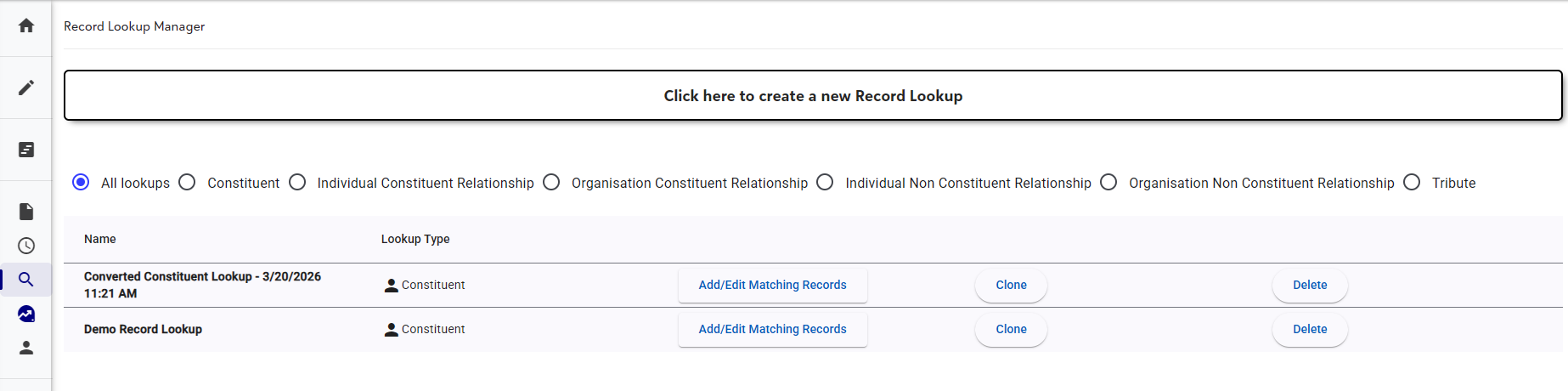
Record Lookup Manager
The Record Lookup Manager allows you to add or edit Record Lookups and their associated Matching Rules as well as make a copy/clone a Record Lookup or delete any no longer in use.
You can filter by Lookup Types
Matching Rules
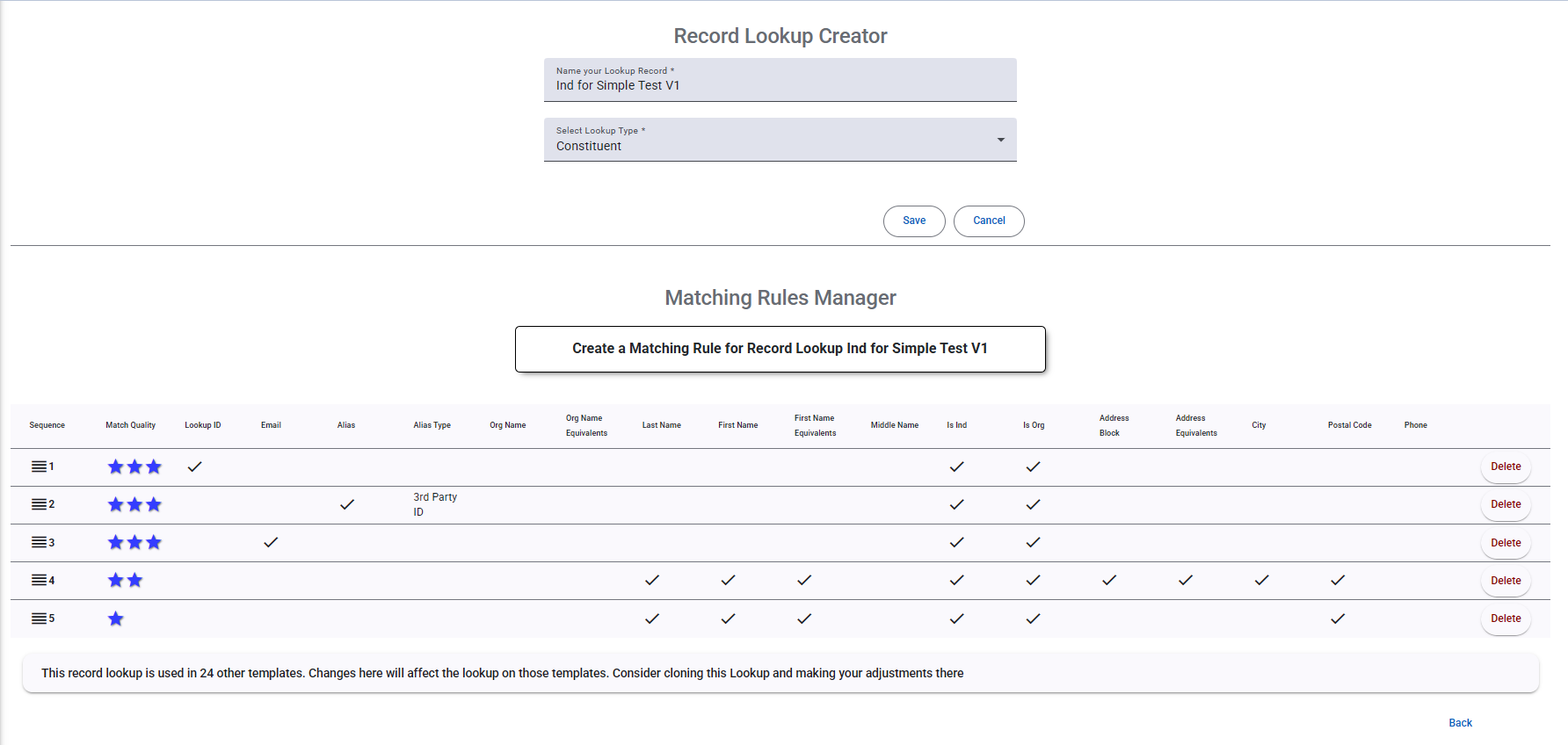
Each Matching Rule has a variety of Field lookup options to choose from as well as a selectable Match Quality rating and an ability to change the order of when Importacular use the Matching Rule. Importacular NXT looks to find a match using all the fields selected in the first Matching Rule.
- If a single record is found, Importacular will set the record as ‘Update’ and will move on to the next row in your data.
- If multiple records are found that all match on the fields the the Matching Rule, then each record will be set as ‘Decide’, for you to manage at the review stage.
- If no Match is made, Importacular moves to the next Matching Rule in the sequence and tries again.
- If all Matching Rules have been used and no match is found, Importacular will set the record to ‘Create’, and a new record will be created upon import.
Additionally, Importacular NXT will also take into consideration the Match Quality of each Matching Rule.
- Three stars are used when there is a match on all the fields selected (excluding matching an blank values). A three-star match will result in the record being set to ‘Update’ in the Review Screen, unless multiple matches are returned.
- Two stars are used when there is a match on all the fields selected (excluding matching an blank values), BUT you have selected one of the Equivalents options, allowing for some wiggle-room in your matches. A two-star match will result in the record being set to ‘Update’ in the Review Screen, unless multiple matches are returned. Though the outcome will remain the same as a three-star match, the purpose of the two-star match quality is to all the user some discernment when managing matches at the review stage.
- One star is used when there is a match on all the fields selected (excluding matching an blank values), BUT the fields selected are too vague or few to give you a reliable match. One Star matches will always return a ‘Decide’ in the Review Screen so that you can make the final decision.
Record Lookup Types
As well as creating Record Lookups to find suitable matches for your Primary Constituent, we also offer other Record Lookup Types for looking for suitable Constituents and non-Constituents. For the Individual and Organisation Constituent Relationship Record Lookups, these will look to find a suitable constituent as well as look to see if the Constituent exists as a Relationship within the Primary Constituent record or within the other relationship records if there is a Cross-linked mapping.
For the Individual and Organisation Non- Constituent Relationship Record Lookups, these will look to see if the non-Constituent exists as a Relationship within the Primary Constituent record or within the other relationship records if there is a Cross-linked mapping.
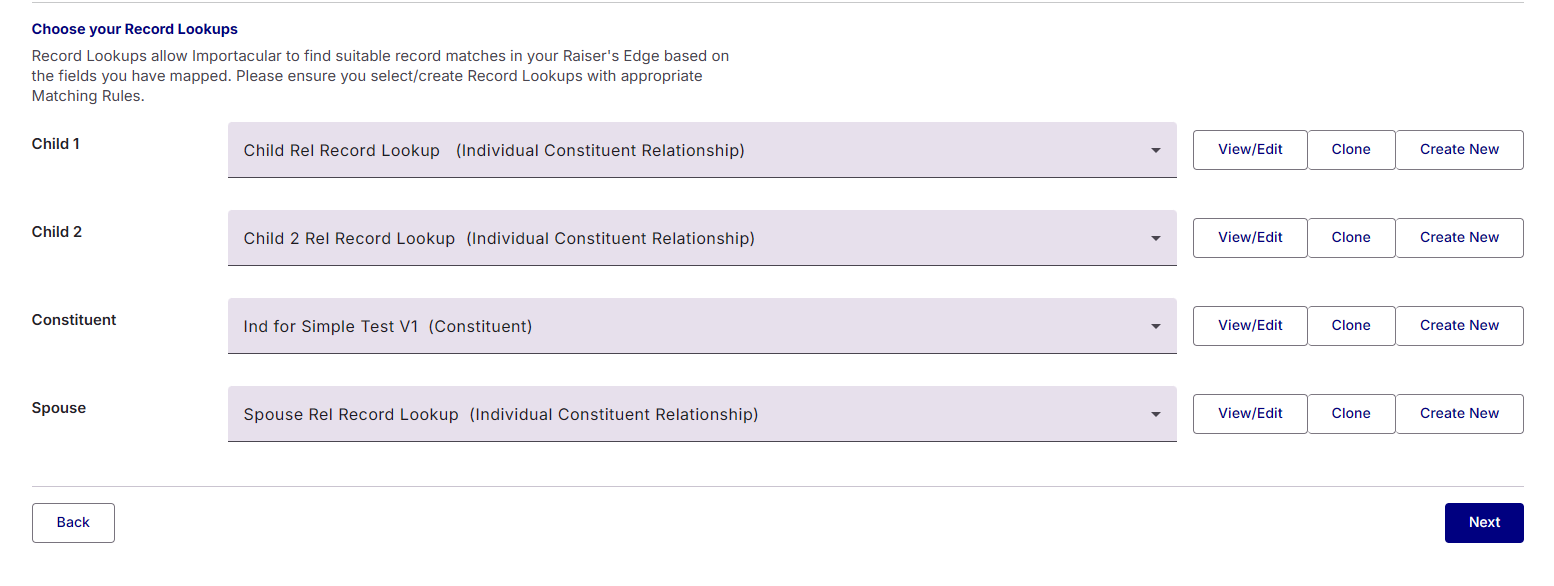
If your Template contains mapping to multiple Constituents or Non-constituents of the same type (Ind or Org), then you will be presented with the option to choose an appropriate Record Lookup to each relationship. For example, if your template has a mapping to a Primary Constituent and an Individual Relationship mapping for a Spouse, two children, you will be asked to choose a Record Lookup for all four mappings, and, importantly, they do not all have to be the same.
Recommendations
The Order Is Important
The order of your Matching Rules are important, so make sure your first Matching Rule is strict, where it is likely to only find one record from within your RE Data. So have it try to find a unique value this is not likely to be duplicated, such as Lookup ID or a 3rd Party ID within Alias.
Once you have created Matching Rules that are strict, create some Matching Rules that are less strict, but still likely to find a single record match. If your data practices have made it so that an email address is unlikely to appear across multiple records, then consider using email address as a Matching criteria. If an email address is likely to appear across multiple records in your RE, consider including first name in your Matching Rule as well as email address to help narrow down the matching possibilities.
Biographical Matching and Equivalent Values
Creating Matching Rules using biographical fields such as name and address are less likely to find a single match due to factors like people having the same name, people with the same last name living in the same house, or the incoming value differs from the associated value in your RE. With this in mind, consider the incoming data and how it might relate to your data in RE. If you find that your RE data tends to hold a persons full first name, but the incoming data contains shortened version of First Name (for example Rob instead of Robert, Cat instead of Catherine, etc.), then consider selecting ‘First Name Equivalents’ to allow Importacular to consider that a record is matched, even though the First Name is not a strict match.
Likewise, if you see that the incoming addresses contain common abbreviation of addresses like St for Street, Rd for Road, etc., consider selecting the Address Equivalent option. This means Importacular will consider a record is matched, even though the Address Line is not a strict match. For US addresses, Zip Codes are managed slightly differently. If the incoming Zip Code is 9 digits long, but it finds a suitable address and a zip code that matches the first 5 digits of the Zip Code, then Importacular will accept that as a match. Likewise, if the incoming Zip Code is 5 digits long, but it finds a suitable address and a 9-digit zip code that matches the first 5 digits of the Zip Code, then Importacular will also accept that as a match.
There is also an Organization Name Equivalent that does a similar thing for common Organization abbreviations such as LTD for Limited.
For more information about Equivalent Values, please look here.
Including One-Star Matches
We also recommend that at least one Matching Rule be added to the bottom of your Record Lookup with a Match Quality of one-star. This should very lenient, so that it is able to suggest some possible records for you to consider at the review stage, if all other Matching Rules have not been able to. Even if one record is matched upon, the nature of a one-star Matching Rule will always result in a record being presented as a ‘decide’.
Mapped Fields and Matching Rules
It is important to highlight that Matching Rules only work on Fields that have been mapped in your Template. For example, if you have not mapped an email address in your template, Importacular will not be able to find a match on an email address.
Mixed Constituent Types
If your incoming data contains Individuals and Organizations, you can set the ‘Constituent Type’ field within the Constituent Mapping to ‘Mixed’. This will make Last Name/Surname and Org Name required fields. In the scenario, if the Org Name contains is blank, then Importacular NXT will seek to add/update an Individual record and populating it with the Last Name/Surname (any other associated fields). If Org Name does contains a value, then Importacular NXT will seek to add/update an Organizational Record and an Individual record will not be added or updated.
With this in mind, your Record Lookups will need to contain Matching Rules that cater for the looking up of Organizational records and Individual records. To ensure that the Record Lookup is able to find or lead to the creation of the correct Constituent Type, users must select the ‘Mixed’ option on the Constituent Type field mapping within their template.
Process Speed Vs. Record Lookups
As explained, when Importacular NXT imports a record, it first has to ask Blackbaud’s systems whether that person already exists in Raiser’s Edge. There are two types of questions Blackbaud allow us to ask:
The first kind is a direct question: “is there a constituent with this email address or this ID?” These are quick, and the main limit on them is a speed limit. Blackbaud allows us about ten requests per second, and we have built a traffic control system that paces our requests so we stay just under that ceiling. A big import is a long queue of direct questions released steadily at the speed limit. Ten per second adds up fast: even a 10,000 record import clears in well under an hour.
The second kind is a research question: “find me anyone at this address” or “anyone with a similar name”. Blackbaud handles these differently. Each one becomes a job in a queue, and each customer is only allowed roughly twenty jobs in the queue at once. This is not a speed limit but a capacity limit, like a car park with twenty spaces. It does not matter how politely you drive up; if the spaces are full, you are turned away and you have to join the back of the queue.
This means the data you have available and the matching rules you have in place will considerably impact how long an import will take to process. If your incoming data contains the Constituent Record Lookup ID and/or an email address (which you have mapped and included them as suitable Matching Rules), having them appear at the top of your matching rules will result in a quick lookup. This is because we are able to ask Blackbaud our ‘direct question’ of does this person already exist in RE.
However, if you need to expand your Record Lookup to include more biographical information, this will require Importacular NXT to ask the ‘research’ type question and will take longer. The more matching rules you have that contain match fields like names, aliases, address, etc., the longer it will take.
Consider trying to limit the number of record lookups to no more than 5-6 matching rules. Always start with 3-star matching rules (such match on Lookup ID and/or email address) and then 2-star matching rules (such as name and address with equivalents selected). You should always consider adding at least a 1-star matching rule at the bottom.
If you wish to refine an email address matching rule to include a first name to help deduce ‘decides’ in your Manage Matches screen, then to optimise lookup speed, consider adding another Matching Rule to lookup email and first name, set it to a 3-star match and have it appear just below the matching rule set to match on email address only. This will allow Importacular NXT to find a single record matching on email address really quickly, but if it finds a multiple records matching on email address, the new matching rules will then ask the ‘research’ question, albeit at the slow speed.
