
Once the Import Card moves up from Currently Processing into the section ‘Imports Requiring Attention’, you are then given the option to review your import. When you select the ‘Review’ button on the Import Card, you will be taken to a summary page.
If you find that it took a long time to get to the ‘review’ stage, consider adjusting your Record Lookups to see if that helps. See this User Guide section
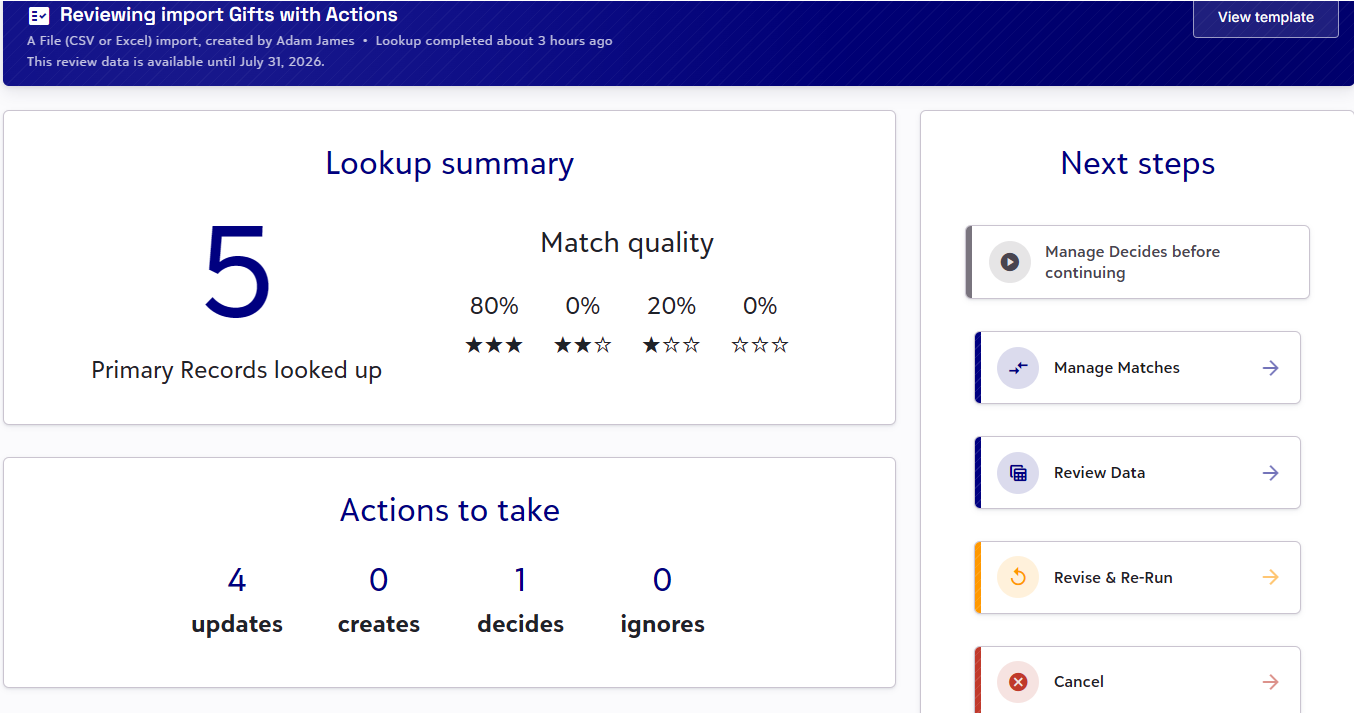
From here you have the following options:
Continue with Import/Manage Decides before continuing
Click here once all matches have been confirmed to start the import process. This option will not be selectable if there are any ‘Decides’ to manage.
Manage Matches
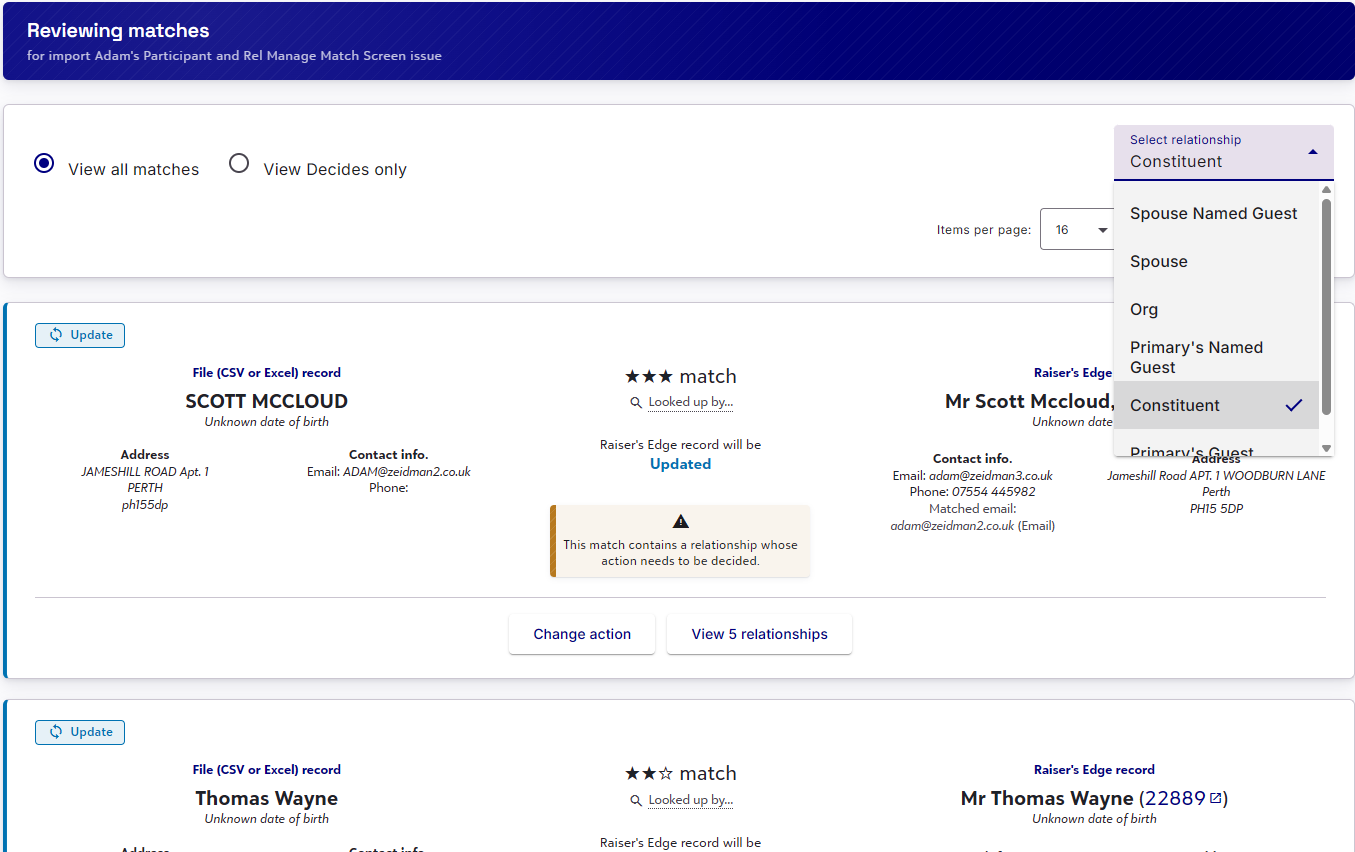
Click here to review, change and confirm matched records. If you wish to make an adjustment to the matches, click on the ‘Change Action’ button and review your options. If you have Constituent mappings (such as Ind or Org Relationship), filter via the top right-hand side ‘Select Relationship’ dropdown.
You can also view the relationships that you have associated with the constituent via the ‘View x relationships’ button (where applicable).
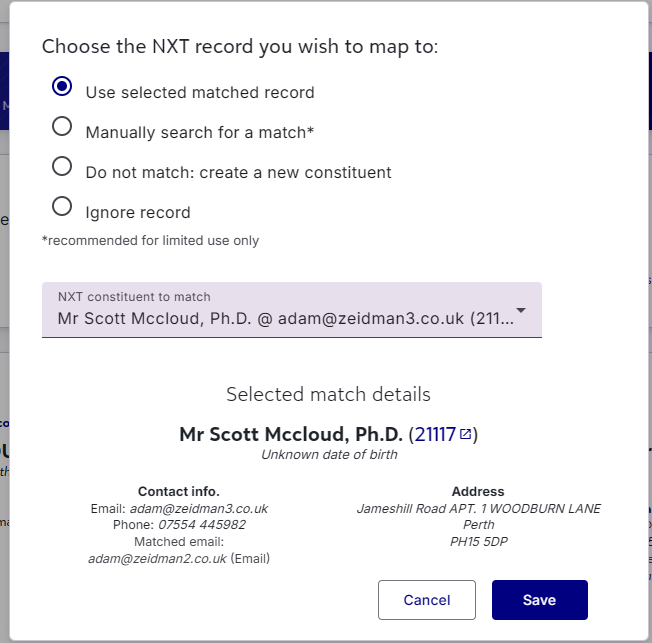
Change Action options
Your options are:
- Use selected matched record – These are based on your Record Lookups Matching Rules. Any suitable RE Constituents will be presented below under ‘Selected Match Details’. If multiple records are presented, you can select the best candidate from the ‘NXT Constituent to Match’ dropdown
- Manually search for a match* – Here you can manually search for a record within NXT. This is designed for one-off adjustments. If you find that you are having to use this option 3-5 times in a single import, then we highly recommend that you choose to revise your import and make the necessary adjustments to your Record Lookups’ Matching Rules and run your import again.
- Do not match; create a new constituent – This will create a brand new constituent in your RE
- Ignore record – This will ignore the record and any associated mapping that go with it.
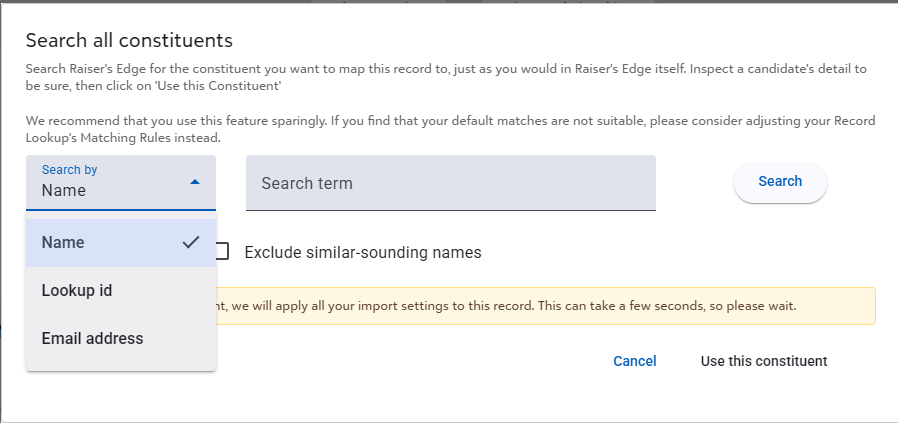
When looking to manually search for a record in your NXT, you can choose from Name, Lookup ID or Email Address
Source Matches
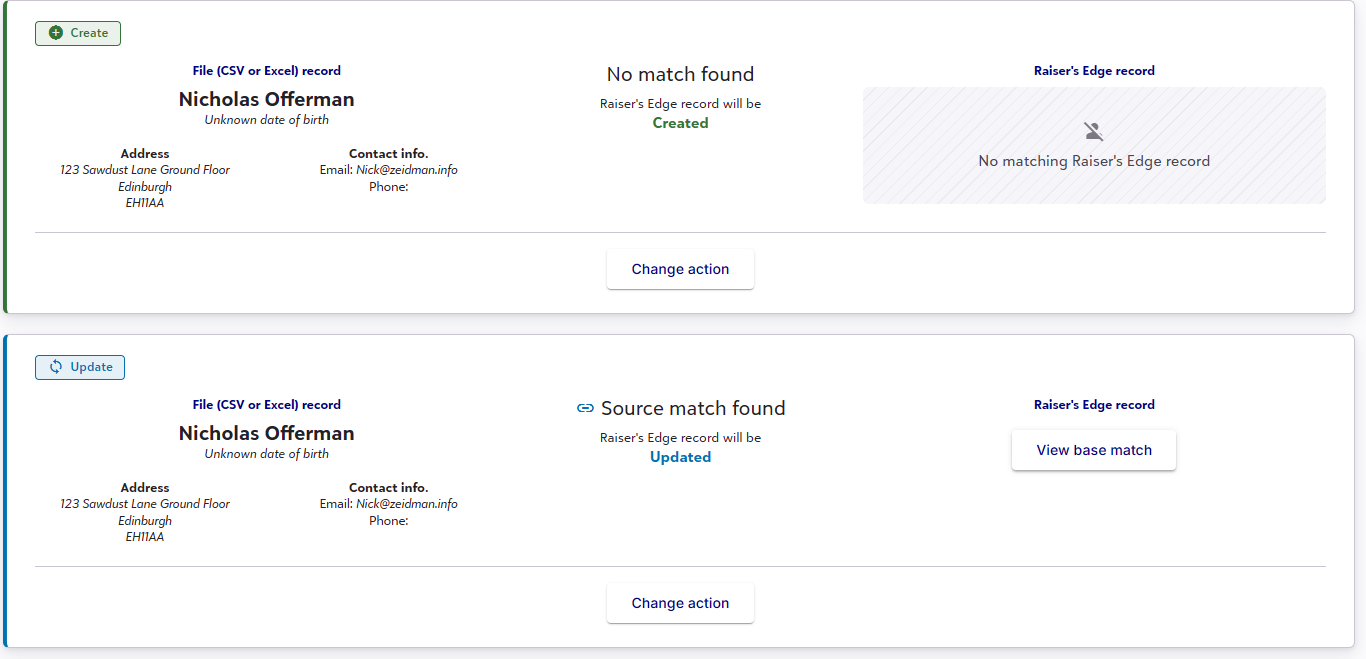
If your incoming data contains new records for your RE and these new records appear over multiple rows, Importacular NXT does an additional matching search across the incoming data to make sure ‘new’ records are not created multiple times during the import, preventing duplicate record in your RE.
These ‘Source Matches’ are presented differently in the Manage Matches screen. The 1st ‘new’ record is added as a ‘Create’. We will refer to this as the ‘base match’. Additional ‘source matches’ are highlighted as such, set to ‘update’ and provides the option to view the ‘Base Match’.
Review Data
Click here to see the fields to be imported with all transformations and settings applied. There are two screens to consider:
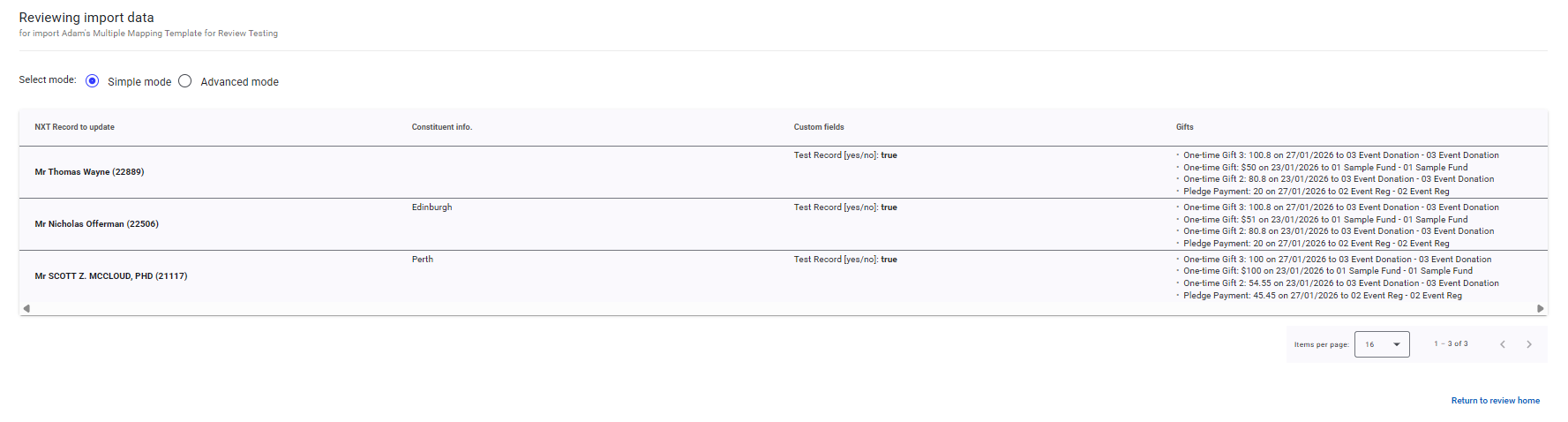
Simple Mode
Gives you an overview of the Constituent, Constituent Custom Fields and Gifts
Advanced Mode
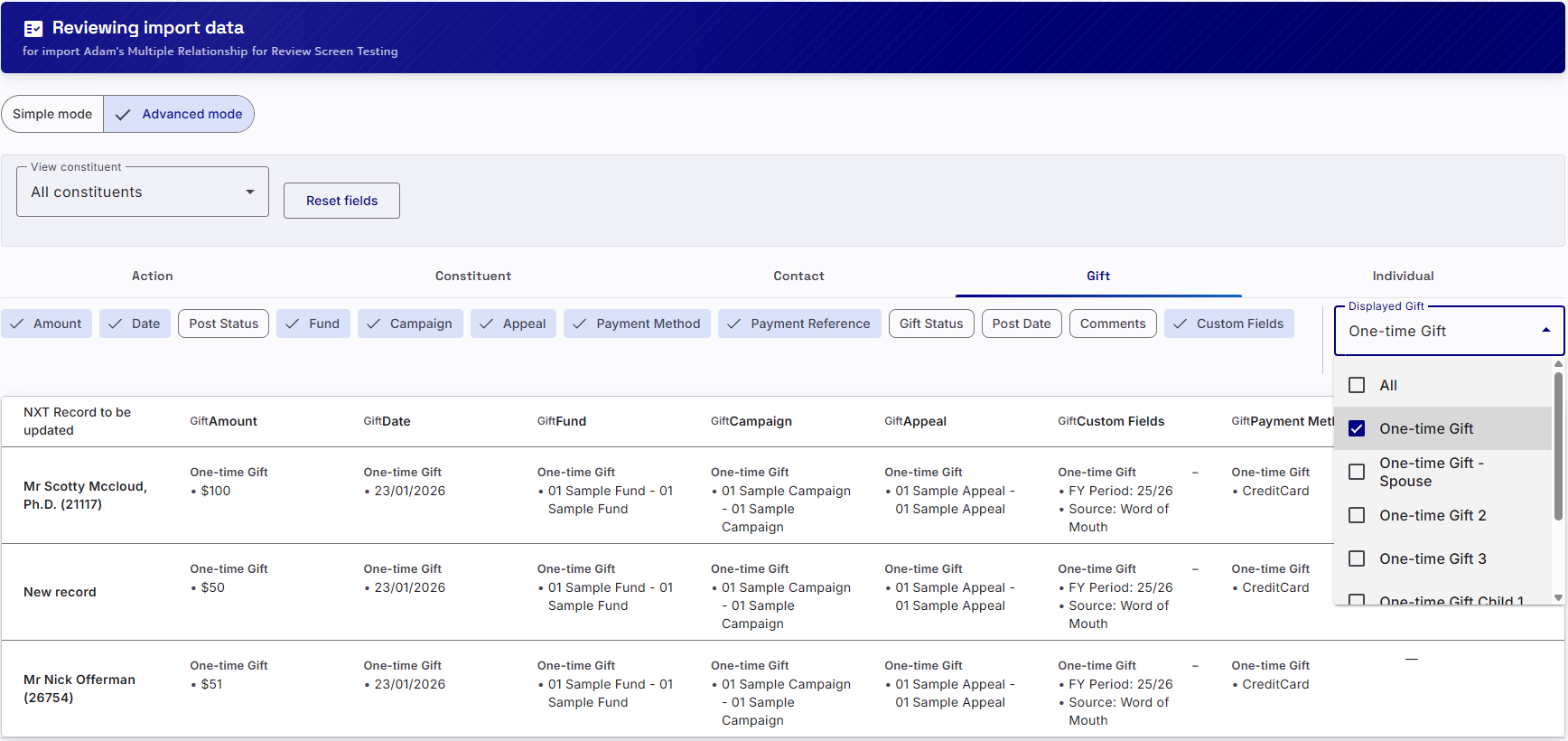
Here you can select which fields you want and don’t want to see when reviewing how the data will look in RE. All values on the screen appear as they will appear in RE. This means whatever the incoming data is after any Data Manipulations have taken effect.
- Understanding Blank Values – If you have any field or Area Settings in place that tells Importacular not to add that value to a field, this will be represented here as a blank value.
- Multiple Mapping – Where there are multiple Area Specific mappings, such as multiple Gifts or Actions, users can toggle which of the multiple Areas they want to see via the ‘Displayed [area]’ dropdown on the right-hand side
- Custom Fields – Where there are multiple Custom Fields attached to such things as Actions and Gifts, users can select the custom field within the row and they will dropdown to appear via the +/- icons.
- Multiple Constituents/Relationships – If your import contains multiple constituent/relationships, you can select which Constituent via the ‘View Constituent’ drop down on the top left-hand side. This way you can look at the fields that are relevant to the right Constituent mapping to get a full understanding of what is going to be imported.
- Reset Fields – We understand that there is a limit to what can appear on the screen and what can be looked at and considered on a screen. If you need to clear all your options and start again, the ‘Reset Fields’ button does just that.
Revise & Re-run
Clicking here will cancel the current import and return you to a pre-populated Import Creator for you to make revisions to incoming data (such as different data source or more records) or revisions to the template including selecting a different template. If you wish to revise the Record Lookup, do so via the Template Editor.
Cancel
Cancels the process entirely and returns you to the Dashboard
Gift Batches setting
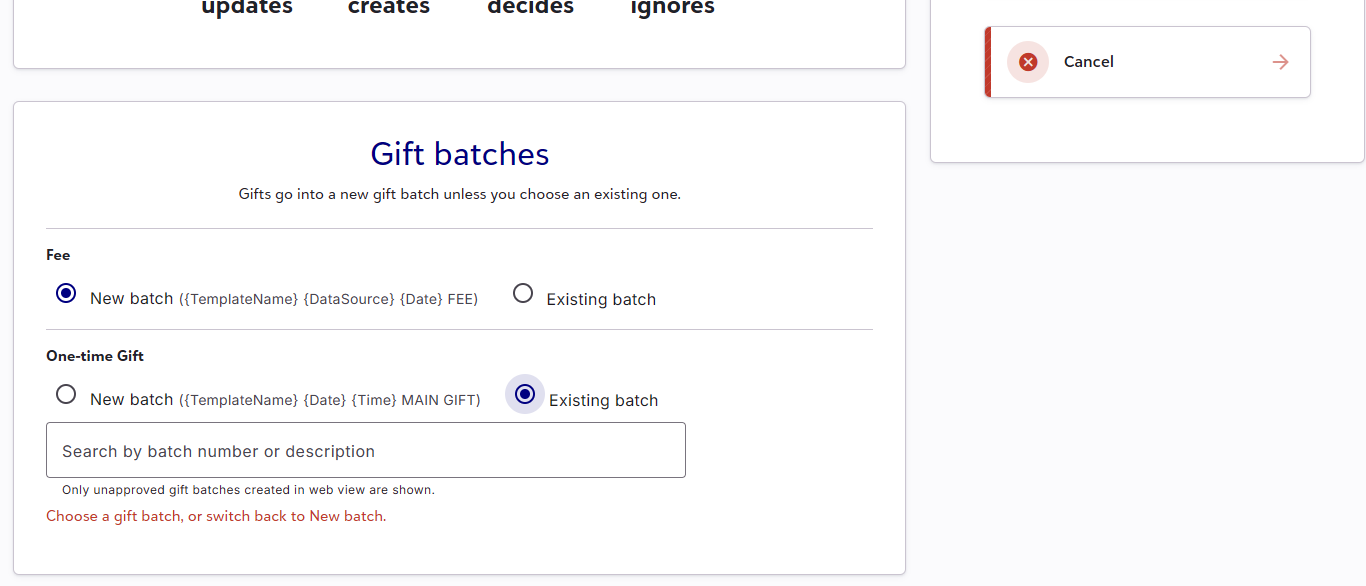
If your template is set to import gifts into a Gift Batch, you can choose an existing Gift Batch where the gifts should be placed. This is found at the bottom of the Import Review Summary page. This feature is ideal if you are re-importing and you want to place errored or ignored gifts from the first run of your import into the Gift Batch that was created then.
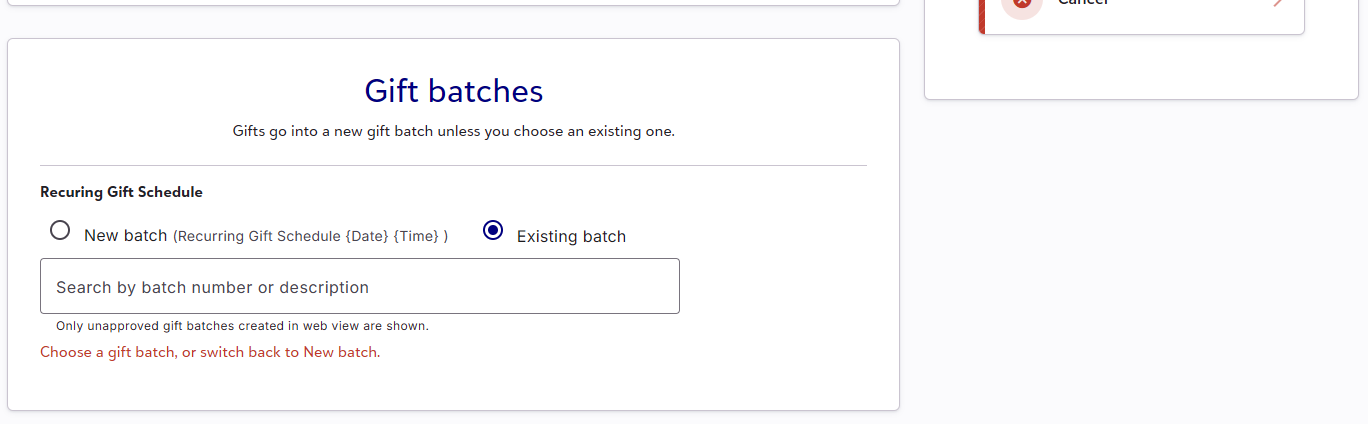
If your Template includes multiple Gift Area Mappings and you have set each Gift Area to create a separate Gift Batch per Area, then you will be given the option to select an Existing Gift Batch per Gift Area.