

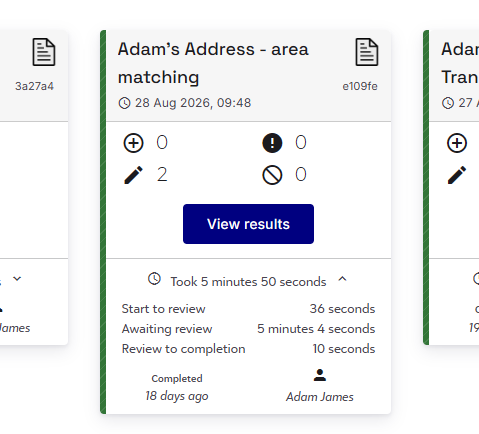
Once an Import has finished, the Import Card will move to the ‘Completed Cards’ section of the Dashboard. This card will contain a summary of the import as well as a button to review the ‘results’.
Completed Cards
Complete Cards contain the following information: The Name and date of the Import; an import id (useful for telling the support desk which import to look at); a summary of the number of records process (created, updated, errored and ignored); a summary of the time it took for the import to run; how long ago it ran; who ran it; and the View Results button.
Results
Upon opening the Results screen, the import is split into three tabs: Errors, Successful Imports and Ignored Records with a summary of the number of records next to each.
Clicking on the ‘view Constituent’ button will open up that constituent’s RE NXT webview in a new tab. Useful for reviewing what has just been imported.
Importacular NXT imports/updates records in parallel so even if there are errors, it will still try and add what it can. This is highlighted in the ‘Successfully imported Areas’. In the section titled ‘Areas we did not attempt to import’ presents areas that it could not import because an error prevented it from doing so, or there are field or area settings that means that it should not be added/updated.
Details of any errors are written in plain English and highlighted in red on the right of the screen.
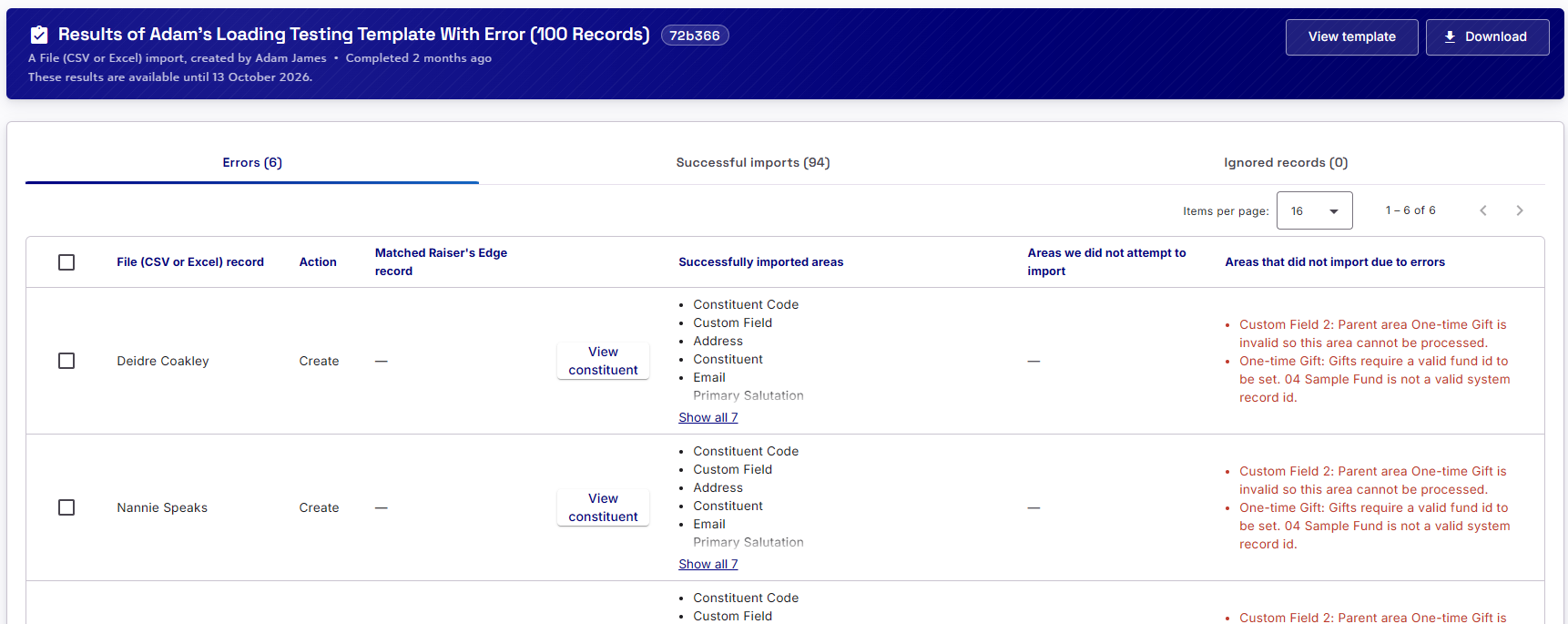
For records marked as Errors or Ignored records, users can select them. When they do, the option to ‘re-import’ becomes selectable.

For your convenience, we have included a ‘Download’ option that gives you a complete breakdown of your import as well as all the data fields from your data source used in the import.
Re-importing
When you click on the ‘re-import’ button, you will be taken to a pre-populated Import Creator, just for the records you selected in the Results screen. Here you can review and revise your Template with it’s associated Record Lookups, clone the template if you don’t want to impact other imports, or select a different template.
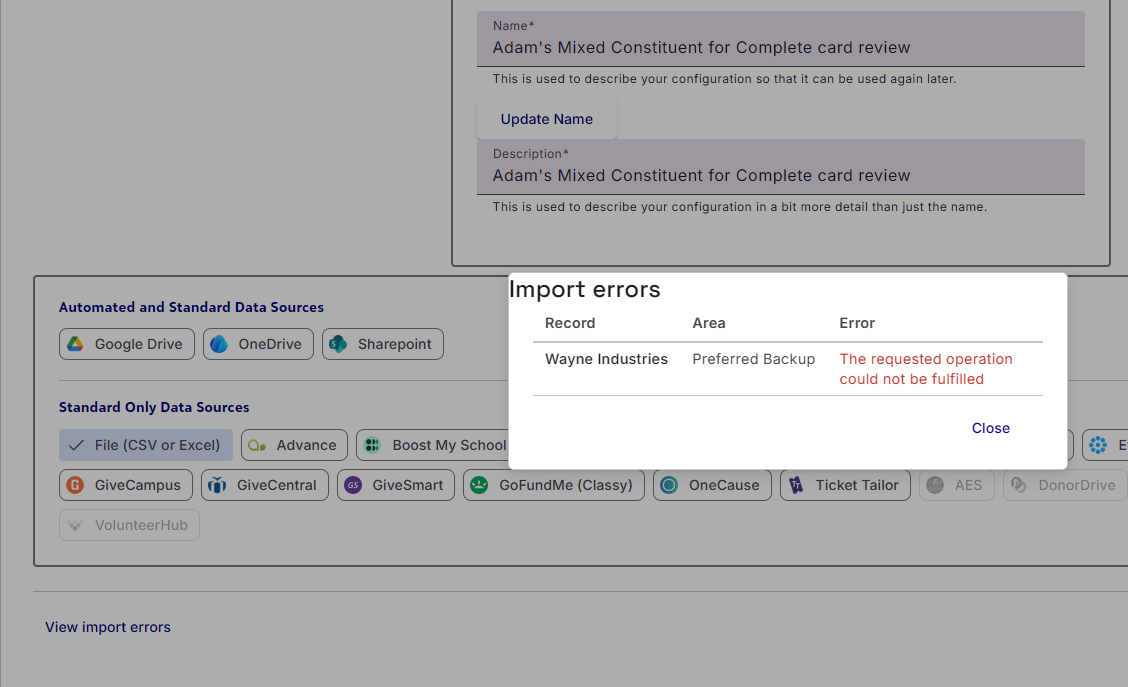
If you are looking to re-import errors, ‘view import errors’ button allows you to see those errors whilst in the Template Builder when accessed from the re-import Import Creator.
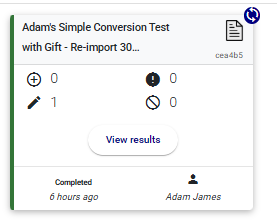
Re-imported Import Cards feature a blue button icon with circular arrows to highlight that they are a re-import.
Exercise Caution: Importacular NXT imports records asynchronously, which means it will add multiple area mappings at the same time. If an exception happens, the record is not stopped and then the next record is attempted (like it does in Importacular Classic). It will continue to add/update as many areas of a record as it can. Though this is very useful and a notable improvement, it does mean you should consider what field and area settings are at play when attempting to re-import. It could result in multiple area mappings or Data Destinations being added to a record. Most commonly, finding that multiples of the same Gift might appear if the Gift Area Setting is set to always add gifts instead of searching for a matched gift.