

For your convenience, we have included a tool that will convert your templates from Importacular Classic into ones that you can use with Importacular NXT. This Classic Template Converter allows you to attach an exported template from Importacular Classic and ‘import’ it into Importacular NXT. Before you do so, you might need to prepare your Classic Template before you Export it into a XML file. We recommend that you convert, review and test one template at a time.
Preperation
Importacular Classic has three different types for Data Transformations: Local Transformations, Organisation Transformation and Global Transformations.
Organisational and Global Transformations are both Cloud-based and are featured across Importacular Classic and Importacular NXT.
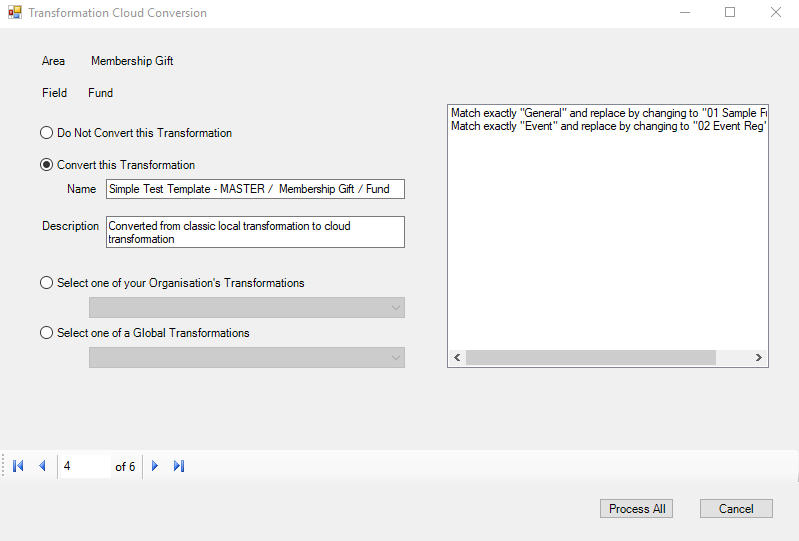
Local Transformations are transformations that exist only within the template itself and as such are stored locally. Since Importacular NXT is cloud-based, the concept of a locally stored data transformation does not exist. With this in mind, in 2025 we introduced a new tool in Importacular Classic that allows users to convert local transformations into ‘Organisational Transformations’ and automatically replaces the local transformation in the template to the Organisational one. The new tool is found within the Template Manager of Importacular Classic. Simply select the template you want to use, head to the File top menu and select ‘Convert transformations to Cloud’. A window will appear that takes you through the steps and options available to you.
Obviously, if your classic template does not contain any local transformation, then no conversion will take place and a message will appear telling you such. If your Classic Template does not have any Local Transformations, you can also just bypass this step and export your template ready for the next step.
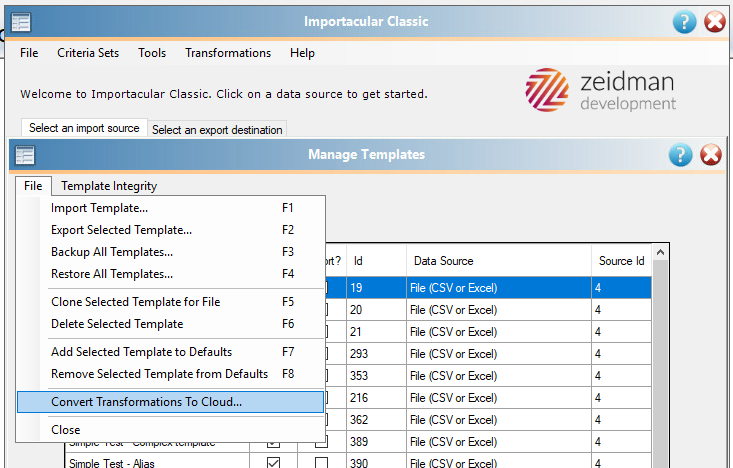
Once any local transformations have been converted and/or replaced, export the Template. You can do this from within the Template Manager by making sure the template is selected, then heading to the File top menu and selecting ‘Export Selected Template’. Do not try and use the ‘Backup All Templates’ feature here.
Next, make sure you have a suitable sample of the data is associated with your template at the ready.
Note: If you want/need to make a change to any of the Transformations from within Importacular Classic, after they have been converted from Local to Organisational, then head to the ‘Transformations’ top menu on the Classic home screen and going into ‘Manage Organisation Transformations’.
Using the Classic Template Converter
Once you have a Classic Template prepared and exported, head to Importacular NXT and the Template Manager. On the top right of the screen is the button to the Classic Template Converter
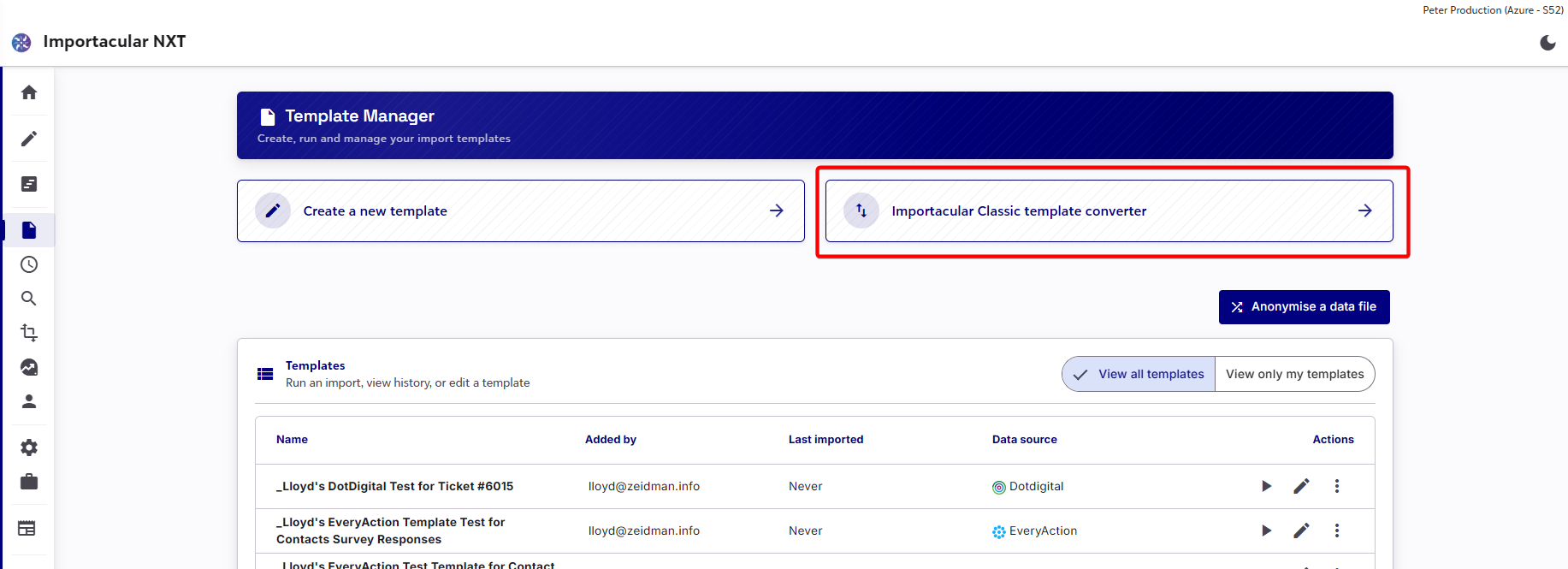
Clicking this will open up a new window with a message encouraging you to convert local transformations. It also highlights that templates which contain mapping to fields, areas and data destination not currently supported by RE Webview or Importacular NXT will be processed, but the affected areas will be ignored. For your convenience, a list of convertible Areas and Data Destinations are available below.
Once the import is complete, a summary of the conversion will be presented for you to consider. See below for more information.
Parity with Importacular Classic
Raiser’s Edge Database View and Webview have some notable differences, but we have sought to match parity with Importacular Classic where we can, including field and area settings.
However, Importacular NXT was also built with a view to improve on what we were able offer with Importacular Classic. In many cases, we not only match parity with Importacular Classic, but now offer additional features and functionality that we think are worthy of your consideration. These too are highlighted in the summary of the imported template as warnings, but for your convenience, we have also provided a useful overview below to help you when reviewing your newly converted templates.
Available Data Destinations in Importacular NXT
To help you decide when is a suitable time to start converting your Classic Templates, here is a list of Data Destination that are available in Importacular NXT that can also be converted as well as and a list of data destinations still to come to Importacular NXT.
Data Destinations that can be converted to Importacular NXT
- Constituent Data Destination with associated Area Mappings
- Contact Data Destination with associated Area Mapping (excluding Address Custom Fields which is not available in webview)
- Gift Data Destination with associated Area Mappings for One-Time Gifts, Pledges, Recurring Gifts, Soft Credits and Split Gifts. See Note about Transformations using Funds, Appeals, Campaigns and Packages
- Gift Batching with new Options
- Action Data Destination with associated Area Mappings (including Assigned Fundraiser)
- Education Data Destination with associated Area Mappings
- Individual Data Destination with associated Area Mappings including Links and new Area Settings
- Organisation Data Destination with associated Area Mappings including Links and new Area Settings
- Event Data Destination with Participant Fee, Fee and Donations links, and Participant Options (excluding benefits and Participant Custom Fields).
- Tribute Data Destination with associated Area Mappings
- Assigned Fundraiser (was Assigned Solicitor/Canvasser in Database View) as part of the Opportunity Data Destination
- Prospect and Proposal Data Destinations as part of the Opportunity Data Destination
Still to come
- Membership Data Destination – expected by the end of 2026
- Volunteers Data Destination – expected Q1 2027
- Bank/Financial Institution Data Destination – expected Q1 2027 (awaiting Blackbaud SKY API functionality)
- Gift Adjustments – expected Q1 2027 (awaiting Blackbaud SKY API functionality)
- DotDigital Export – expected Q4 2026 (awaiting Blackbaud Query/Export functionality)
- Fund Relationship Data Destination– expected Q1 2027 (awaiting Blackbaud SKY API functionality)
If your Classic Template contains any Data Destination Area Mappings from the ‘Still to Come’ list, your template will be converted but these areas will be ignored.
NOTE: Once converted, you can continue to use your Classic template as you normally would in Importacular Classic. Your Importacular Classic Template and your Importacular NXT Templates are not linked to each other. After the conversion, your Classic template and your NXT template will act independently of each other. If you make a change to one, you may need to consider making a change to the other.
Review and Adjust the new NXT Template
Once converted, you may get a list of Errors, Warnings and/or Info. After taking a note of these (we suggest a copy and paste into a notepad or word document) you will then be taken to the Template Builder. The name of the Template will be pre-populated, but feel free to rename it.
Next, you will need to attach your sample data to the template. This should contain a couple of records for you to import and test with.
Once attached, head to the next ‘Mapping’ stage where your template will be present in our new visual format. Take some time to re-arrange your mapping areas into an order that makes sense to you. Also, review what has been converted and address any of the warnings and errors that were presented. Do take some time to review your Area Settings, Field Update Conditions and Field Manipulations to make sure you are getting the most out of your template. Do familiarise yourself with the Template Builder here.
When you are ready, head to the next step and check that your Criteria Sets have converted over as expected to Record Lookups. Take a minute to review the Record Lookup with Matching Rules. Take a look at this User Guide for more information.
Once a Record Lookup has been selected, you can then head to the next step and create an import to test your new template.
Managing Errors and Warnings
As Raiser’s Edge NXT users, you will be very aware that Database View and Webview behave differently to other, offering different fields, different naming conventions and, at times, different functionality. Importacular NXT and the Classic Template Converter will account for most of these differences, but there are still areas where you will need to consider for when converting templates. For more information about specific Data Destinations you are seeking to convert, please look at these Knowledgebase Articles:
Classic Template Converter Area Notes: Constituent
Classic Template Converter Area Notes: Contacts
Classic Template Converter Area Notes: Action
Classic Template Converter Area Notes: Education
Classic Template Converter Area Notes: Gifts
Classic Template Converter Area Notes: Relationships (Individual & Organisation)
Classic Template Converter Area Notes: Events/Participants
Classic Template Converter Area Notes: Tributes
Classic Template Converter Area Notes: Prospects
Classic Template Converter Area Notes: Assigned Solicitor/Canvasser
Here is a summary of the main differences
Some examples of fields and areas that differ between the RE NXT Webview and RE NXT Database View:
- Address Info Source field is missing in Webview
- Address Custom Fields/Attributes is missing in Webview
- Constituent Code Sequence field is missing in Database view
- A lot of the Participant Fields are missing in Webview
- Participant Dinner Preferences and Event Awards are all missing from webview
- Participant Custom Fields are only available as read-only, and a new Participant Options feature has been introduced
Some examples of when a Field or Area behaves differently in Importacular NXT compared to Importacular Classic
- Primary Addressee and Salutations have their own Area Mapping in Importacular NXT with new Area Settings to consider
- Consent behaves differently in Webview, so the Area Settings in Importacular NXT vary from Classic and we have introduced a new Area for Updating some fields with Consent
- Alias matching is simplified in Importacular NXT, with a new option to select the Alias Type in the Record Lookups
- Gifts have new Area Settings that allow you to create multiple Gift Batches as well as create dynamic Batch descriptions
- Recurring Gift Schedules offer a streamlined set of fields, making it much easier to use and understand
- Recurring Gifts can no longer accept gifts with a Payment Method of Direct Debit or Credit Cards (Blackbaud have limited those to gifts processed through their own BBMS). Instead choose a different pay method.
- Record Lookups (was Criteria Sets in Classic) has been streamlined with a combined Ind/Org Constituent lookup instead of two separate ones.
- Record Lookups are now available and customisable to each Constituent/Non-Constituent Area Mapping you have, offering much better record matching
- Record Lookup Matching Rules do not not offer Soundex or Character limits
- Record Lookup Matching Rules have a new Organisation Name Equivalents feature
- Record Lookup Matching Rules do not offer the advanced options of being able to limit lookup by a query Constituent Code or Custom Field (coming soon)
- Most dates from incoming data sources are automatically stripped of time values. Your date formats transformations may be affected
- Participants/Events offers fewer fields and areas in webview, but Events can now be added at the point of import. Event Start Date is now required.
- Event Data Destination can now offer Participant Guest (a constituent) as well as Named Guest (a non-constituent).
- Participant Options are available instead of Participant Custom Fields
- Relationships (Individual and Organisation Data Destinations) have new Area Settings that improve upon how existing constituent and non-constituent relationships are managed
- Relationship Links (Crossed links in Classic) offer new Area Settings to handle the scenerio where a matching non-constituent relationship may already be present (feature not available in Classic)
- All Area Mapping includes new Area Settings that allows you to choose if an area should be applied based on whether they are new or existing constituents
- All Area Mapping includes new Area Settings that allows you to to apply a Conditional Update Value at an Area level, not just at a Field level
- Soft Credits include Area Settings that allow you to choose if it is a Soft Credit or a Fundraiser Credit
- New Primary Constituent Area setting that allows you to set a fixed ‘anonymous’ record to incoming records who have not consented to you storing their details
Data Transformations for Fund, Appeal, Campaign and Package
If your Classic Template contains Organisation Transformation for Fund, Appeal, Campaign and/or Package, the Converter will create a duplicate copy of the transformation that is suitable for Importacular NXT and rename the original Org Transformation to indicate that it is suitable for Classic. The reason for these two versions is because RE NXT webview looks up Funds, Appeals, Campaigns and Packages differently to Database view, so we are unable to use the same Organisational Transformation for these fields.
This means that you can continue to use your templates in Classic and NXT that contain Organisation Transformations on these fields without any issues.
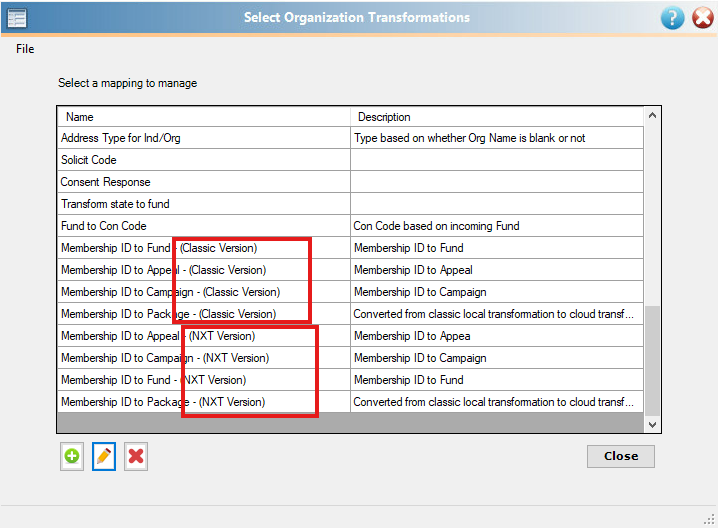
Any other Organisation Transformations in your templates are shared between Classic and NXT so there is not a need to have separate versions