

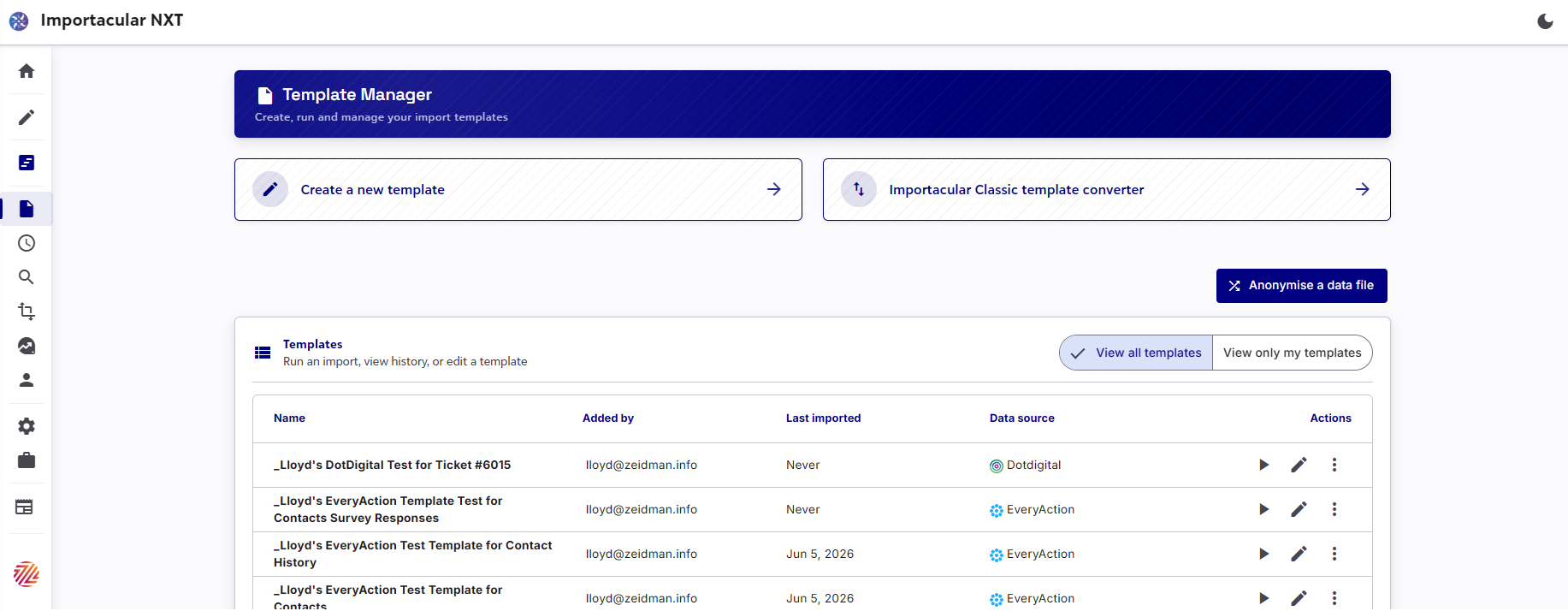
The Template Manager is your hub for creating, cloning, editing and deleting your Templates. You can view all your organisation’s templates or filter to view just the ones you have created.
You can also import and convert Importacular Classic templates from here.
Clone or Convert
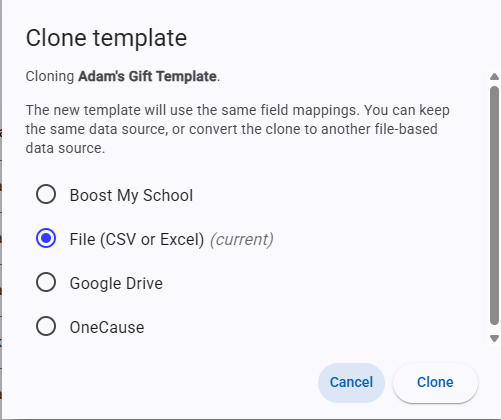
If you click on ‘Clone’ for file-based templates, you will be given the option to not only clone the template but convert it for use with another file-based data source. This is ideal for creating a copy of a template built for File (CSV or Excel) and using on a data source that can be used for Automated imports, like Sharepoint, One Drive or Google Drive.
Start Import
When you have an established template, you might find it easier to create your new Import by clicking on ‘Start Import’. This will launch the Import Creator, pre-populated with the Template Name, Data Source and Template, without the need of going through the Template Builder. You can still edit the name, attach a new data source and edit the template before you set the import to start.
History
Here you can view the import history of your template.