
In addition to the main Audit Trail Viewer and filter, we also have Point-in-Time Exports that allow you to generate and download files out of the data stored via Audit Trail. These exports can then be used with our sister products ‘Importacular Classic’ and ‘Importacular NXT’, should records need to be updated, rolled back or re-instated outside of the standard ‘revert’ feature in the Audit Trail Viewer.
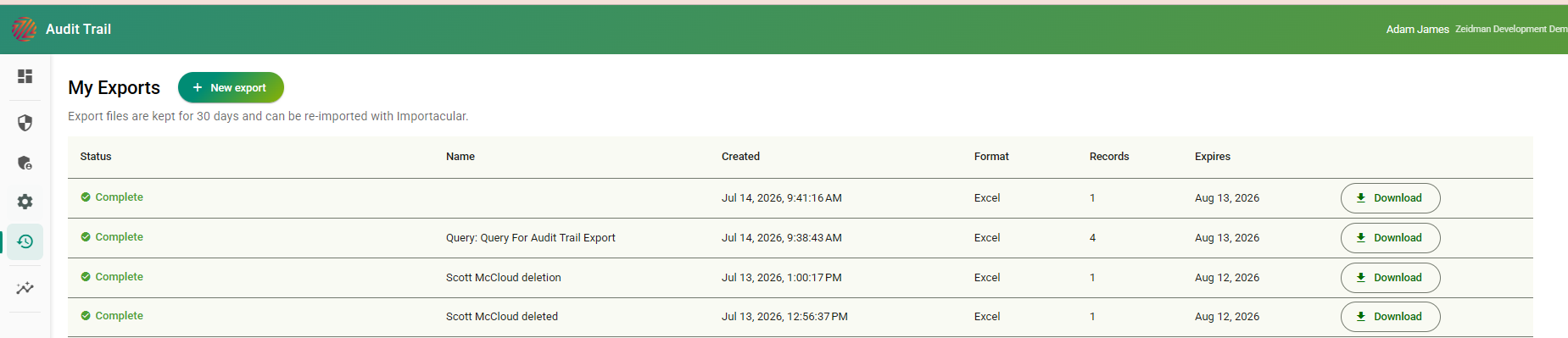
To create an Export, click on ‘+ New Export’, where you are presented with a new page containing two tabs: ‘From a Query’ and ‘Deleted records’.
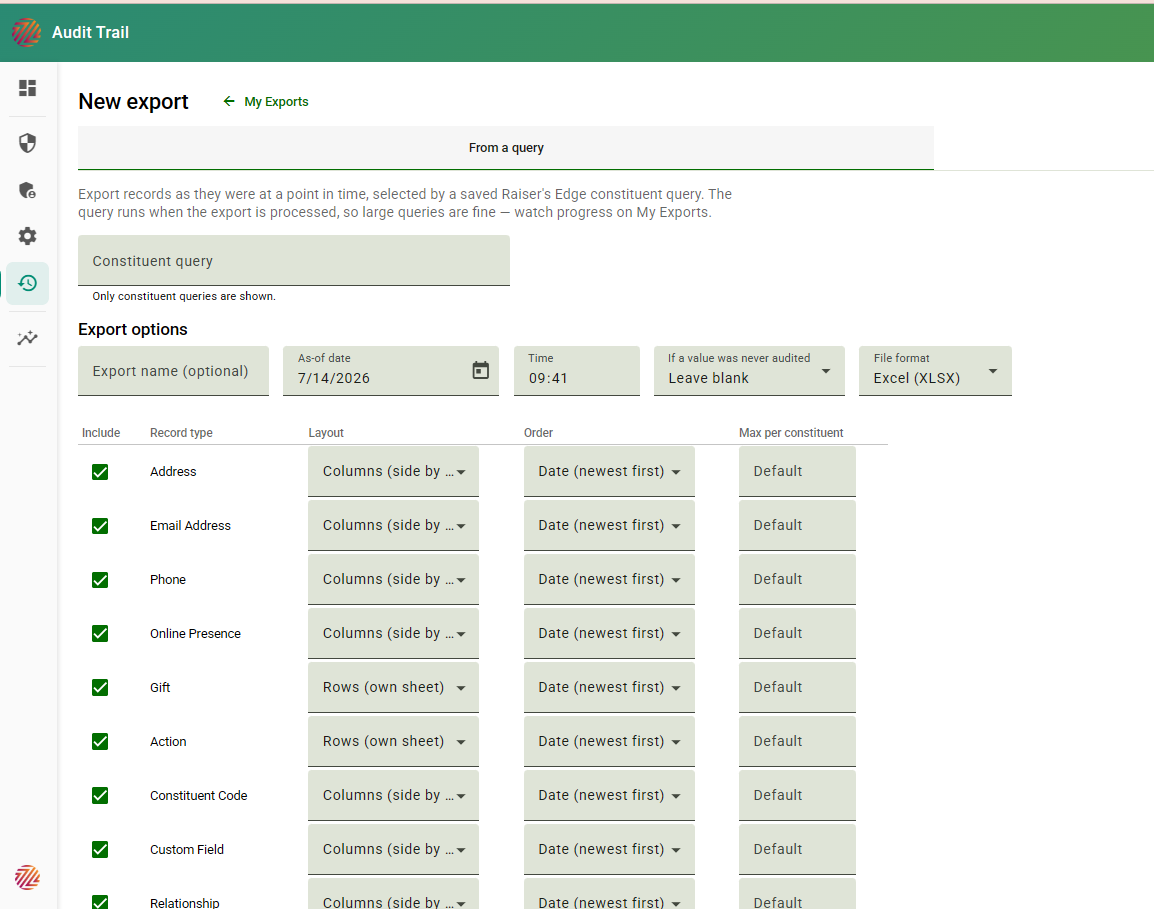
From a Query
Using a Query in your Raiser’s Edge, you can have Audit Trail exports records as they were as a point in time. You can select As-of Date, a time, decide what should be presented if a value was never audited, and a file format (Excel or CSV). There is also a field to give your Export a name. This is optional, but highly recommended when viewing your Exports in ‘My Exports’.
Additionally, you can choose the type of data to be included from Addresses, Gifts to Relationships as well as control the Layout, Order and number of types per constituent (for example, do you want just 1 address or more addresses per constituent)
Deleted Records
Audit Trail identifies constituent records that it seen deleted and presents them in the second tab. You can filter by Date to and from, or for a specific record. Select the record or records using the check box.
You can also refine your export further by selecting how the record looked ‘As-of’ a specific Date and time, as well as decide what should be presented if a value was never audited, and a file format (Excel or CSV). There is also a field to give your Export a name. This is optional, but highly recommended when viewing your Exports in ‘My Exports’.
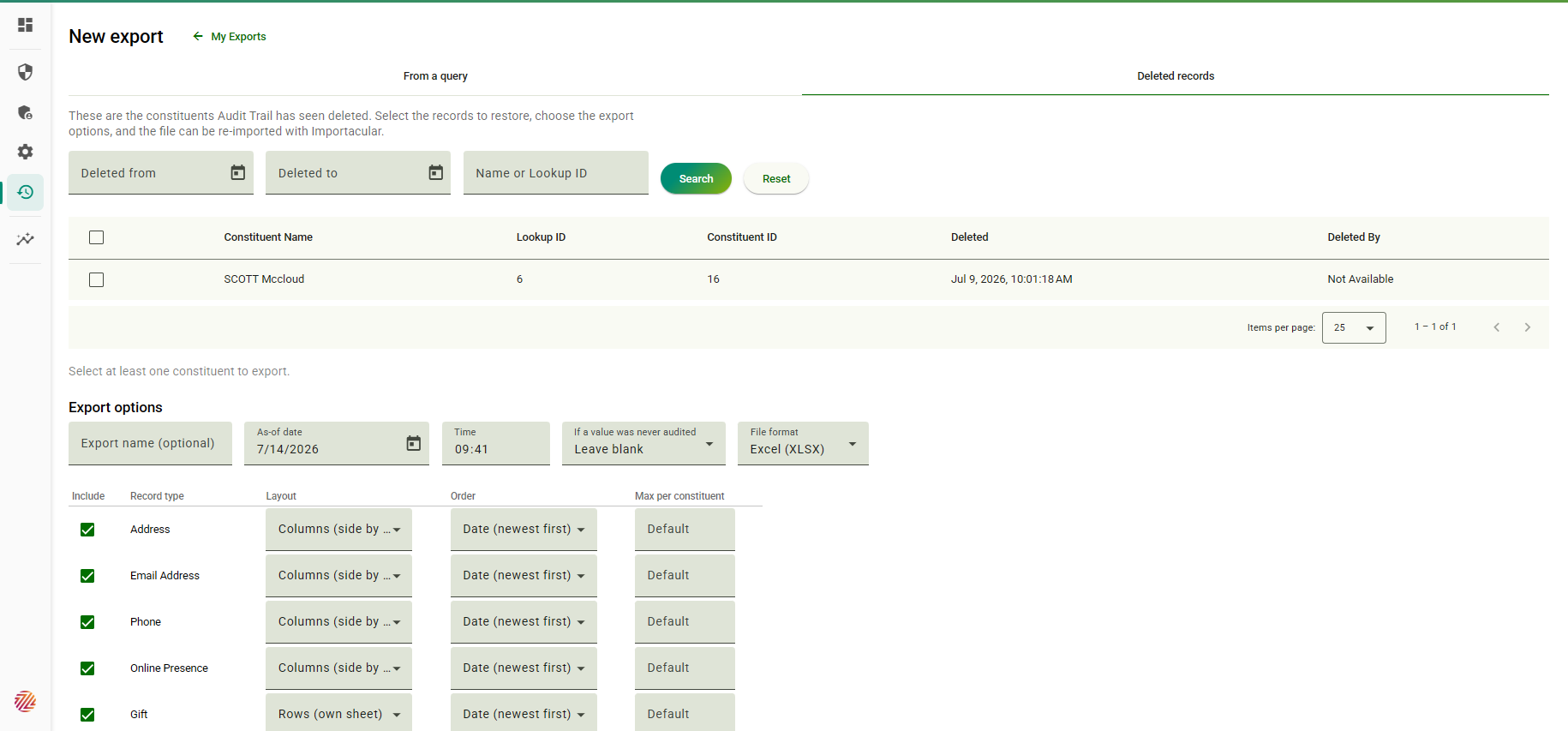
Additionally, you can choose the type of data to be included from Addresses, Gifts and Relationships as well as control the Layout, Order and number of types per constituent (for example, do you want just 1 address or more addresses per constituent).
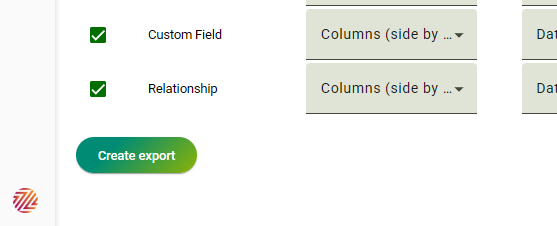
Once ready, click on ‘Create Export’ and they will appear in the ‘My Exports’ section. Depending on the number records, it may take some time before you can download them.