

For your convenience, we have included a tool that will convert your templates from Importacular Classic into ones that you can use with Importacular NXT. This Classic Template Converter allows you to attach an exported templates from Importacular Classic and ‘import’ it into Importacular NXT. Before you do so, you might need to prepare your Classic Template before you Export it into a XML file.
Preperation
Importacular Classic has three different types for Data Transformations: Local Transformations, Organisation Transformation and Global Transformations.
Organisational and Global Transformations are both Cloud-based and are featured across Importacular Classic and Importacular NXT.
Local Transformations are transformations that exist only within the template itself and as such are stored locally. Since Importacular NXT is cloud-based, the concept of a locally stored data transformation does not exist. With this in mind, in 2025 we introduced a new tool in Importacular Classic that allows users to convert local transformations into ‘Organisational Transformations’ and automatically replaces the local transformation in the template to the Organisational one. The new tool is found within the Template Manager of Importacular Classic. Simply select the template you want to use, head to the File top menu and select ‘Convert transformations to Cloud’. A window will appear that takes you through the steps and options available to you.
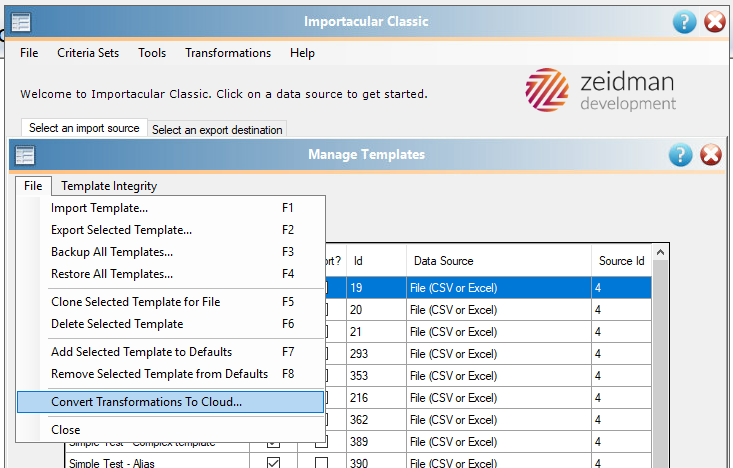
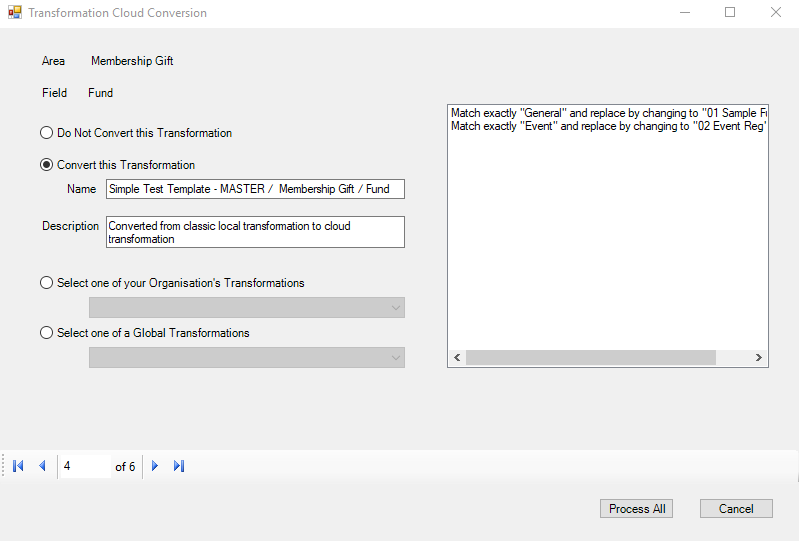
Once any local transformations have been converted and/or replaced, export the Template. You can do this from within the Template Manager by making sure the template is selected, then heading to the File top menu and selecting ‘Export Selected Template’.
Next, make sure you have a suitable sample of the data is associated with your template at the ready.
Obviously, if your Classic Template does not have any Local Transformations, you can bypass this step and just export your template ready for the next step.
Note: If you want/need to make a change to any of the Transformations from within Importacular Classic, after they have been converted from Local to Organisational, then head to the ‘Transformations’ top menu on the Classic home screen and going into ‘Manage Organisation Transformations’.
Using the Classic Template Converter
Once you have a Classic Template prepared and exported, head to Importacular NXT and the Template Manager. On the top right of the screen is the button to the Classic Template Converter
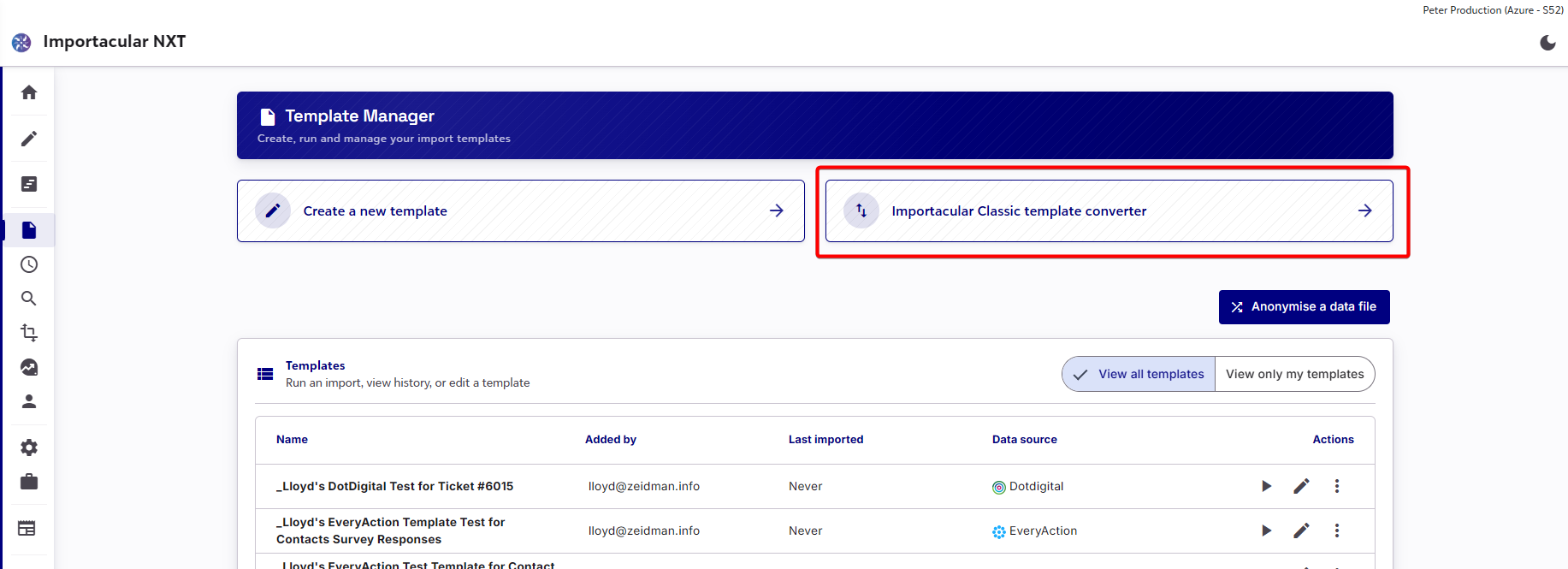
Clicking this will open up a new window with a message encouraging you to convert local transformations. It also highlights that templates which contain mapping to fields, areas and data destination not currently supported by RE Webview or Importacular NXT will be processed, but the affected areas will be ignored. At present, Importacular NXT offers the following:
- Constituent Data Destination with associated Area Mappings (excluding Notepad)
- Contact Data Destination with associated Area Mapping (excluding Address Custom Fields)
- Gift Data Destination with associated Area Mappings for One-Time Gifts, Pledge Schedules and Pledge Payments
- Gift Batching Option
- Action Data Destination with associated Area Mappings
- Education Data Destination with associated Area Mappings
Again, if your Classic Template contains any Data Destination Area Mappings outside of what is listed above, the template will be converted but these areas will be ignored.
NOTE: Once converted, you can continue to use your Classic template as you normally would in Importacular Classic. Your Importacular Classic Template and your Importacular NXT Templates are not linked to each other. After the conversion, your Classic template and your NXT template will act independently of each other. If you make a change to one, you may need to consider making a change to the other.
Data Transformations for Fund, Appeal, Campaign and Package
If your Classic Template contains Organisation Transformation for Fund, Appeal, Campaign and/or Package, the Converter will create a duplicate copy of the transformation that is suitable for Importacular NXT and rename the original Org Transformation to indicate that it is suitable for Classic. The reason for these two versions is because RE NXT webview looks up Funds, Appeals, Campaigns and Packages differently to Database view, so we are unable to use the same Organisational Transformation for these fields.
This means that you can continue to use your templates in Classic and NXT that contain Organisation Transformations on these fields without any issues.
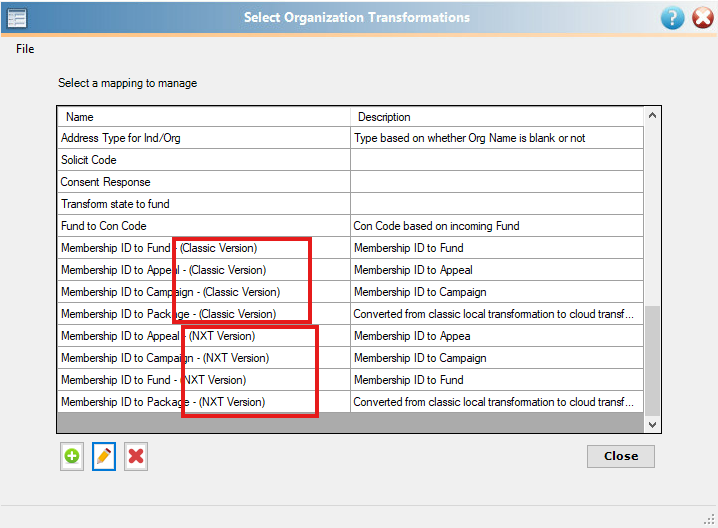
Any other Organisation Transformations in your templates are shared between Classic and NXT so there is not a need to have separate versions.
Review and Adjust the new NXT Template
Once converted, you may get a list of Errors or Warnings. After taking a note of these you will then be taken to the Template Builder. The name of the Template will be pre-populated, but feel free to rename it.
Next, you will need to attach your sample data to the template. This should contain a couple of records for you to import and test with. Once attached, head to the next stage for a review of what was converted and address any of the warnings and errors that were presented.
When you are ready, head to the next step and check that your Criteria Sets have converted over as expected to Record Lookups. If you have never opened a Criteria Set in your Classic template and just used the default ones, you will need to create your own Record Lookup to work with. If you need to do this, you can exit the template builder to go to the Record Lookup Manager and your template will be saved.
Once a Record Lookup has been selected, you can then head to the next step and create an import to test your new template.
A special note about converting templates with Participant mappings
If you are trying to convert a template that includes Participant mapping, please be aware that the Events module in RE NXT webview varies quite a bit from what is offered in Database View. As such, Importacular NXT’s ‘Event’ Data Destination behaves a little differently too. The main thing that you will notice is that there aren’t as many fields and areas to map to in RE NXT/Importacular NXT when it comes to events and participants. This isn’t necessarily a bad thing as we suspect not many users use them anymore, however, when you convert your template, there may be a lot of ‘Participant’ fields marked as ‘errors’ when the template converts.
For more information about Importacular NXT’s Events Data Destination, do head to the Participant/Event Mapping section
Managing Errors and Warnings
As Raiser’s Edge NXT users, you will be very aware that Database View and Webview behave differently to other, offering different fields, different naming conventions and, at times, different functionality. Importacular NXT and the Classic Template Converter will account for most of these differences, but there are still areas where you will need to consider for when converting templates. These are:
When a Field or Area exists in RE Database View, but does not exist in RE Webview or vice versa
Some examples of fields and areas that differ between the two:
- Address Info Source field is missing in Webview
- Address Custom Fields/Attributes is missing in Webview
- Constituent Code Sequence field is missing in Database view
- A lot of the Participant Fields are missing in Webview
- Participant Benefits, Participant Dinner Preferences and Event Awards are all missing from webview
When a Data Destination has not yet been added to Importacular NXT
Here is brief outline of when to expect future Data Destinations and related features. Do contact development@zeidman.info for an updated timeline:
- Participants/Events – Now Available
- Individual and Organisation Relationships – Now Available
- Opportunities – Now Available
- Prospects and Proposals – Q3 2026
- Split Gifts – Q3 2026
- Solicitors/Canvassers – will be added per data destination (Action, Prospects and Gifts Q3 2026, Opportunities available now)
- Tributes – Q3 2026
These Data Destinations are dependant on when Blackbaud are expected to release their functionality on to Webview
- Soft Credits – Q3 2026
- Memberships – Q3 2026
- Recurring Gift (Schedule and Payments) – Q3 2026
- Volunteers – Q4 2026
- Fund Relationship – Q4 2026
- Bank/Financial Relationship – Unknown. Listed as not being developed by Blackbaud
When a Field or Area behaves differently in Importacular NXT compared to Importacular Classic
- Primary Addressee and Salutations have their own Area Mapping in Importacular NXT with new Area Settings to consider
- Consent behaves differently in Webview, so the Area Settings in Importacular NXT vary from Classic
- Alias matching is simplified in Importacular NXT, with the option to select the Alias Type in the Record Lookups
- Record Lookup has been streamlined with a combined Ind/Org Constituent lookup instead of two separate ones.
- Most dates from incoming data sources are automatically stripped of time values. Your date formats transformations may be affected
- Participants/Events offers fewer fields and areas in webview, but Events can now be added at the point of import, Event Start Date is required, Participant Fee Gift Link has a required ‘Applied Amount’ field, and you can now add a Guest as a Constituent.
When the Classic Template contains a ‘local’ data transformation
See above on how to prepare your template.