
The Area Settings for Contact Mappings offer a tremendous amount of flexibility in how to manage new and existing Addresses, Email addresses, Phone numbers and online presence data.
Each Area Setting is tailored to how you might want to manage that Area. When adding/updating Address, we provide four options: Area Match Settings, Conditional Update, Handle Blank Addresses and When adding a new address…
Please Note: For US Zip Codes, if the incoming zip code is 9 digits long, but the RE Address Record is only 5 digits long, Importacular NXT will seek to find a match on the first 5 digits. Likewise, if the incoming zip code is 5 digits long and the RE Address Record is 9 digits longs, Importacular NXT will seek to find a match using the first 5 digits.
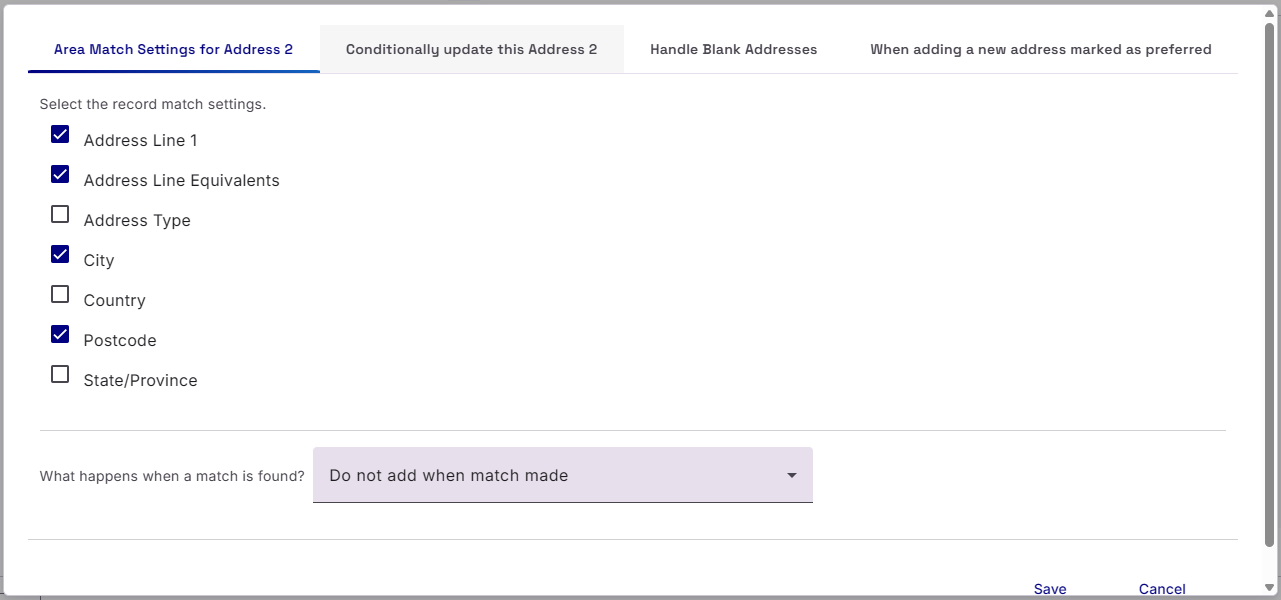
Area Match Settings for Address
Here you can select which fields to use when looking for a match on an Existing record as well as what do do when a match is found.
The options are:
- Do not add when match made (this is the default position of all new Address Area Mappings. It will not update/overwrite an existing address record)
- Add when not found otherwise update
- Add regardless of match
- Always update Preferred Address
The match fields include the option of an ‘Address Line Equivalents’. This will allow Importacular to accept a match on common Address Equivalents such as ‘Rd for Road, St for Street and Ave for Avenue. For more information about Equivalents, please see https://www.zeidman.info/docs/importacular-nxt-user-guide/application-settings/equivalent-values/
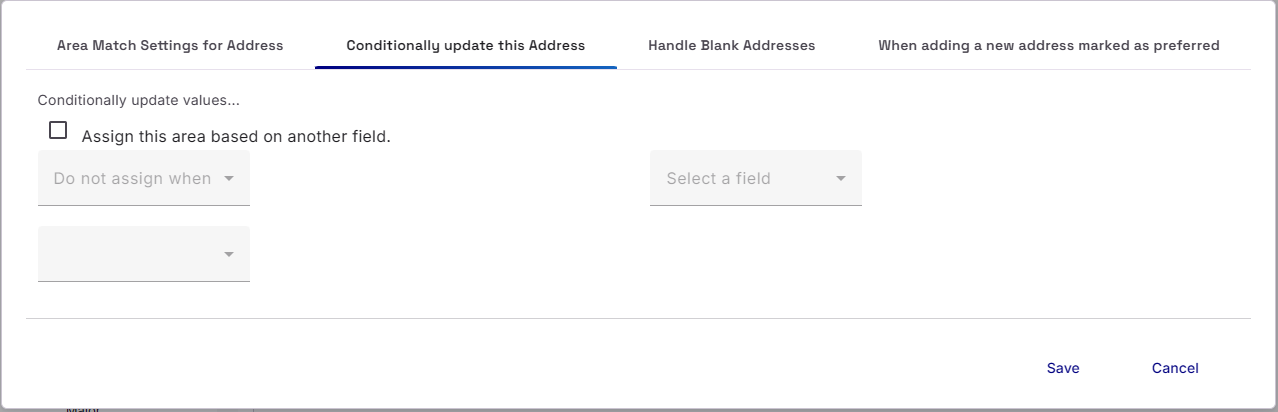
Conditional Update this Address
Conditional Update Area Settings is common across all Area Settings. For Address Area, you can apply a condition to add/ignore an address based on the condition of a field from the data source.
Handle Blank Address
If the incoming address fields from your data source include blank values for an address, you can use this option to ensure certain Addresses (with blank values) are not added as a new address.
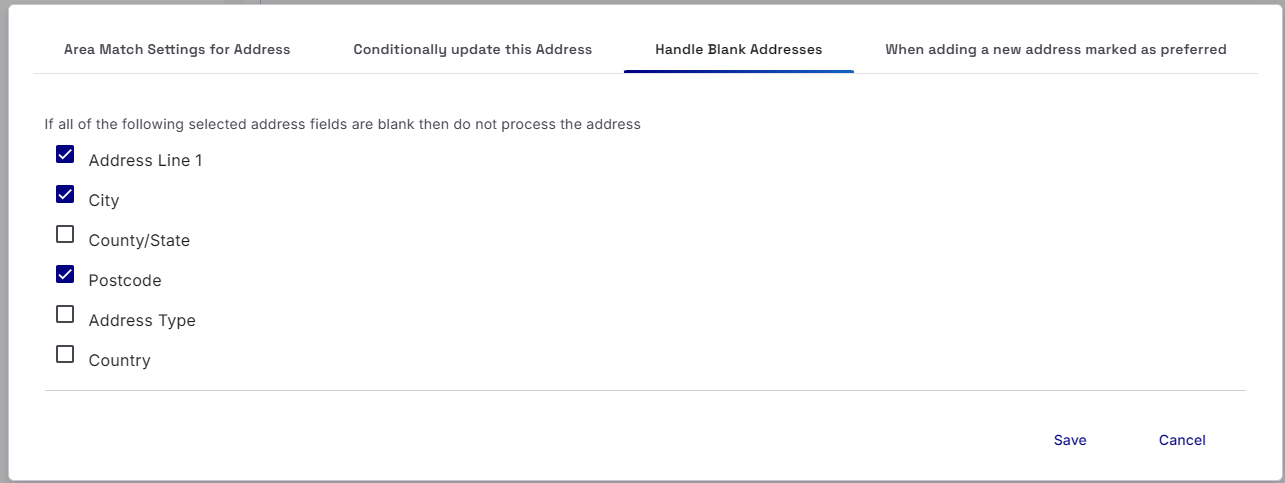
All fields you select must be blank before Importacular will ignore the address. The option onscreen are Importacular default settings for new Address Area Mappings
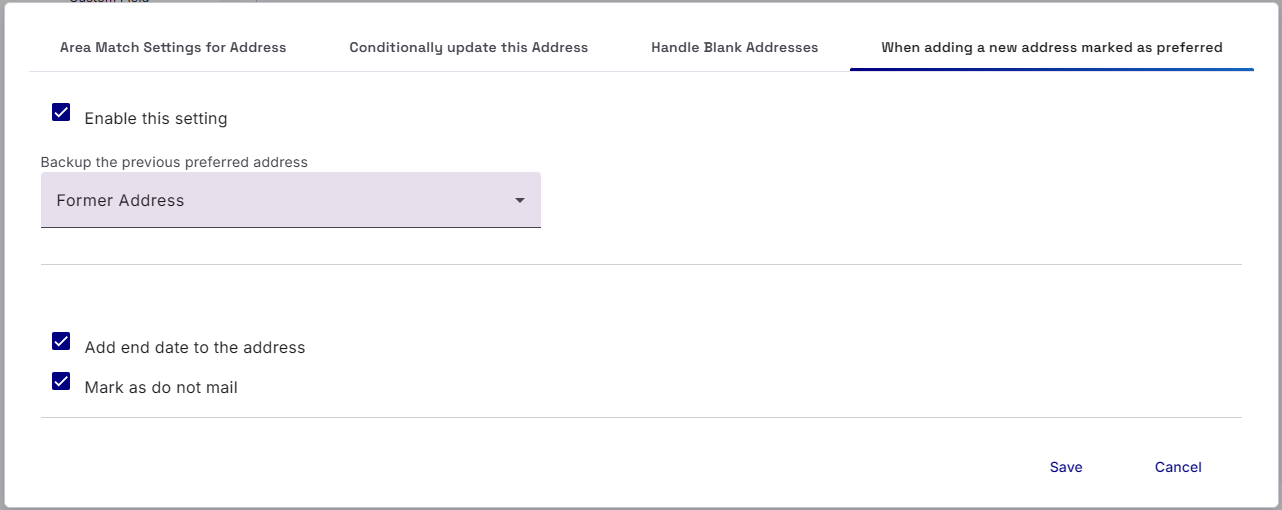
When adding a new address marked as preferred
This final Address Area Setting allows you to backup the previous ‘Preferred Address’ when adding a new Preferred Address. As well as engaging the option, you will also be required to add an Address Type, such previous or former address.