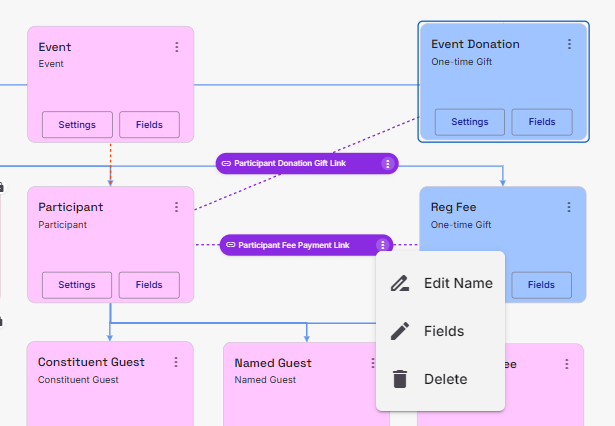

The Participant Data Destination provides three Area Mapping to add donations and fees to Participant and Participant Guest records.
Participant Fee
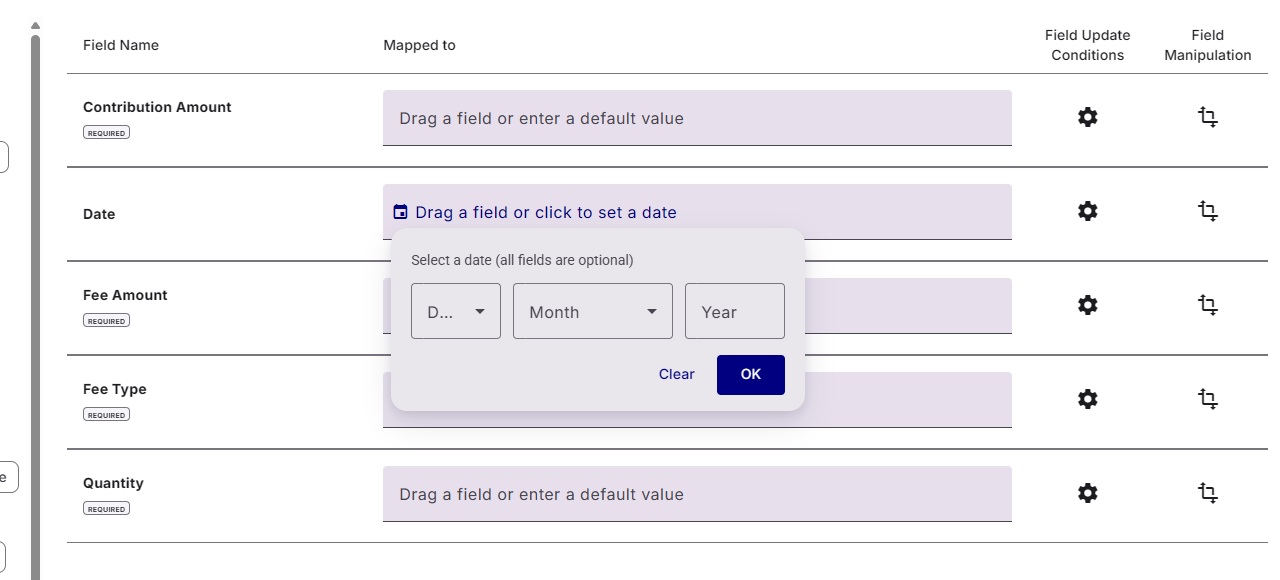
Participant Fee allows you to import Fees to a Participant record. Fee Types does need to exist on the Event prior to your import. Most fields are required and should you wish to add a Date as a Default Value, you can set the date as a fuzzy date.
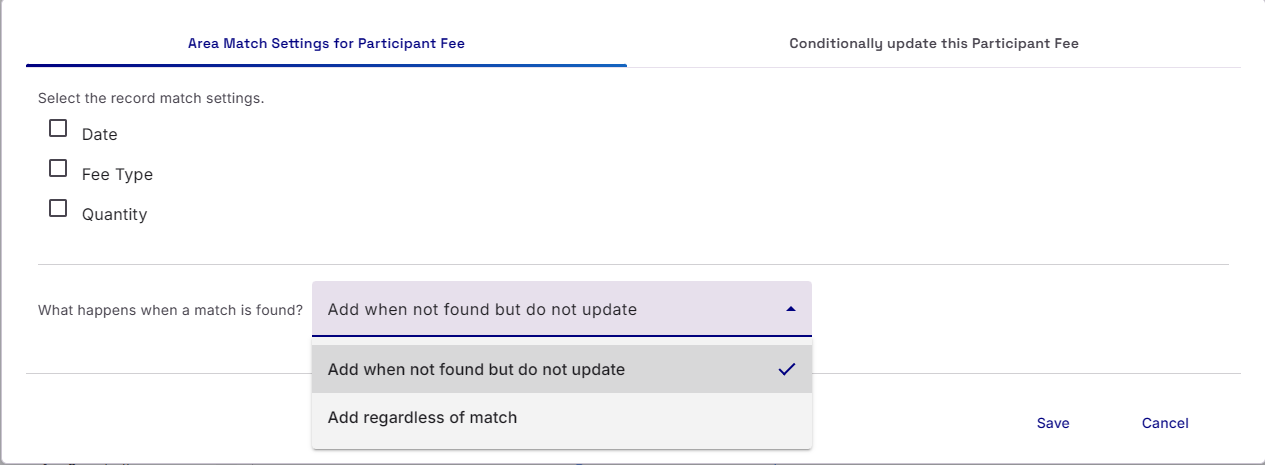
Participant Fee Area Settings
Participant Fee has two Area setting. The standard Conditional Update setting and the Match Settings. In the Match settings, you change choose what fields Importacular should use to find a suitable match and what to do when a match is found.
Gift Links
Importacular NXT offers to additional Area Mappings: Participant Donation Gift Link and Participant Fee Gift Link. These allow you to connect a Participant record to a pre-existing Gift. If you have created a Gift Mapping with the intention to add a donation to a Constituent Record, the Participant Donation Gift Link allows you attach a Participant Constituent Record to that Gift Mapping. Upon importing, the gift will then be associated with that Participant Record. Simply select the Participant Donation Gift Link in the Destination and Area section and then select the Participant Record you want the Gift Link to be attached to. Once selected, the pointer will turn into a purple dotted line with a grab hand. Drag this to the relevant gift and select the gift. A purple box will appear with the name of the Gift Link and a stacked dot menu that allows you to edit the name or delete the mapping.
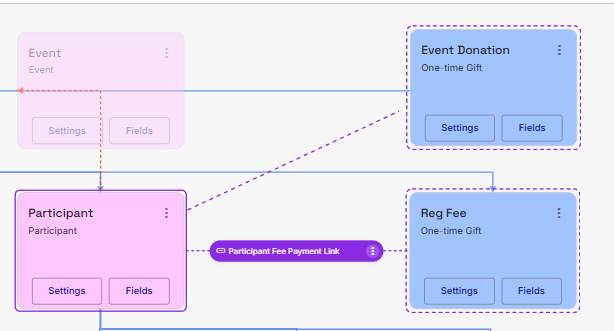
If you have created a Gift Mapping with the intention to add a Registration Fee to a Constituent Record, the Participant Fee Gift Link allows you to attach a Participant Constituent Record to that Gift Mapping. Upon importing, the gift will then be associated with that Participant Record. Simply select the Participant Fee Gift Link in the Destination and Area section and then select the Participant Record you want the Gift link to be attached to. Once selected, the pointer will turn into a purple dotted line with a grab hand. Drag this to the relevant gift and select the gift. A purple box will appear with the name of the Gift Link and a stacked dot menu that allows you to edit the name or delete the mapping. The Participant Fee Gift Link has one required field, the ‘Applied Amount’. In the stacked dot menu, there is a ‘Fields’ option that allows to map that required field.