

The Contact Data Destination provides you with Areas to map Addresses, Emails, Phones and Online Presence. You can add multiples of each Area to a Constituent/Non-Constituent mapping and they can be added to the Primary Constituent as well as any relevant relationship or participant mapping.
Address
Field mappings for the Address Area is pretty straight forward, but there are some key points to highlight.
Required Fields
‘Address Type’ and ‘Is preferred?’ are both required fields for you populate
Regional Variances
Importacular NXT will present relevant fields based on your location. For example, State and Zip Code in the US and a Postcode in the UK and Canada. With regards to Zip Codes and Postcodes, their fields include Field Manipulation options specific to their needs. For Zip Codes, you can opt to add a leading zero if the incoming value is only 4 digits long. For Postcodes, you can option to make sure the incoming value is converted to the UK or Canadian standard.
Email, Phone and Online Presence
For your convenience, the Email, Phone and Online Presence will only should the relevant ‘Type’, based on how you have set them up in your RE. So, Email will only show Email Types and Phone will only show Phone Types, etc.
Email, Phone and Online Presence fields along with their ‘Type’ field are both Key Fields. This means if the incoming value for those fields is blank, Importacular won’t try and add a ‘type’ with a blank value.
Managing Phones with Country Codes
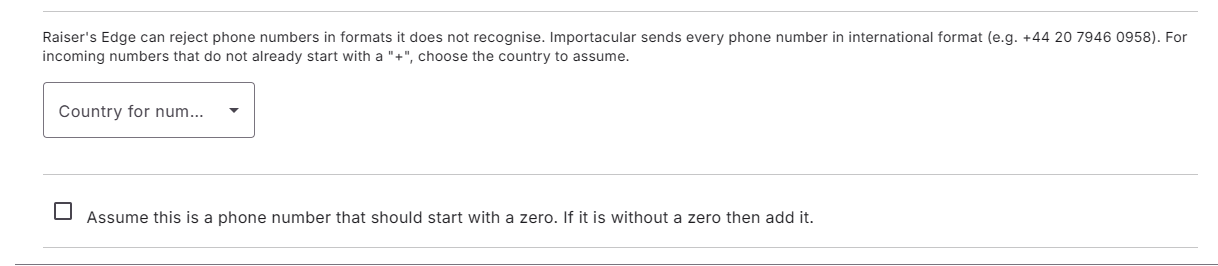
For Phone numbers, we have included a Field Manipulation options that allows you to set the incoming country code to assist in managing phone numbers that feature the International Format, if it is present. It will also account for phone numbers which include spaces as well as phone numbers where a leading zero has been removed.
To add a leading zero, if one is missing, we have provided that option too (UK Only).
Recommendations
- Contact Areas do different from many other Area Mappings, due to the nature of how they exist on a record. With that in mind, we recommend that most Field Update Conditions be left to their default position of all options under ‘Only Update Value for…’ checked.
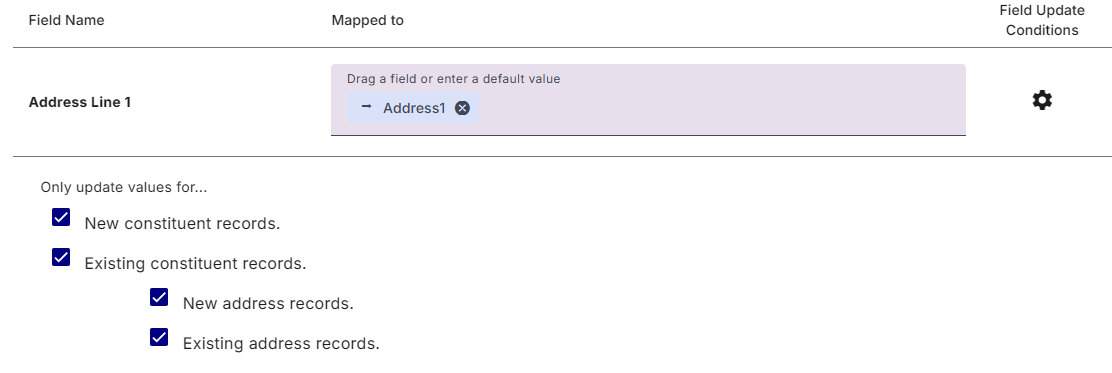
Instead, we recommend that you head to the Area ‘Settings’ for each mapping and let the Area Settings manage when a Contact Area should be added, updated or ignored. For more information, please head to the Address Area Settings section and the Email/Phone/Online Area Settings sections.
- Consider the text format of relevant fields and make sure you apply the appropriate Text Casing setting under Field Manipulations. We like setting email addresses to all Lower case and Address Lines to Proper casing