

The Area Settings for Contact Mappings offer a tremendous amount of flexibility in how to manage new and existing Addresses, Email addresses, Phone numbers and online presence data.
Each Area Setting is tailored to how you might want to manage that Area. When adding/updating emails, phones or online presence, we provide three options: Area Match Settings, Conditional Update and Alternative [ ] Type
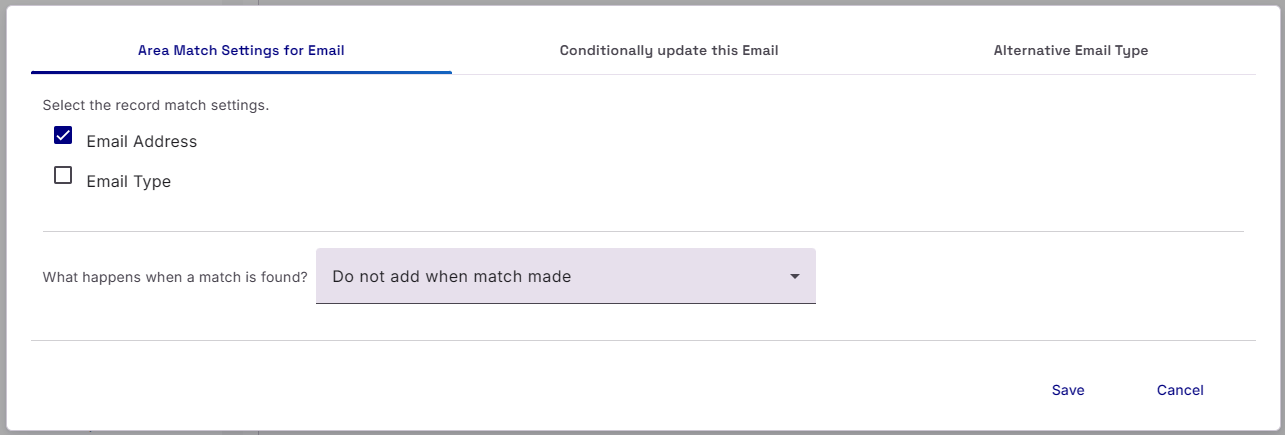
Area Match Settings
Here you can select which fields to use when looking for a match on an Existing record as well as what do do when a match is found.
The options are:
- Do not add when match made (this is the default position of all new Contact Area Mappings. It will not update/overwrite an existing contact record)
- Add when not found otherwise update
- Add regardless of match
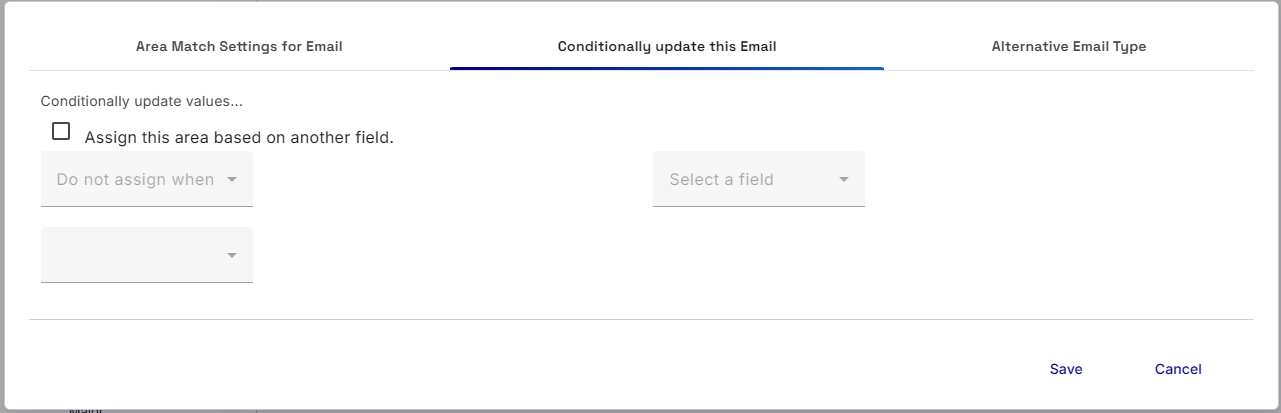
Conditional Update this Email/Phone/Online presence
Conditional Update Area Settings is common across all Area Settings. For Contact Areas, you can apply a condition to add/ignore an email/phone/online presence based on the condition of a field from the data source.
Alternative Email/Phone/Online presence Type
Here you can enable a setting to manage the Email/Phone/Online presence Type when adding a new value, based on a hierarchy that you can manage.
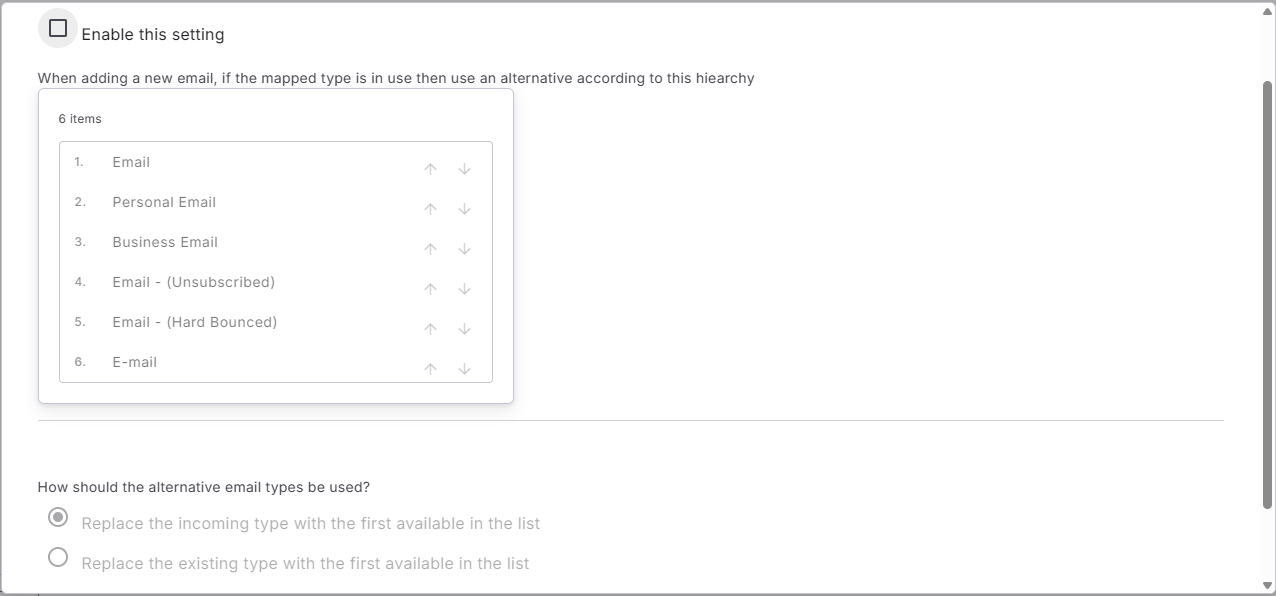
Once you are happy with the order of ‘Types’ in the Hierarchy section, you can determine how the feature should be used
- Replace the incoming type with the first available in the list
For example, if you are adding a new, incoming email address, Importacular will look for any existing email addresses and give your new email address a type, that isn’t currently used by the existing emails, in accordance to your hierarchy. - Replace the existing type with the first available in the list
For example, if you are adding a new, incoming email address, Importacular will assign the incoming email address with the type at the top of your hierarchy. If another email address already has that type, it’s type will be adjusted to a value next in line down the hierarchy and so on.