

Raiser’s Edge Gift Area offers a tremendous amount of fields to map, with a lot of fields only being relevant based on the type of Gift being applied. With this in mind and to make things easier to understand, we have created Gift Area Mappings that are specific to the Gift Type. At present we offer Gift Area Mappings for One-Time Gifts, Pledge Schedules and Pledge Payments.
Recurring Gift Schedules and Recurring Gift Payments will be made available once Blackbaud develop Recurring Gift functionality on Raiser’s Edge webview.
Though each Gift Area Mapping has it’s own unique set of Fields to map to as well as it’s own unique Area Settings, they still share a lot of fields and area settings in common. This overview will explore this common fields and Area Settings. Please head to the specific Gift Type Area Mapping sections in the User Guide for more information about the field and Area Settings that are unique to that Area.
Campaigns, Funds, Appeals & Packages
Like any other field, these fields can be mapped from your Data Source or by adding a Default Value. For Default Values, due to the potential large volume of values that each option could present, Campaign, Fund, Appeal and Package fields do not present as a dropdown list of values to choose from. Instead, you can type in the first three characters of the Name or ID and, if suitable, the correct option will appear. You will need to be familiar with your Campaigns, Funds, Appeals and Packages in your RE.

Area Settings
Like all other Area Settings, all Gift Areas include Match Settings and Conditional Update Settings, but there some other Area Settings worth highlighting.
Batch Settings
By default, Importacular NXT will add gifts directly to records. This area settings allows Importacular NXT to add gifts via a Gift Batch and apply a few other options.
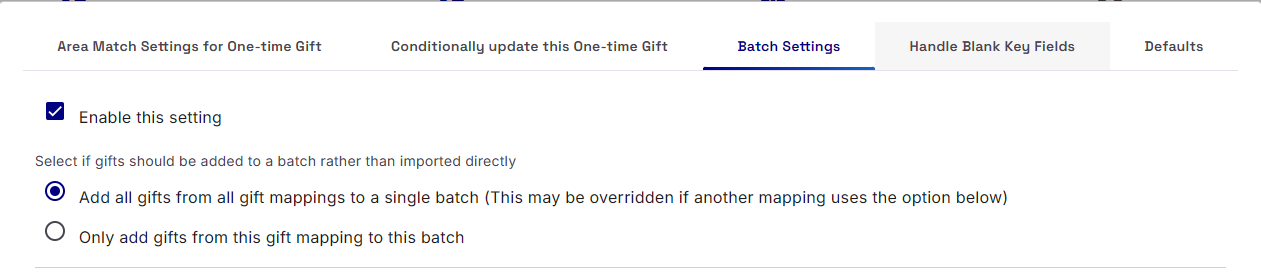
Once you enable the Batch setting, you are presented with your first to options:
Add all gifts from all gift mappings to a single batch (This may be overridden if another mapping uses the option below)
If your template has multiple Gift Area mappings, this option will ensure that all Gifts, across all your Gift Area mappings are added to a single Gift Batch.
Only add gifts from this gift mapping to this batch
If your template has multiple Gift Area mappings, this option will ensure that the Gifts from this Gift Mapping will have their own Gift Batch. A good use-case is if you have a One-Time Gift that is set to import Credit Card based-Gifts and another One-Time Gift set to import Paypal and Venmo based-Gift, you can use this setting to ensure that two Gift Batches are created. One for the Credit Card Gifts and one for the Paypal/Venmo Gifts
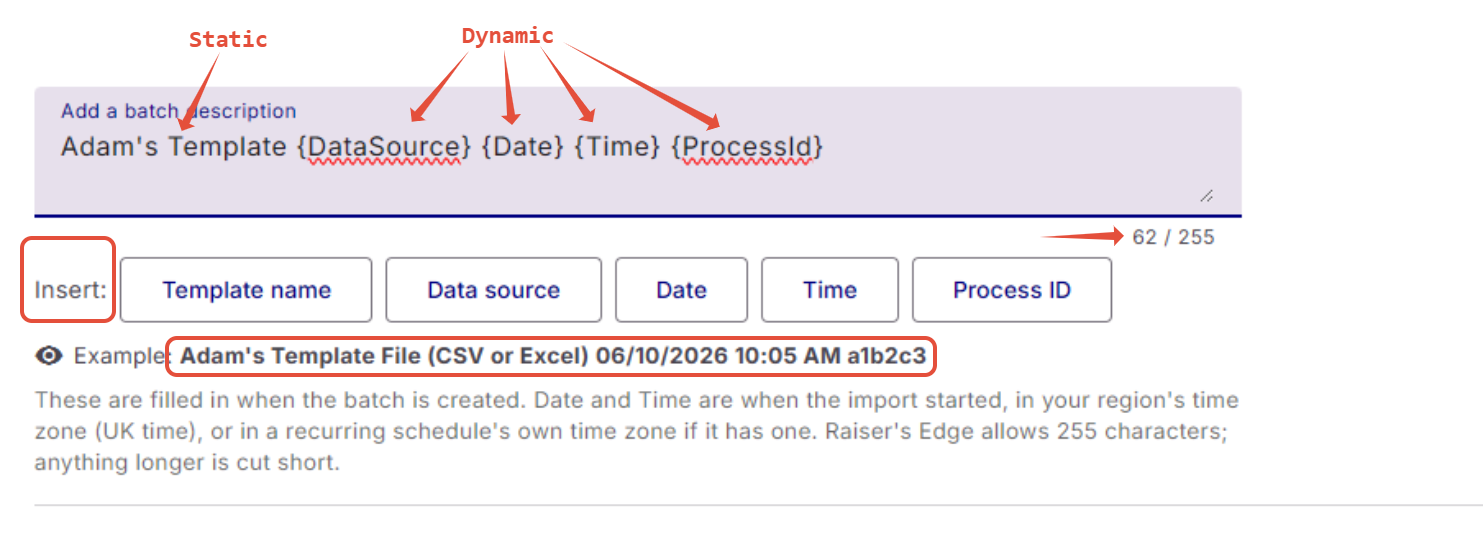
The next option is the ability to add a Batch Description. Here you can type in ‘static’ text, that are present in every gift batch from this template as well as choose from a range of ‘dynamic’ fields that can be inserted in the Description. These dynamic fields, presented within {} brackets will change per run of the template. You can arrange your static text and dynamic fields in any order you like and an example of what the Batch Description will look like is presented underneath the ‘Insert’/dynamic field options. The Character count, under the text box, is based on the ‘example’ and not the text with the text box.
Using Existing Gift Batches
If you wish to import gifts to an Existing Gift Batch on RE NXT Webview, you can do so on the Import Review Summary page, found on the Import Card within the ‘Imports Requiring attention’ row. If your template has multiple Gifts Area mappings and you have set them to create a new gift batch per Gift Area, the Existing Gift Batch option in the Review summary page will allow you to select an existing batch per gift area.
Handling Blank Key Fields
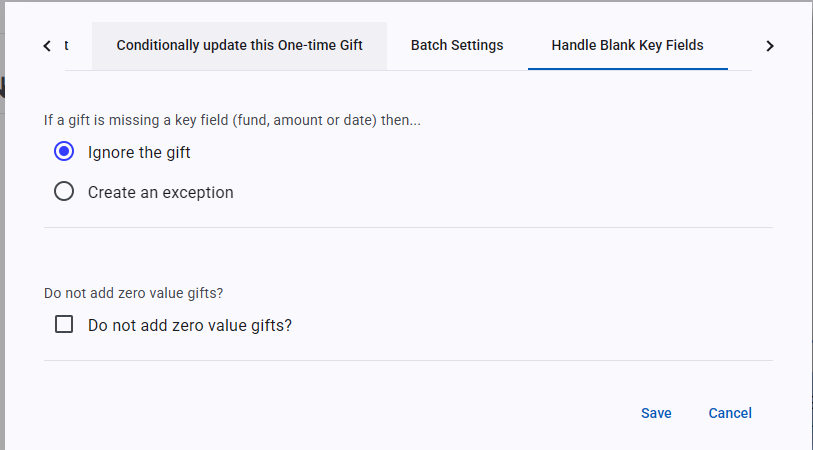
The Key Fields for all Gift types are Fund, Gift Date and Gift Amount. Even though you may have mapped these fields, the incoming data may still present these fields with a blank value. By default, Importacular NXT will simply ignore these gifts if any of those three fields are blank. However, this Area Setting allows you to change the behaviour so that Importacular NXT will create an exception instead.
We also present you with the option of add gifts if the incoming amount value is 0 (not blank).
Defaults
You can also control how the incoming gift can be associated Constituent Records.
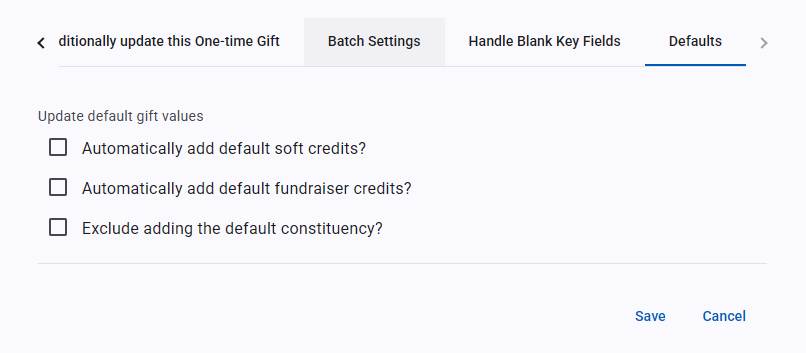
Here you can have the Gift automatically added to relationship records in RENXT which have the option ‘Automatically soft credit this individual for gifts’ selected, automatically credit associated fundraiser’s and/or choose to exclude the Constituency to the gift.
