
Data Transformations allow you to work with data in your Data Source and manipulate it as it comes into Raiser’s Edge. The options available to you within Data Transformations differ based upon the type of field that you’re importing to within the Raiser’s Edge. All Data Transformations are case sensitive and the order of processing follows the order of the grid. You must select a Source Field Value in your mapping template in order to use a Data Transformation.
The functionality of Data Transformation depends upon the field type for the data that you are mapping to that specific Raiser’s Edge field. Click on the links below to read more about what options are available for each of the different field types within the Raiser’s Edge.
Table based fields (such as – Fund, Appeal, Constituent Code, Solicit Code, etc.)
Text based fields (such as a Gift Reference, Last Name, Organisation Name, etc.)
Checkbox or Yes/No fields (such as ‘Is Inactive’, ‘Has no valid address’, etc.)
Date based fields (such as a Gift Date, an Action Date, etc.)
Amount based fields (such as a Gift Amount, etc.)
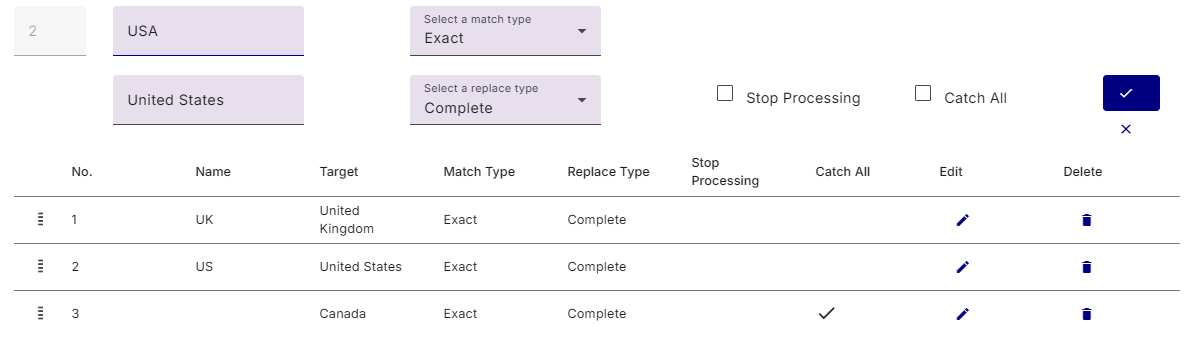
You can dynamically change source data to accurately import in line with your RE standards. For example, if you use longer names for countries you might change all ‘US’ to ‘United States’ as shown below. The ‘From Source’ indicates the value in your Data Source (ie File, Qgiv, MobileCause, Classy, etc.). The ‘Change to Target…’ reflects what you would like to import into the Raiser’s Edge.
If you are looking to update a Yes/No or checkbox field, we have built in to those field settings that they will accept the values of Yes/No, Y/N, yes/no, YES/NO, True/False, TRUE/FALSE, true/false and 1/0. This should reduce the need to add a data transformation, however, if you do feel that you need to add a Data Transformation on those fields, the values you need to type in the ‘Change to Target’ value of ‘Yes’ and ‘No’.
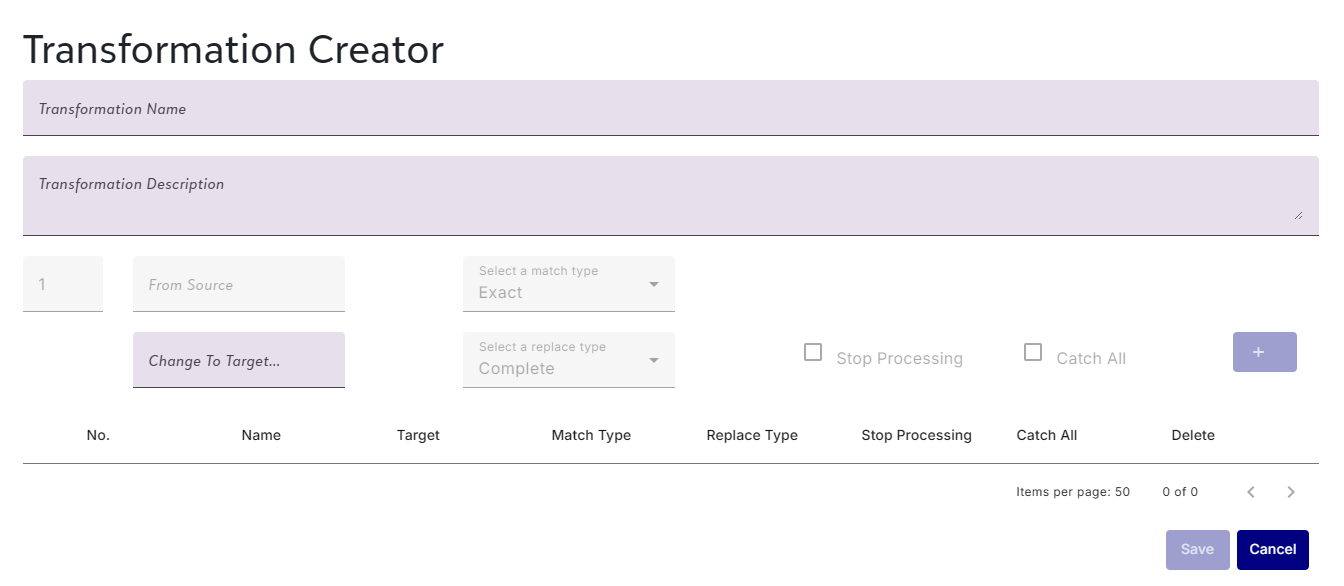
Match Type
You can choose to make an exact match, match a whole word or match any letters in the source.
Text Casing must always match exactly for any Match type. Additionally, Matches will take into account any Text Casing selections (in your Field Settings) that you have made.
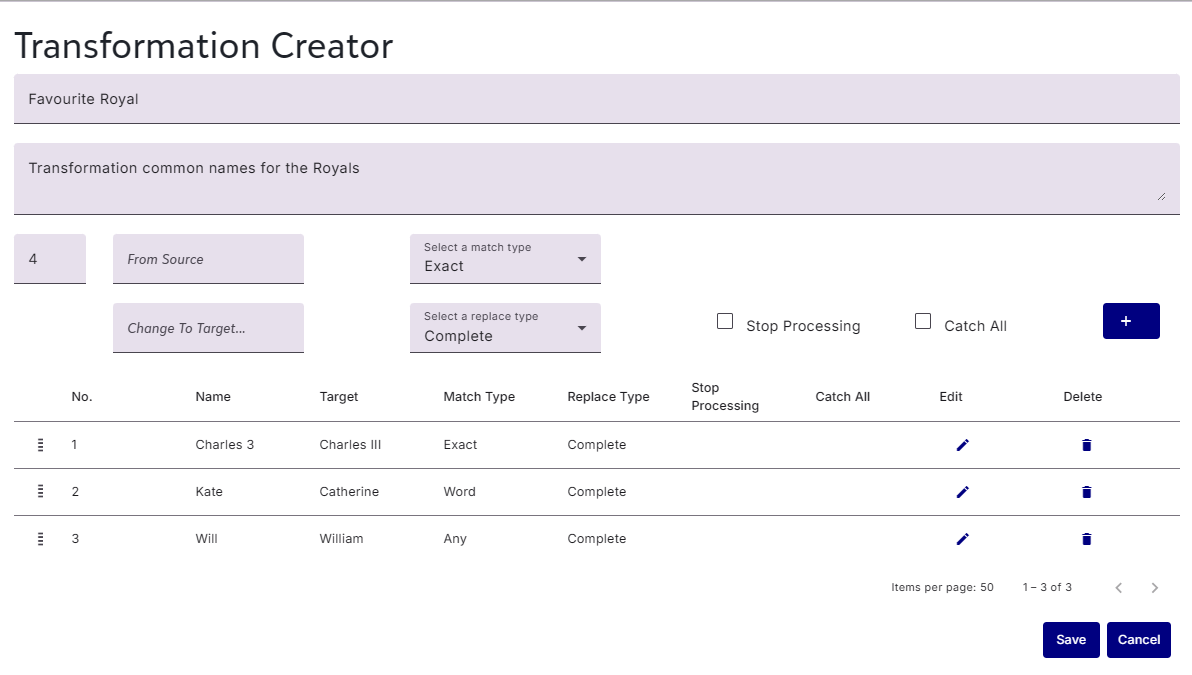
Exact Match: This is the default option and means that the data entered in the From Source column must match the value in your import file exactly (casing, characters, spacing, etc.) in order for the data transformation to process. In the “Favourite Royal” attribute, if somebody enters “Charles 3” it must be entered exactly the same in your import source. A value of Charles would not be changed.
Word Match: A word match requires the match of a word (as defined by a space, string of characters and another space). If somebody enters the whole word “Kate” then wherever this is found in the field it will be changed to “Catherine” so that it could be used for instances of Kate or Duchess Kate.
Any Match: This match type will look at a string of characters whether or not they are within a word, a standalone word, etc. An any match on the the lower case letters “will” in the above example will update the text to to uppercase “Will”. This would match to “will”, “william” or “willie”.
Regex Match: This allows the user the option to match to data in the import source using the logic of Regular Expressions. It can also be used when a user would like to add text to the beginning or the end of a text field (using the replace type of Append or Prepend). With this type, if the From Source is left blank, the change will be applied to all fields. To read more about Regular Expressions, we recommend this blog entry by David Zeidman. For a resource to build Regular Expression formulas, please view this outside website. Please note that help with building Regular Expression formulas is outside of the support offered by Zeidman Development.
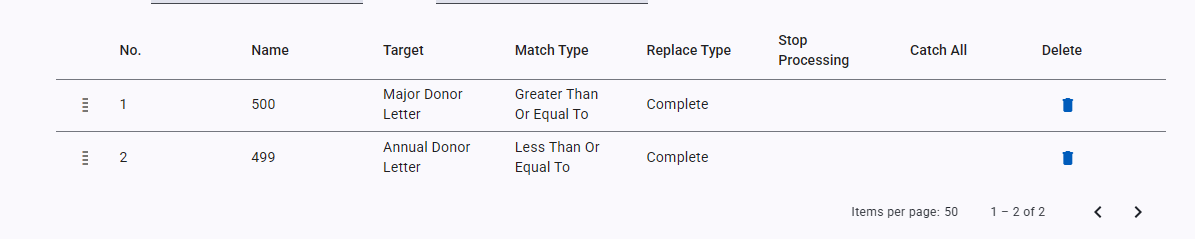
Greater than or equal to Match: This allows values greater than or equal to the number entered into the From Source field to be assigned the value in the Change to Target field. In the example above, gifts of 500 or more will be assigned the Major Donor Letter.
Less than or equal to Match: This allows values less than or equal to the number entered into the From Source field to be assigned the value in the Change to Target field. In the example above, gifts of 499 or less will be assigned the Annual Fund Letter.
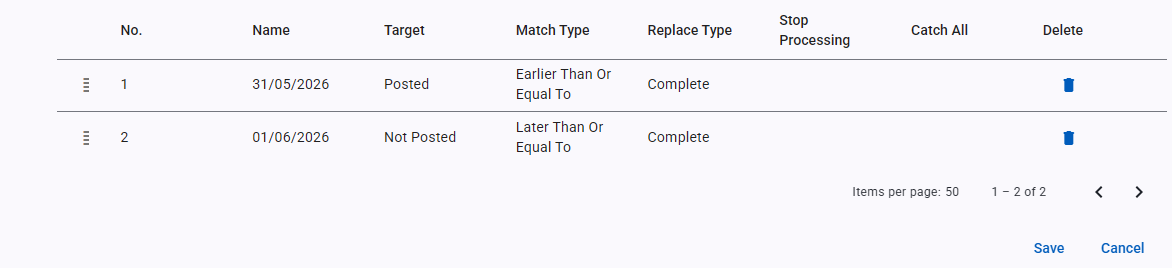
Earlier than or equal to Match: This allows dates earlier than or equal to the date entered into the From Source field to be assigned the value in the Change to Target field. In the example above, gifts made on or after the date 31/05/2026 will be marked as “Posted”.
Later than or equal to Match: This allows dates later than or equal to the date entered into the From Source field to be assigned the value in the Change to Target field. In the example above, gifts made on or before the date 1/6/2026 will be marked as “Not Posted”.
Replace Type
Replace Types determine to what extent the data will be changed as it is imported into the Raiser’s Edge. For additional information, please see this knowledgebase article.
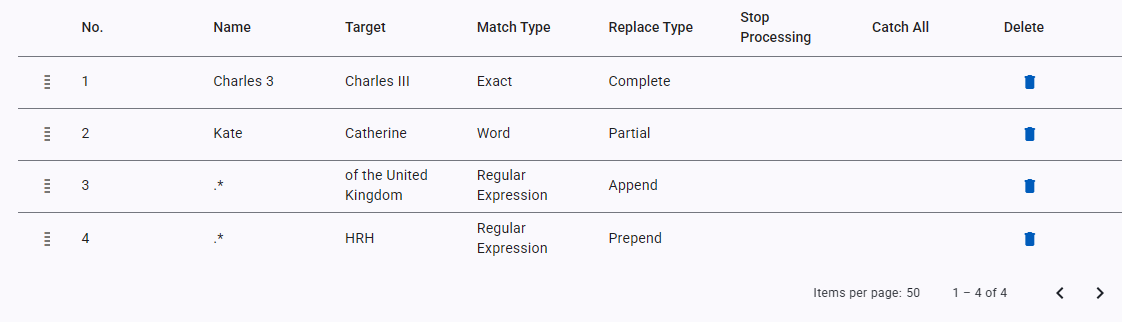
Complete: In the “Favourite Royal” attribute, if somebody enters “Charles 3” it is completely to “Charles III”.
Partial: If somebody enters the whole word “Kate” then wherever this is found in the field it will be changed to “Catherine” so that it could be used for instances of Kate or Duchess Kate. Since this is a Partial Match, other text in the field will remain the same, so an instance of “Duchess Kate” would result in a value of “Duchess Catherine” and an instance of “Kate, Princess of Wales” would result in “Catherine, Princess of Wales” while just “Kate” would now contain “Catherine”.
Append: Using the Append will allow you to add text to the end of a field. In the example above, we would add “of the United Kingdom” to the end all fields (the RegEx of .*), so “Catherine” would now be “Catherine of the United Kingdom”.
Prepend: Using the Prepend will allow you to add text to the beginning of a field. In the example above, we would add “HRH” to the end all fields (the RegEx of .*), so “Catherine” would now be “HRH Catherine”.
Regex: Regular Expressions (RegEx) are formulas that will allow you to control how a field value can be changed to meet your Raiser’s Edge needs. When used as a Replace Type, these allow you to further customise your data. To read more about Regular Expressions, we recommend this blog entry by David Zeidman. Help with Regular Expression formulas is not included with our support package, but you can find a few resources in this knowledgebase article. Watch this video showing the possibilities of using Regular Expressions as Replace Types.
Stop Processing
The Stop Processing function allows you to set a row in your data transformation to be the final change in a series of changes should the field match multiple Source Field options. The row that has this box checked will be the final change for any records that match that particular row. Any source fields that do not match that row will process beyond that row in the grid. This will not affect changes with the Replace type of Complete. You can read more about this function here.
Catch All
In some cases, you want to transform a set of values and any other values that do not match you want to set a default. In this case, you would create a row for a “catch all” value. This is useful, for example, when you have a default value e.g. for country you may have UK -> United Kingdom, USA -> United States, etc. and any other should go to Canada.

Editing a Transformation Row
If you wish to edit a transformation row, simply click on the pencil icon within the row you are looking to edit. This will present it above the Transformation Rows, prepopulated. Make your revision and click on the check mark/tick to the right of the screen. Clicking on ‘x’ cancels the edit.