
The Individual Relationship Data Destination allows you to map and import individual constituent and non-constituent records to the Primary Constituent and to each other. For example, you can map a spouse and children to the Primary Constituent, then you can add relationships to the spouse and the children as well as the children to each other.
When adding Individual Relationships from the Destination and Area side menu on the Template Builder Canvas, you have two main options: Ind Rel (Con) and Ind Rel (Non-Con).
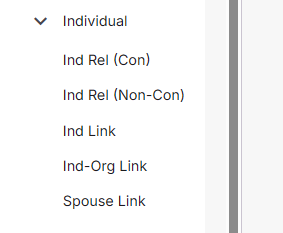
Ind Rel (Con) allows you to map Individual Relationship Constituent records. The field mapping for Ind Rel (Con) have all the fields you would expect for mapping a Constituent record along with some relationship specific fields such as ‘Is Spouse?’, ‘Relationship Type’, and ‘Reciprocal Type’.
Ind Rel (Non-Con) allows you to map Individual Relationship Non-Constituent records. The field mapping for Ind Rel (Non-Con) have all the fields you would expect for mapping a Non-Constituent record along with some relationship specific fields such as ‘Is Spouse?’, ‘Relationship Type’, and ‘Reciprocal Type’.
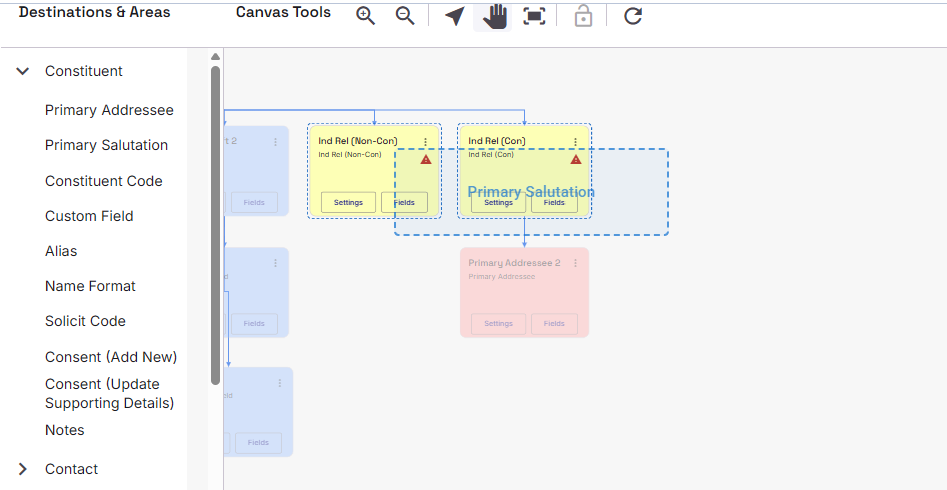
Once you have attached your Relationships to the Canvas, you can then attach other areas to them, such as Primary Addressees and Salutations, Addresses, emails, Education, Participant records, etc.
For Ind Rel (Non-Con), since these are non-constituent records, some Areas cannot be attached such as Gifts, Actions, Solicit Codes or Consents.
Relationship Links
Now that you have attached your Relationships to the Primary Constituent, you have the option to Link your Constituent relationships to each other. We provide you with three options: Ind Link, Ind-Org Link and Spouse Link.
Ind Link allows you to link Individual Constituent Relationships to other Individual Constituent Relationships
Ind-Org Link allows you to link Individual Constituent Relationships to Organisation Constituent Relationships
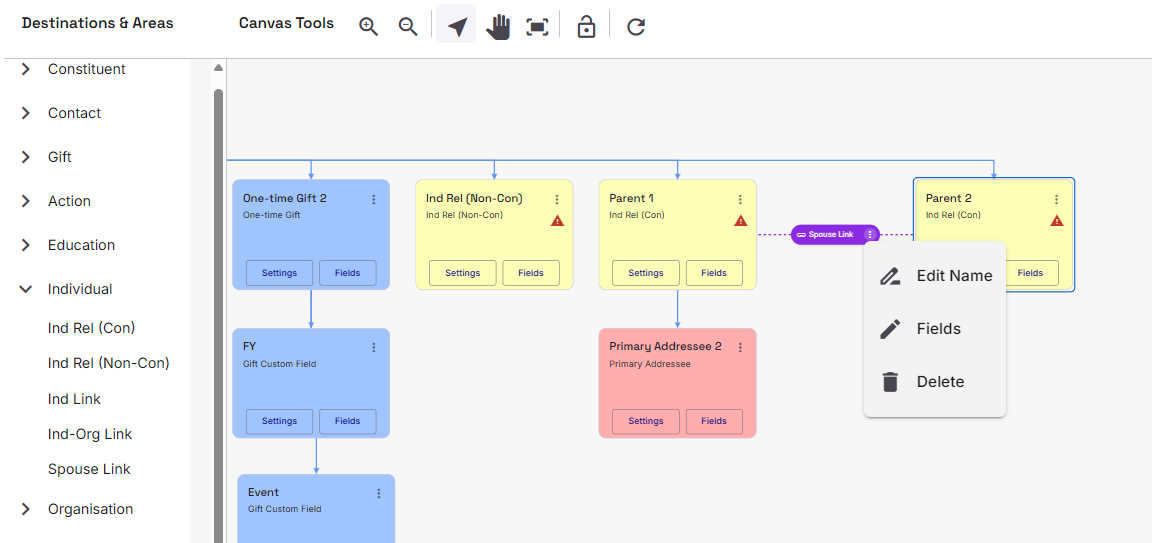
Spouse Link allows you to link Individual Constituent Relationship to another Individual Constituent Relationship with the sole purpose that they are Spouses. The reason why you might use this instead of Ind Link is because when you go to map the fields, Spouse Link offers two additional fields not available on Ind Link: ‘Is Constituent Head of Household? and ‘Is Spouse Head of Household?’
Using the Links
Simply select the Link you wish to make in the Destination and Area section and then select the Ind Rel (Con) you want to Link with. Once selected, the pointer will turn into a purple dotted line with a grab hand. Drag this to the relevant Rel (Con) mapping (Ind or Org) you want the Ind Rel (Con) to link to. A purple box will appear with the name of the Link and a stacked dot menu that allows you to edit the name, delete the mapping as well as map any additional fields you may want/need to map.
Using Non-Constituent Relationship
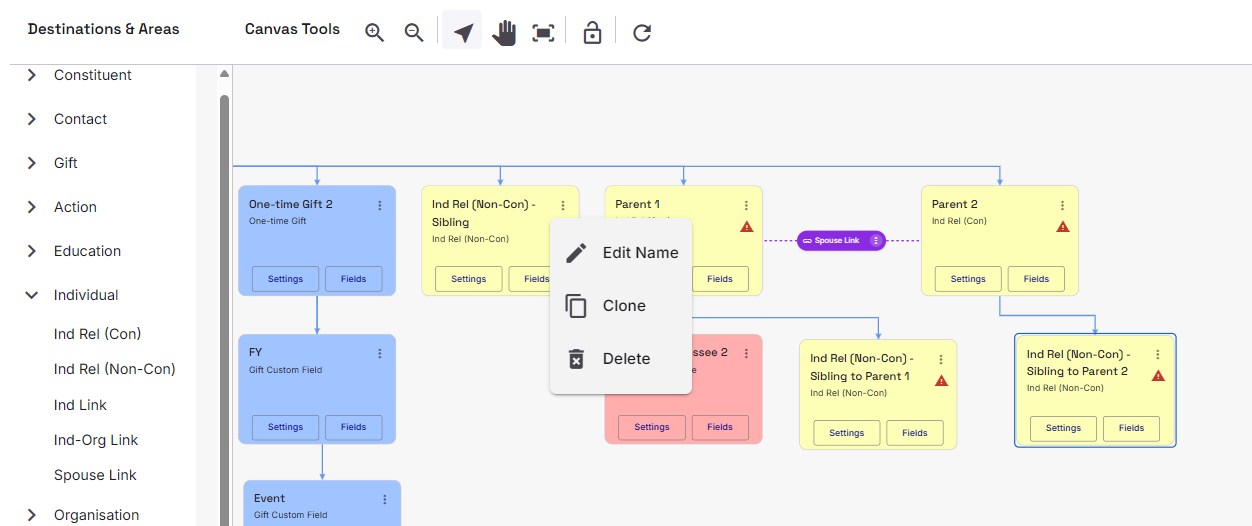
If you have a Ind Rel (Non-Con) mapping in place, you cannot use a one of the Link options as they only work for Constituent-based mappings. This is because a Non-Constituent relationship does not have a constituent record of it’s own. Instead, we recommend that you Clone the Ind Rel (Non-Con) mapping and attach it to the relevant Ind Rel (Con) mappings.
A good example of this is when the Primary Constituent is a Pupil. The Pupil’s Parents have been added a Individual Constituent Relations and the Pupil’s Sibling is added as an Individual Non-Constituent Relationship. Cloning the original In Rel (Non-Con) twice and attaching each Clone to each ‘Parent’ mapping will ensure the Sibling is present on the Parent’s records as well. Remember to edit the Name of the cloned relationship for future clarity.
Record Lookups for Relationships
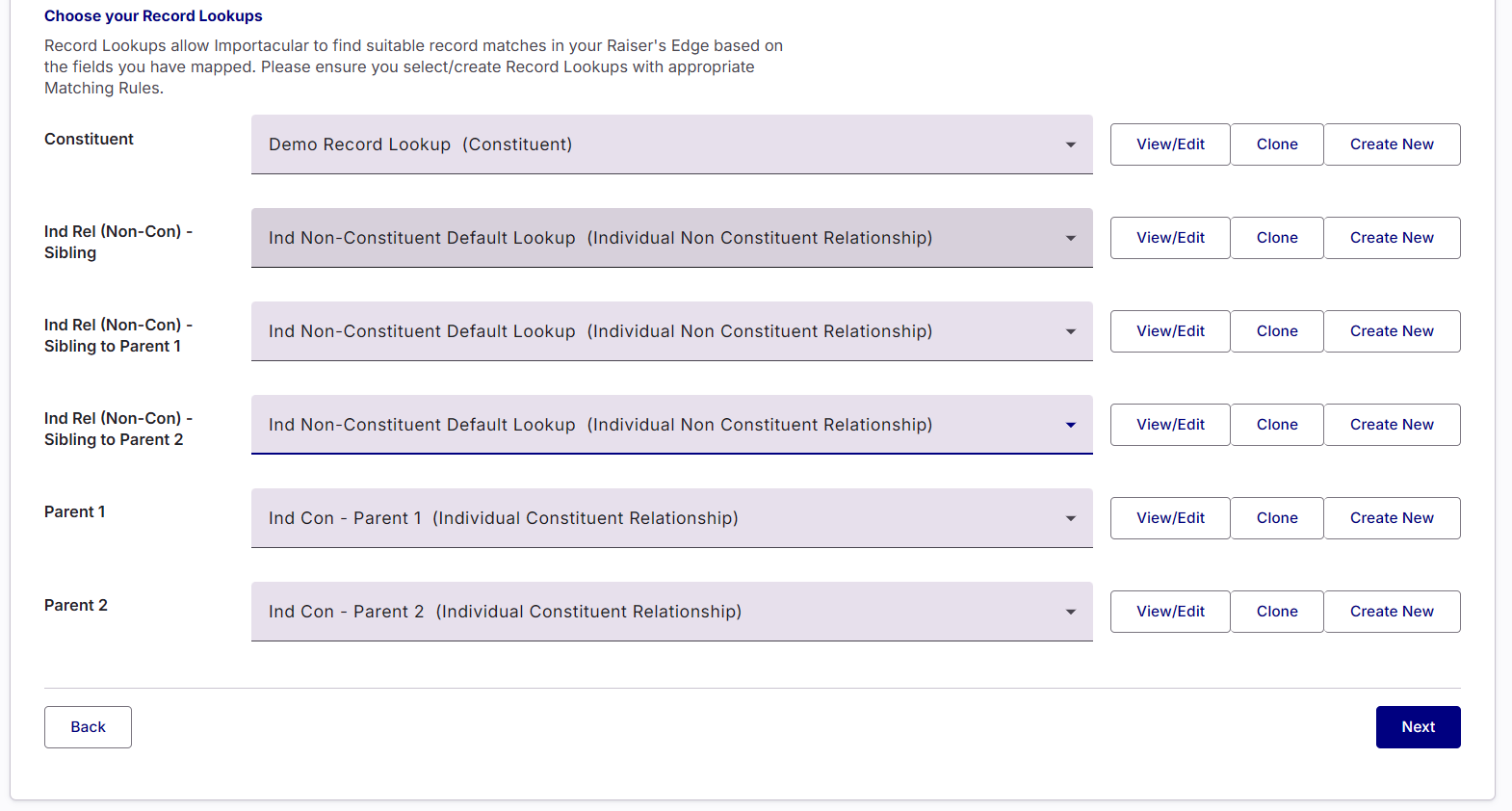
Once you have mapped your relationships and your template is ready, you will then be asked to attach a Record Lookup to each of your Constituent and Non-Constituent mappings. We provide a default option for each Lookup type and we highly recommend that you view and edit each Record Lookup, cloning or creating as many new Record Lookups as you see fit. Record Lookups are how Importacular tries to find a suitable record match in your RE based on what you have mapped in your template.
For Individual Constituent Relationship Record Lookups, it performs two tasks 1. It looks to see if the incoming data matches that of a Constituent Record in your RE and 2. Looks to see if the incoming data matches any Relationships within the Constituent records it seeks to attach itself to.
For Individual Non-Constituent Relationship Record Lookups, it performs one task: It looks to see if the incoming data matches any Relationships within the Constituent records it seeks to attach itself to.
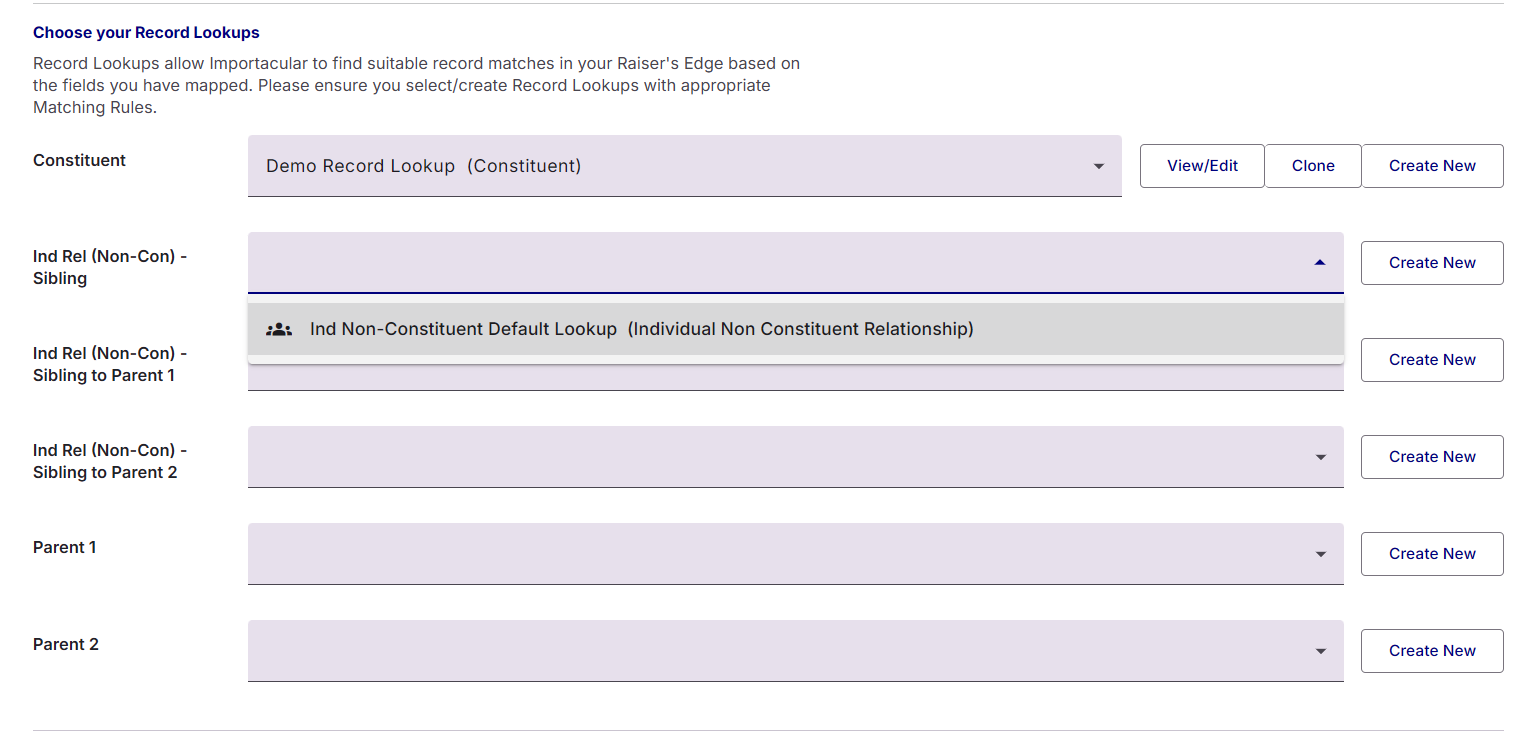
This approach allows you to tailor your Record Lookups based on the incoming data for each relationship. To illustrate further, take the example above where the Primary Constituent is a Pupil and their Parent’s are added as Two Individual Constituent Relationships. If your incoming data has a lot of details about Parent 1, but not a lot of details were collected about Parent 2, you could have one Record Lookup with a set of appropriate Matching Rules for Parent 1 and another Record Lookup for Parent 2, with a different set of Matching Rules.