
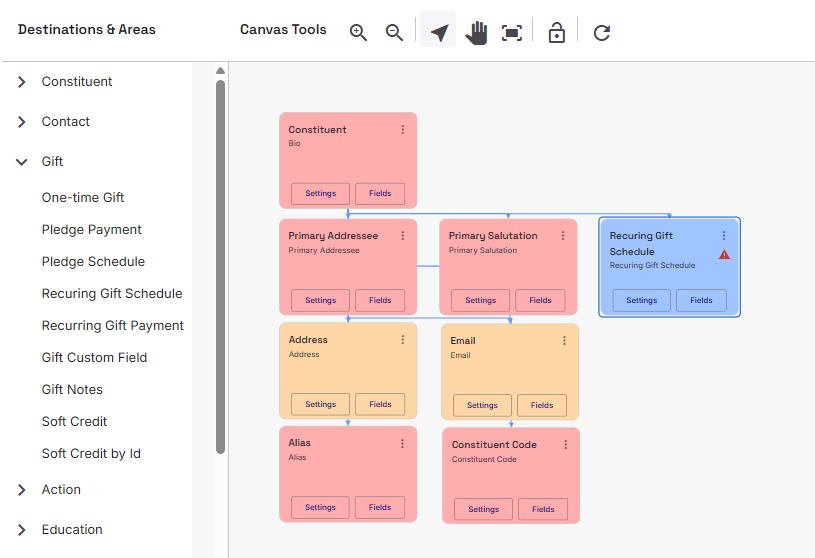
When adding Recurring Gifts, we provide you with two Gift Area Mappings: Recurring Gift Schedule and Recurring Gift Payments. Recurring Gift Schedule allows you to import the initial Recurring Gift that contains the ‘schedule’ of the recurring gift (frequency and dates when instalments are expected). The Recurring Gift Payment gift area mapping allows you to look for an existing Recurring Gift Schedule and, if found, apply the gift as an instalment to that scheduled gift. The Recurring Gift Payment will be treated as a Gift Type of ‘pay-cash’.
There are area setting on the Recurring Gift Payment Gift mapping that allows you to decide what happens when a Recurring Gift Schedule is not found or an expected instalment doesn’t match, including creating a One-Time Gift instead. See below for more information.
Two Imports Required and Automation
If you would like to import a Recurring Gift Schedule and then import Recurring Gift Payments for that schedule, you will not be able to do this within the same template. You will need to create two templates: One for adding the Recurring Gift Schedule and a separate one for adding the Recurring Gift Payment. This is because you can’t match on a Recurring Gift Schedule if the schedule doesn’t yet exist on a record.
If your package includes access to Automations, then you can import your Recurring Gift Schedule template and then have it run your Recurring Gift Payment template immediately after. If you do automate your Recurring Gift templates, consider setting the Recurring Gift Schedules to import gifts directly to record instead of via a Gift Batch.
Payment Method Limitations
When it comes to Recurring Gift Payment Methods, there are two notable limitations to be aware of:
Direct Debit – In order to use Direct Debit, you either need to be able to assign a Bank/Financial Institution or be able to assign a Blackbaud Merchant Service (BBMS) Payment Transaction ID. Blackbaud have stated that they will not be introducing the Bank/Financial Institution relationship module to webview and the only way to get a BBMS Payment Transaction ID is if Blackbaud processes your Recurring Gift for you.
Credit Card – In order to use Credit Card in your Recurring Gifts, you need to be able to assign a Blackbaud Merchant Service (BBMS) Payment Transaction ID as well. The only way to get a BBMS Payment Transaction ID is if Blackbaud processes your Recurring Gift for you.
With these two limitations in place, we have removed them as Default Values in the Payment Method dropdown code table. If you try to use them as data source values in your import, you will receive an exception. If you still wish to record the nature of the payment method, consider adding a relevant Gift Sub Type or adding a suitable Gift Custom Field.
Recurring Gift Schedule
When mapping your Recurring Gift Schedule, you have the same Key Fields as you have with One-Time Gifts, plus two new Required fields: ‘Frequency‘ and ‘Schedule Start Date‘. With these two pieces of information, Blackbaud works out the schedule of perspective instalments. If you are familiar with RE NXT Database View and/or Importacular Classic this is a considerable streamlined approach, making it much easier to set up new recurring gifts.
To aid in more accurate matching when trying to find the right Recurring Gift Schedule when importing Recurring Gift Payments, look to your data source and see if you can find a unique identifier that is present on the Schedule and all the payments. Look for common field names for such fields are Recurring Gift ID, Subscription ID and Pledge ID. If your Data Source contains such data, consider adding the unique identifier to the Recurring Gift Schedule as a Gift Custom Field, to the Comment field or the Payment Reference field. Do not add it to the Lookup ID field. There is an Area Setting within Recurring Gift Payments Gift Mapping that allows you to choose the best methodology for matching with Recurring Gift Schedules.
Recurring Gift Payments
Field mappings for Recurring Gift Payments are very similar to One-Time Gifts with all the same fields and Key Fields. What distinguished Recurring Gift Payments is the extra Area Settings that are available. Within the Settings option on Recurring Gift Payments, on the final tab called ‘Recurring Gift Matching’, found to the right of the ‘Default Settings’, there are a number of different options to consider
Finding a matching Recurring Gift Schedule
Once you have a Recurring Gift Schedule on a record, you can then direct Importacular to try and find it, so the Payment/Instalment can be applied. We present a number of options for you.
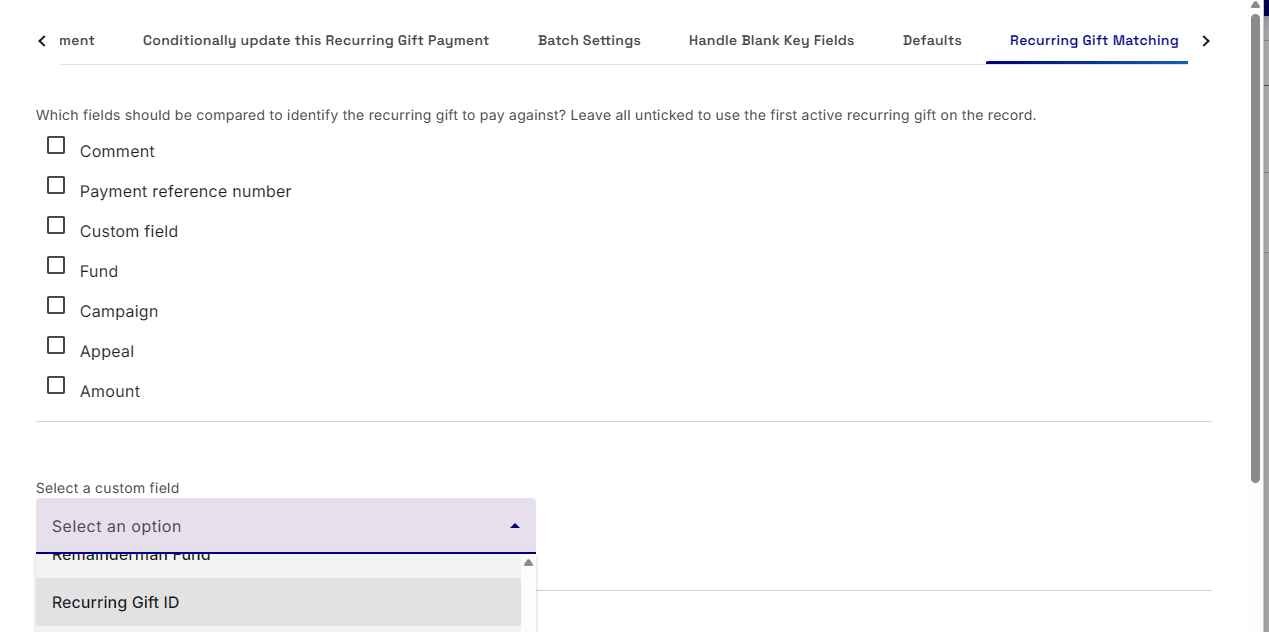
Custom Field (recommended) – If your Data Source contains a unique identifier that is present on the Recurring Gift Schedule and the Recurring Gift Payment, then as long the Gift Custom Field is mapped to the Recurring Gift Payment in the template (and the same Custom Field is present on the Recurring Gift Schedule in RE), then Importacular can be set to match on Custom Field. Please remember to tell Importacular which Custom Field to use.
Comment or Payment Reference – You can use either of these options too to match on unique identifiers from the data source. Since these fields as a little more accessible to users in RE, they do run a higher risk of being altered by accident, making it harder to match on.
Amount, Campaign, Fund and/or Appeal – If no unique identifier is available, but you have suitably added your Recurring Gift Schedules with a unique set of funds, appeals and campaigns, selecting any number of these options should help you identify the correct Schedule.
First Found – If you leave all the options unchecked/unticked, then Importacular will seek to find the first active Recurring Gift Schedule it comes across on a record
Use the values from the Schedule
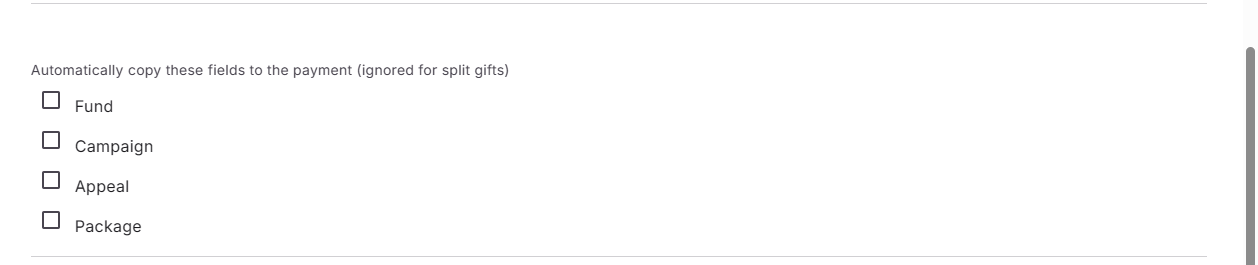
If your payment data does not contain enough information to determine what the correct Campaign, Fund, Appeal and/or Package as was assigned to the Recurring Gift Schedule, you can have Importacular use those same values when creating the payment.
What should happen when no match is made
You can choose what should happen if Importacular is not able to find a suitable match for the Recurring Gift Schedule. Your options are:
Raise an Exception – This will not add the Recurring Gift Payment, but create an exception for you to fix in the future.
Create a one-time gift – It will add the Recurring Gift Payment as a One-Time Gifts with the Gift Type of ‘Cash and not ‘Pay-cash’

When match is found but the transaction date or amount don’t match
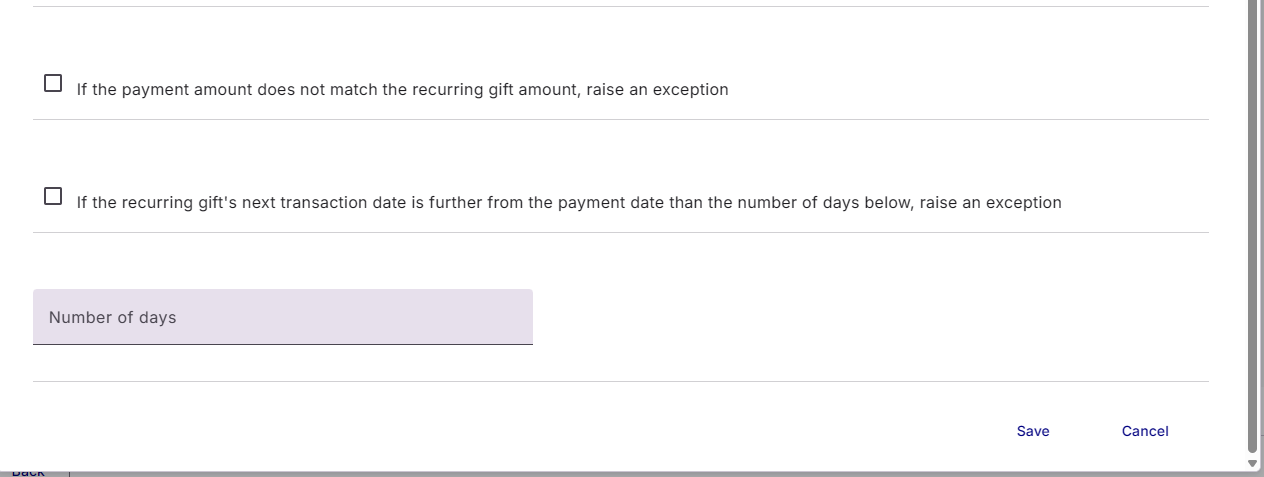
If a Recurring Gift Schedule is found, but the amount isn’t what is expected or the Transaction date isn’t what was scheduled, then you can choose what should happen: Should the gift still be imported or should it raise an exception. By default, these options are unchecked, so that payments are imported.