

The Gift Split mapping allows you split the gift amount across more than one appeal, fund, campaign and package. You can choose to work with amounts set up in your data source (if, for example, there are separate columns for the split amounts), a percentage or a fixed amount with a remainder (if all of the records have the same amount for a split).
To begin, you will first need to map a Gift. Once you have attached a Gift to the relevant record on the Canvas, you can attach your Gift Splits. You don’t need to map the fields in the Gift before you map your Splits, but if you do, some notifications will appears telling about what to do with Amount, Funds, Appeal and Campaigns.
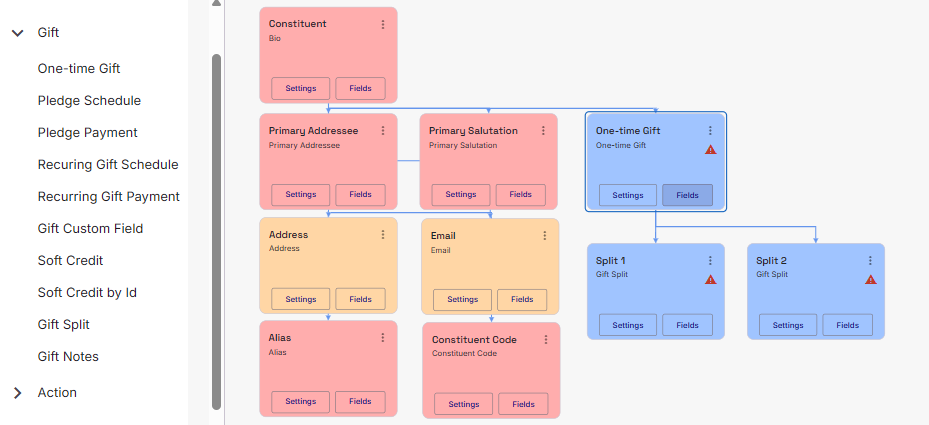
When mapping the fields to your Splits, if you have the Gift Amount already split up in your data source, you will need to select those amounts when you create the splits.
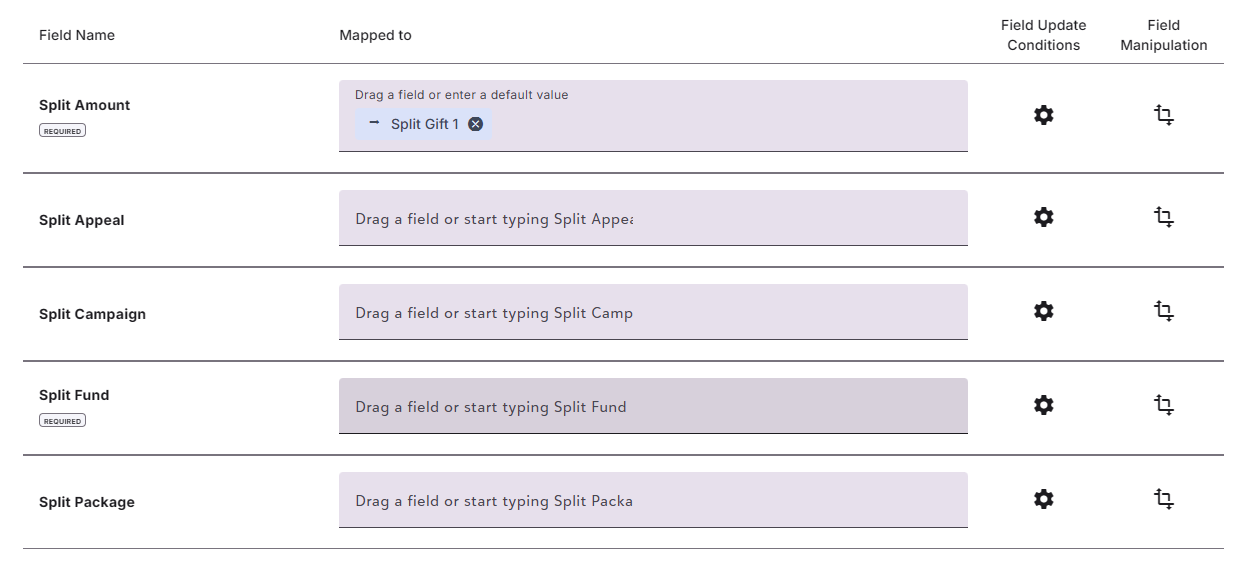
Using Proportions
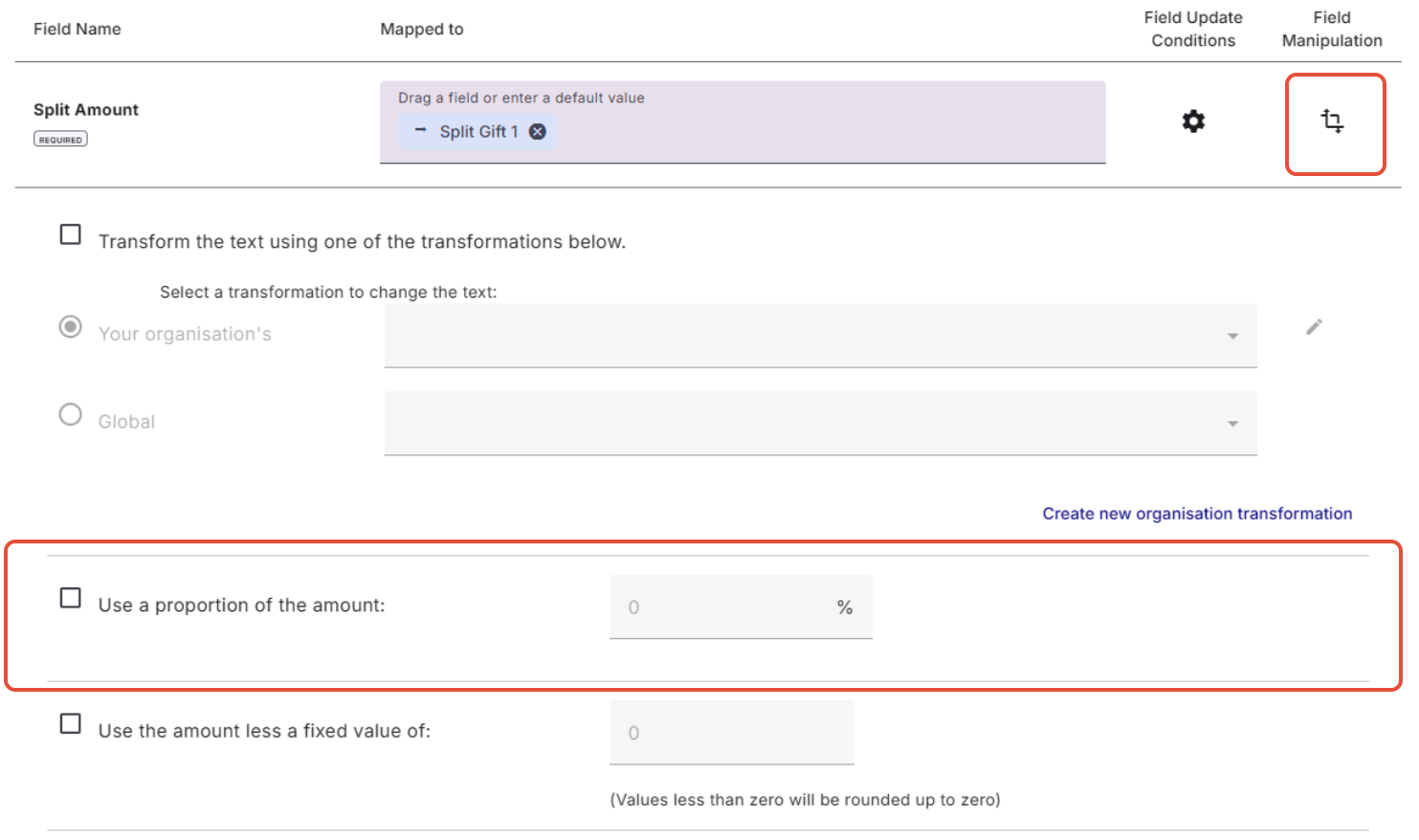
If you do not have Gift Amounts already split up in your Data Source, you can take the total gift amount and split them by percentage. Just head to Field Manipulations on the Split Amount field. and head to the ‘Use a proportion of the amount’ section and type in the percentage. Make sure you do this on all your split gifts amounts and that the total percentage make up 100%.
Less a Fixed Value
Alternatively, you can split the gift based on fixed amounts using the second check box in the screen. For example, $10 goes to an event fee and the remainder is a donation.
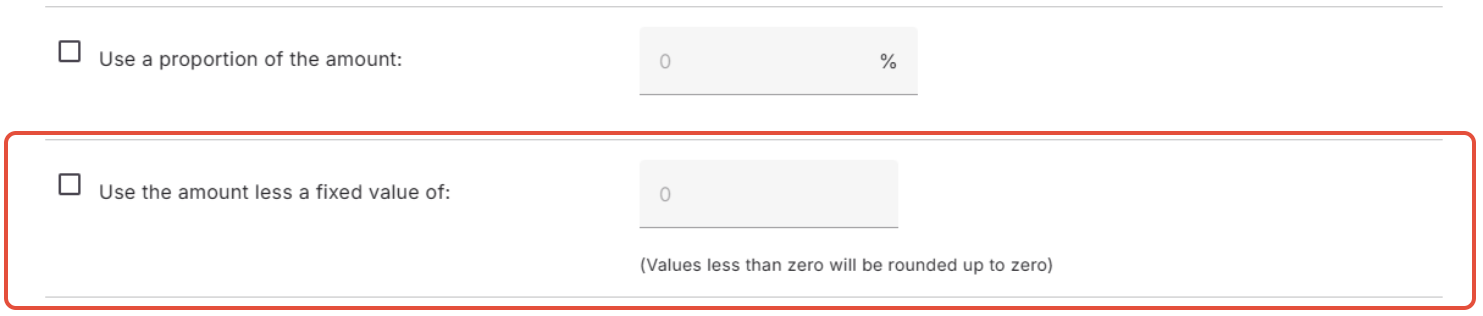
In this scenario, Split 1 is set the Gift Amount from your Data Source and Split 2 is given a default value of $10. The ‘Use the amount less a Fixed Value of’ = 10 is applied only to the Split 1 Amount’s Field Manipulation.
Exceptions
Please note that you will need to create splits to equal the total amount for the gift (if using a percentage, the mappings should equal 100%). If the value of the mapped splits does not equal the total of the gift, you will see an exception when you go to commit your Batch in Raiser’s Edge.
On the Main Gift
Once you have mapped your Gift Split mappings, head back to the main Gift. You will see that Appeal, Campaign, Fund and Package can no longer be selected.
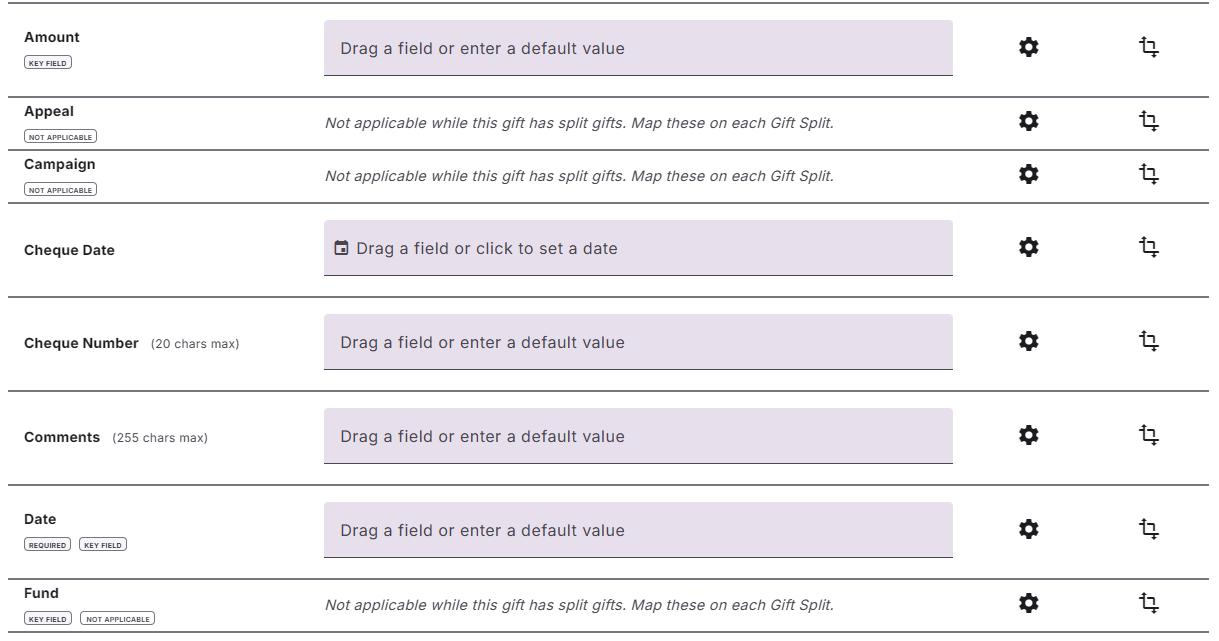
When mapping the Amount, make sure that you are mapping an amount that will equal the total of your splits. Within Amount’s Field Manipulations, there are some additional options to consider
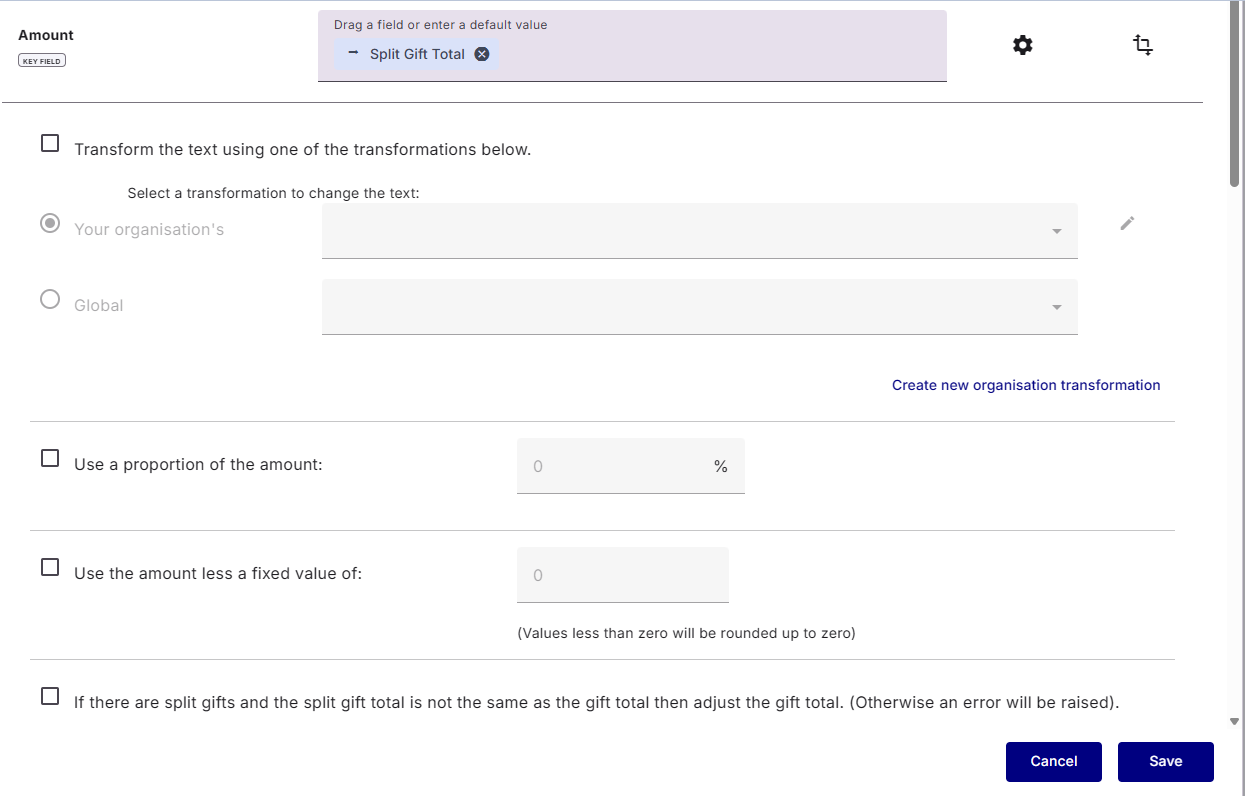
Use a proportion of the amount and Use the amount less a fixed values of can be used in conjunction with a single Gift Split. See above for more information bout these two options.
When the total amount does not equal the values of the Gift Split Amounts, you can choose to adjust the Total Amount, rather than an exception being raised, by checking ‘If there are split gifts and the split gift total is not the same as the gift total then adjust the gift total. (Otherwise an error will be raised).’