
The Tribute Data Destination allows you to import a donor, a tribute constituent, a link between a gift and the tribute record, and a tribute acknowledgee link (for those organisations that have have the Individual Relationship Data Destination) all in one import.
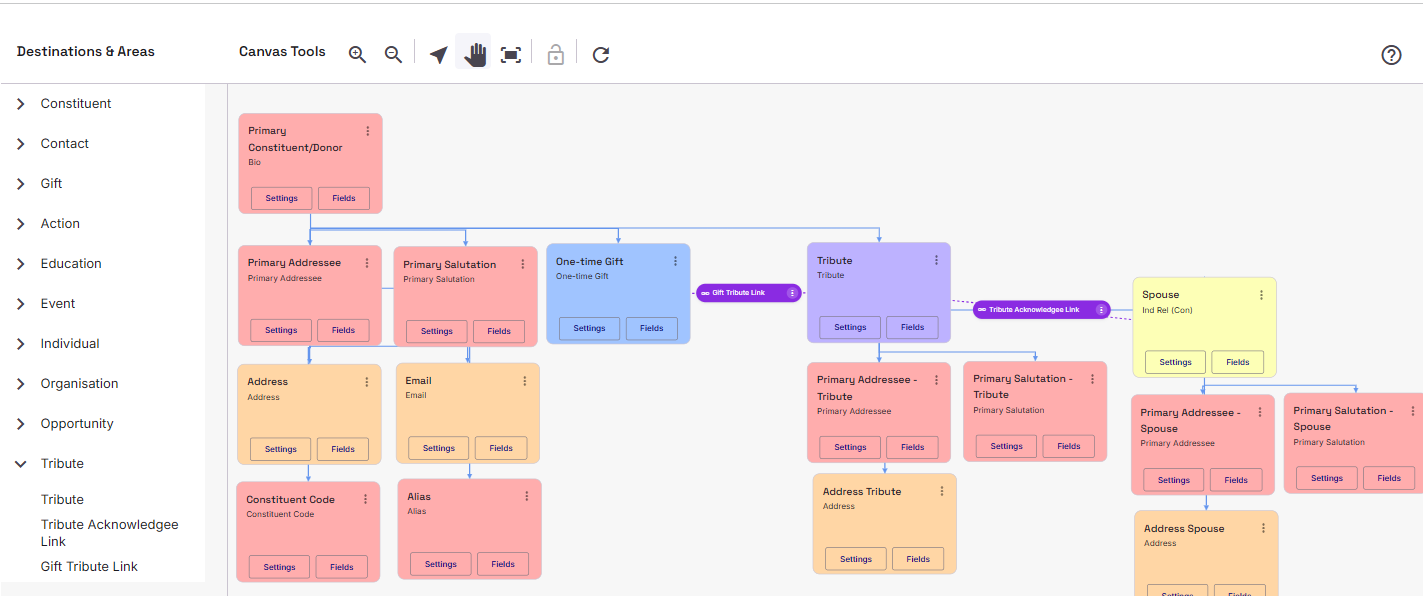
Tribute Area
The Tribute Area mapping behaves like any other Constituent Mapping where you can add Contact and Constituent Mapping Areas to it. The Tribute Area also includes all the standard fields you would expect for a Constituent as well as some additional fields. Tribute Type is a required field that will need to be populated.
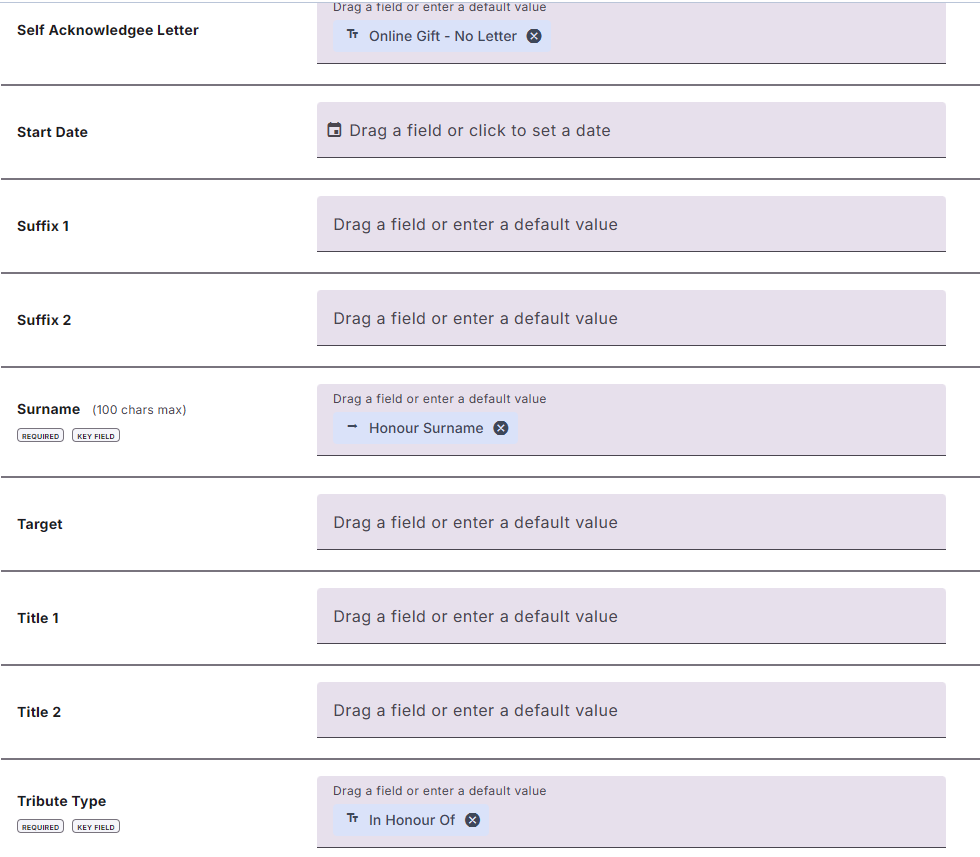
It also includes the field Self Acknowledgee Letter. This should be used in conjunction with the Tribute Area setting of ‘Add the honoree as an acknowledgee of the tribute’. This matches the tribute form in Raisers Edge NXT, which lists the honoree (“Self”) as an acknowledgee. The acknowledgee is added once per tribute; map Self Acknowledgee Letter to give it a letter
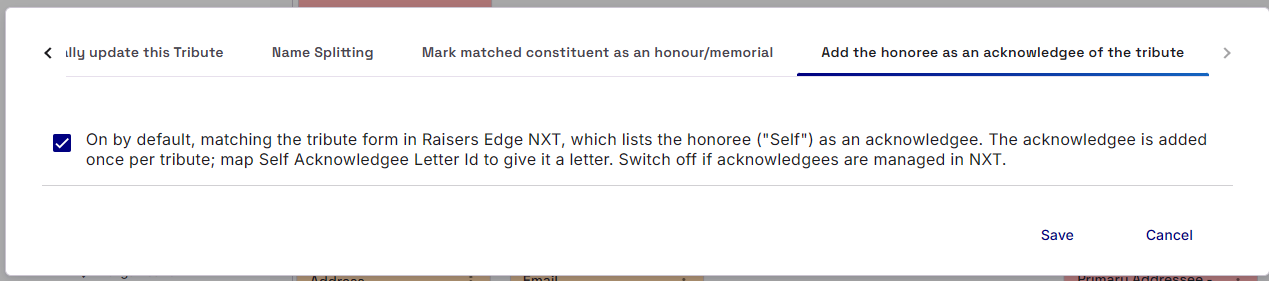
Tribute Area Settings
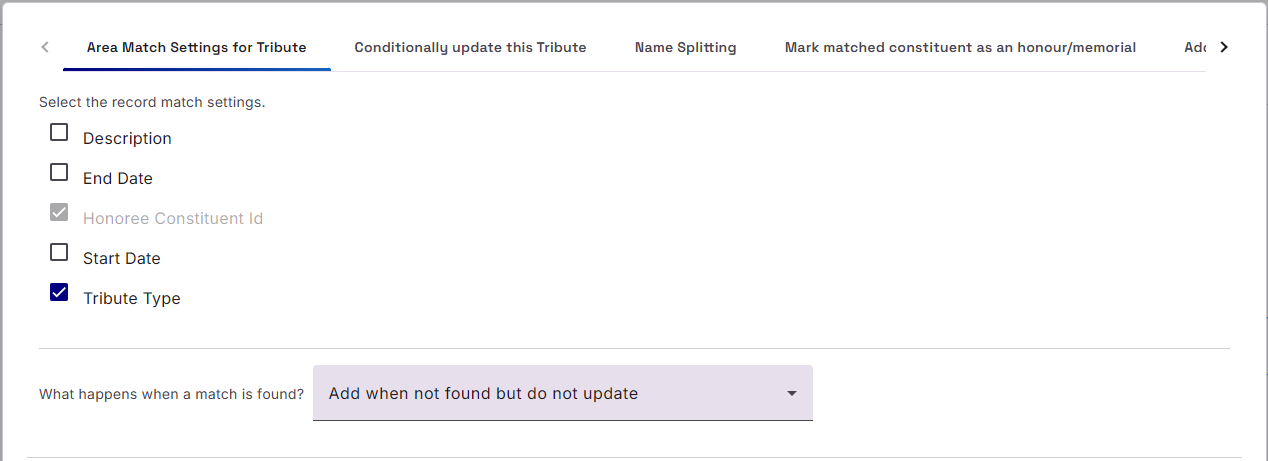
The Tribute Area Settings include the standard Area Match Settings, Conditionally Update settings and the Name Splitting options as well as two Area setting specific to Tributes: ‘Add the honoree as an acknowledgee of the tribute’ (see above) and ‘Mark matched constituent as an honour/memorial‘ (see below)
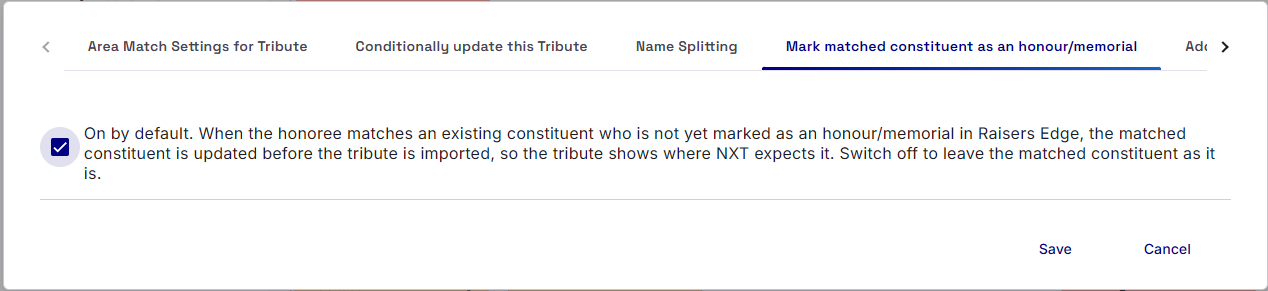
Mark matched constituent as an honour/memorial
When the honoree matches an existing constituent who is not yet marked as an honour/memorial in Raisers Edge, the matched constituent is updated before the tribute is imported, so the tribute shows where NXT expects it. Switch off to leave the matched constituent as it is.
Gift Tribute Link
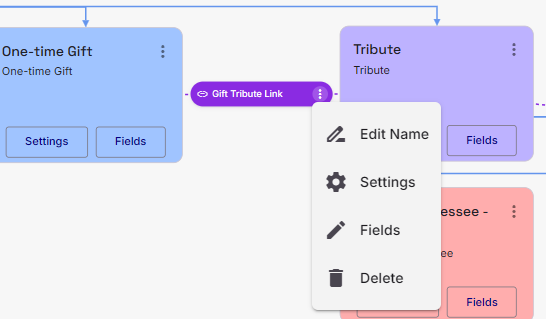
Drag the Gift Tribute Link onto the Tribute. Once attached, pull the link on to the appropriate Gift on the Canvas. A purple, ‘pill-shaped’ link will appear.
Clicking on the stacked dots will present a menu where you can edit the name of the Link, go to area Settings, map Fields, or delete.
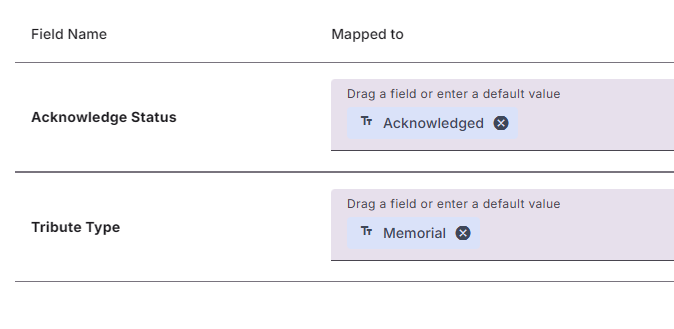
The Field mapping offers two fields to consider: Acknowledge Status and Tribute Type
Tribute Acknowledgee Link
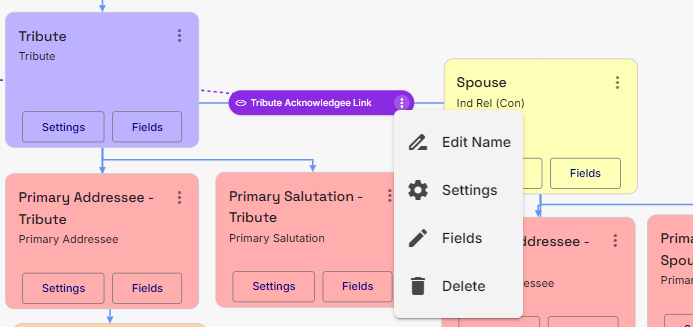
Drag the Tribute Acknowledge Link onto the Tribute. Once attached, pull the link on to the appropriate Individual Relationship on the Canvas. A purple, ‘pill-shaped’ link will appear.
Clicking on the stacked dots will present a menu where you can edit the name of the Link, go to area Settings, map Fields, or delete.
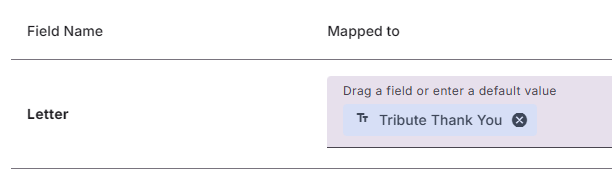
The Field mapping only offers one field to map: Letter