
Across all Area Mappings, there are Area Settings that should be considered. Some of these option are common across all Area Settings, and some are very specific to that area. Across this User Guide, we explain what each of these settings mean and how they can influence your import.
Area Match Settings
The Area Match setting is often the first tab on any Area Setting. Not all of them have options to apply, but most allow you to select the criteria that Importacular will use to identify if that area in question already exists on a record and provide you with options on what to do when a match is found
Conditionally Update
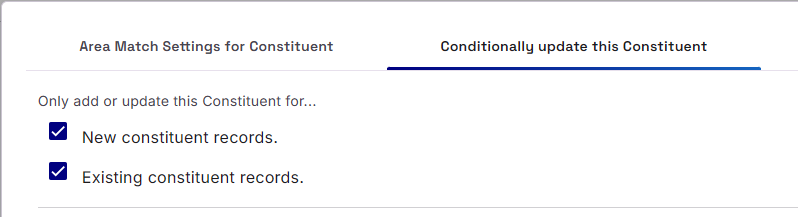
Conditionally Update provides two sets of options that you can apply. This first is where you can choose to apply the Area only if the Constituent is New, only if the Constituent Exists or both.
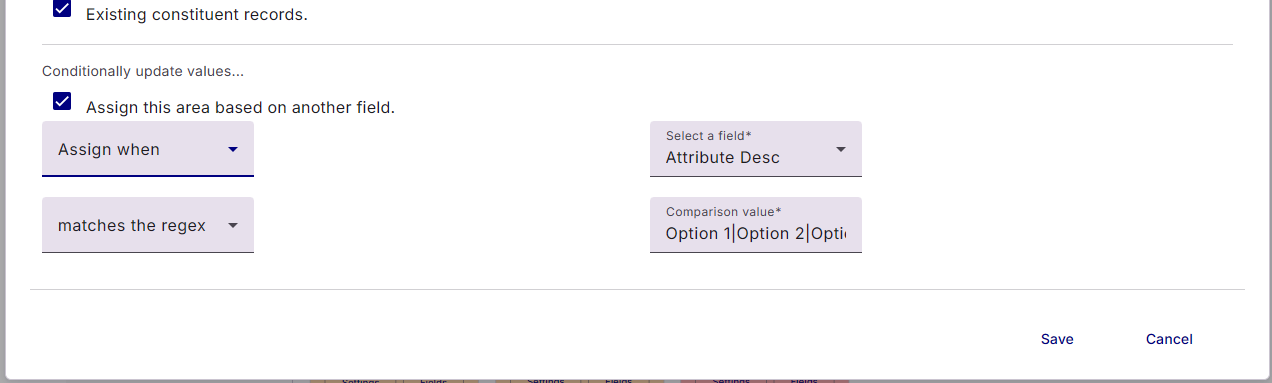
The other option is to apply a Conditional Update setting where you can choose to add or ignore the Area based on the value of field within the Data Source. There are a number of different options to choose from with regards to the nature of that fields value, such as ‘is blank’, ‘is not blank’, ‘is exactly equal to’, ‘does not equal’, ‘is less than’, ‘is greater than’, or ‘matches the regex’.
With ‘matches the regex’, this refers to applying a Regular Expression. The most common use of this is to allow you to put in multiple values that the Data Source field could equal. For example, you can select ‘match the regex’ and type in the exact values you wish Importacular to match against separated with a | (pipe) “Option 1|Option 2|Option 4”
Name Splitting
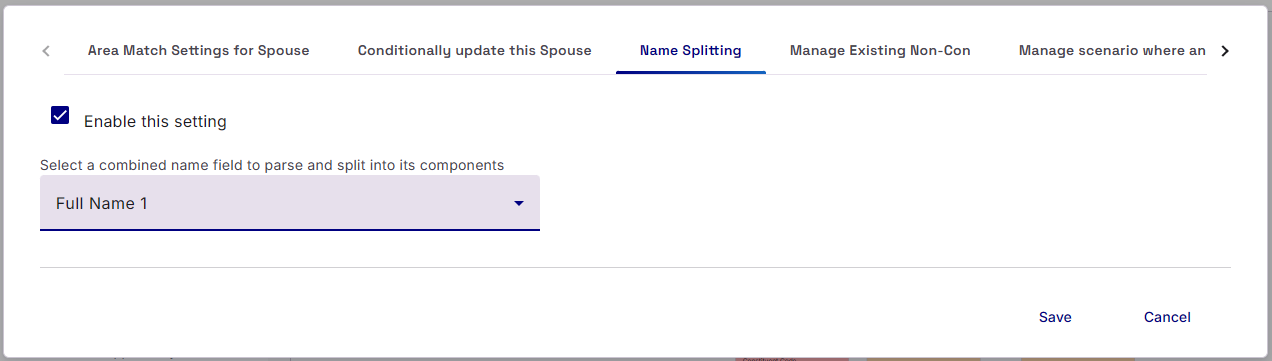
Raiser’s Edge and Importacular require that your Constituent and Non-Constituents have a name. These are split in to their component parts: Title, First Name, Middle Name, Last Name, Suffix. However, if your data source does not provide a name in this format, but containing a data subject’s full name within a single field, then the Name Splitting tab will help. Here you can select the data source field that contains the Full Name and Importacular will automatically split up the name and present them as separate fields to map.
These separate, generated, Name fields will be added to the bottom of your Data Source fields in the relationship Field mapping page, with the Name of the original Field that was split, the Name component it represents and a §.

Match to a Fixed Record
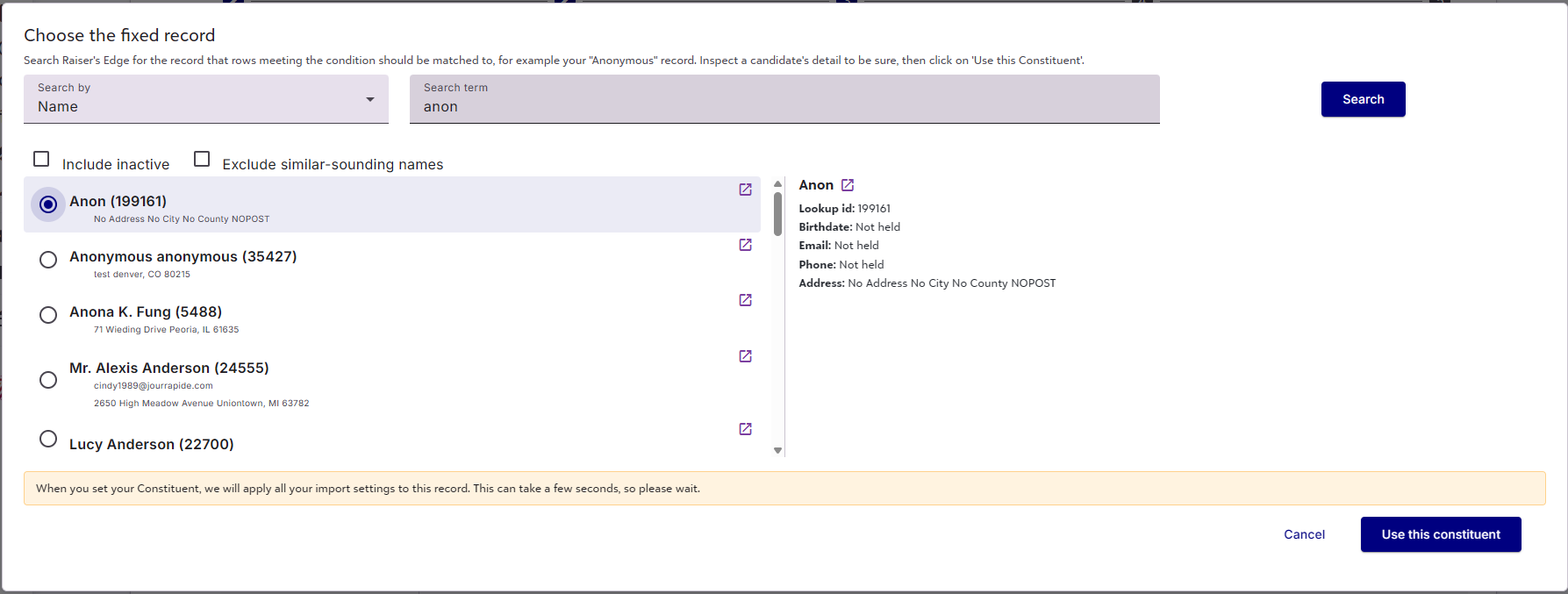
Found within the Primary Constituent Area Mapping, you can use this Area Setting to choose to match multiple incoming records to a fixed single record. Specifically, if you have donations that you wish to import, but some of the donors have not consented to having their detailed stored in your RE. You can tell Importacular which field in the data source to look at and what value that field should have to highlight which records to consider and then choose a specific record (such as a Dummy or ‘Anonymous’ Record’) in your RE where Importacular should place those Donations as Gifts.
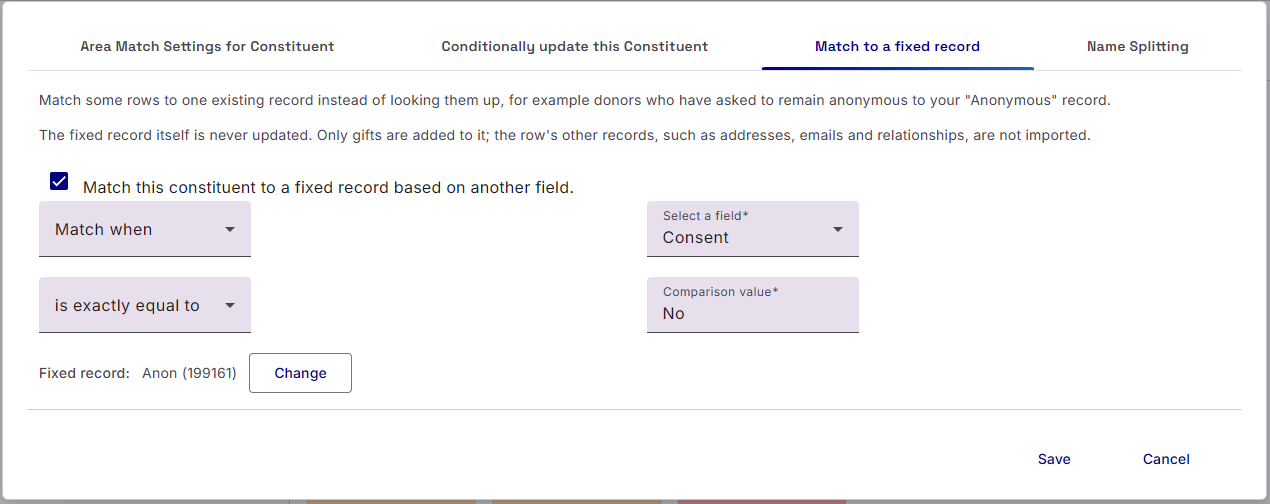
When a Fixed record is selected, the fixed record itself is never updated. Only Gifts and Gift Custom Fields are added to it; the row’s other areas, such as addresses, emails and relationships, are not imported.